



SPAM filters
Spam filters detect and block unsolicited and malware-laden emails using algorithms and various filters to protect against phishing, viruses, and scams. LiveAge...
5 min read
Spam Filters
Email Security
+2

Stop phishing before it reaches your queue with SPF, DKIM, DMARC, a secure email gateway, and an AI Spam & Irrelevance Filter that catches what rules miss.
Support teams face a unique security challenge: their job requires opening emails from unknown senders, processing attachments, and clicking links sent by strangers. This makes support inboxes a prime target for phishing attacks. A single successful phishing email that reaches a support agent can lead to compromised credentials, data breaches, or lateral movement into internal systems.
The good news is that a layered defense strategy combining email authentication, AI-powered filtering, and agent training can stop the vast majority of phishing attempts before they ever reach a human. This guide walks you through each layer, from the basic protocols every domain should have to advanced AI-driven ticket validation that catches threats traditional filters miss.
Difficulty: Intermediate Time to implement: 1 to 3 days for full configuration Prerequisites: Admin access to your email server or help desk platform, access to DNS records for your domain
| Tool or access | Purpose |
|---|---|
| DNS management console | Configure SPF, DKIM, and DMARC records |
| Email server admin access | Set up server-side spam filtering |
| Help desk platform admin | Configure automation rules and AI filter settings |
| Security awareness training materials | Train agents on phishing detection |
| AI spam filter (such as LiveAgent’s AI Spam & Irrelevance Filter ) | Catch advanced threats that bypass traditional rules |
Email authentication is your first line of defense. These three protocols work together to prevent attackers from spoofing your domain and help receiving servers identify forged emails.
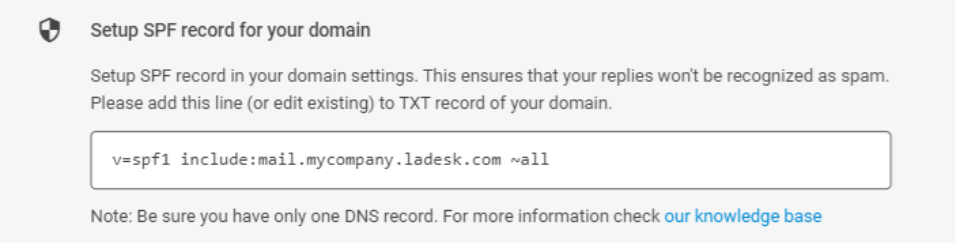
SPF (Sender Policy Framework) tells the world which mail servers are authorized to send email on behalf of your domain. Without SPF, an attacker can forge the “from” address to impersonate your company.
v=spf1 include:_spf.google.com ~allDKIM (DomainKeys Identified Mail) adds a cryptographic signature to each outgoing email. Receiving servers verify this signature against a public key published in your DNS to confirm the email was not tampered with in transit.
DMARC (Domain-based Message Authentication, Reporting, and Conformance) ties SPF and DKIM together with a policy. It tells receiving servers what to do when an email fails authentication: nothing (p=none), quarantine it (p=quarantine), or reject it outright (p=reject).
p=none and monitor the DMARC reports to identify legitimate sending sources you may have missedp=quarantinep=reject so fraudulent emails never reach any inboxWarning: Jumping straight to
p=rejectwithout monitoring can cause legitimate email from third-party services to be silently dropped. Always start withp=noneand review reports first.
Even with authentication in place, attackers can send phishing emails from domains they control. A secure email gateway (SEG) inspects every inbound message and blocks or quarantines those that match threat patterns.
Most modern email platforms include built-in protection:
When selecting an email security solution, look for these capabilities:
.exe, .vbs, .js, macro-enabled Office documents, and password-protected archivesOnce email-level filtering is in place, the next layer sits inside your help desk or ticketing system. Most platforms include native spam detection that catches what the email gateway missed.
For Zendesk users: The spam filter is enabled by default for help center content. For tickets arriving via email, configure triggers that detect spam patterns and route them to a suspended or spam view. Zendesk reads the X-Spam-Status header to identify flagged messages.
For Freshdesk users: Navigate to Admin > Channels > Portals and enable CAPTCHA on public-facing forms to block automated bot submissions. The platform’s proactive spam filter assigns a score to each incoming ticket, and you can create automation rules that auto-close or delete tickets above a threshold.
For LiveAgent users: LiveAgent offers a multi-layered approach to spam prevention. The platform’s AI Spam & Irrelevance Filter processes raw ticket data including message headers, HTML structure, and body content, evaluating each submission against your defined business context. It reliably distinguishes legitimate customer inquiries from spam, unsolicited sales outreach, phishing attempts, and other non-actionable messages.
For built-in email accounts, LiveAgent automatically runs all incoming messages through SpamAssassin on its cloud servers. Messages flagged as spam are imported with a Spam status, keeping them out of the active agent queue while still allowing review in case of false positives.
If you connect an external mail server via Google, Microsoft, or IMAP/POP3 connectors, LiveAgent reads the X-Spam-Status header your server adds and applies the appropriate ticket status automatically.

The latest tips and deals delivered straight to your inbox.
Traditional spam filters rely on known patterns: blocklisted IPs, suspicious keywords, and malformed headers. Phishing attackers know this and constantly adapt their techniques to bypass rule-based detection. This is where AI-powered filtering provides a critical additional layer.
An AI spam filter goes beyond keyword matching. It analyzes the intent, context, and meaning of each message. It can recognize that a cold sales pitch, an automated bounce notification, or a phishing email disguised as a password reset request is not a genuine support inquiry, even if the message contains no obvious spam triggers.
LiveAgent’s AI Spam & Irrelevance Filter does exactly this. It is one of several AI-powered features built into the platform, powered by FlowHunt. The filter evaluates each ticket against configurable criteria:
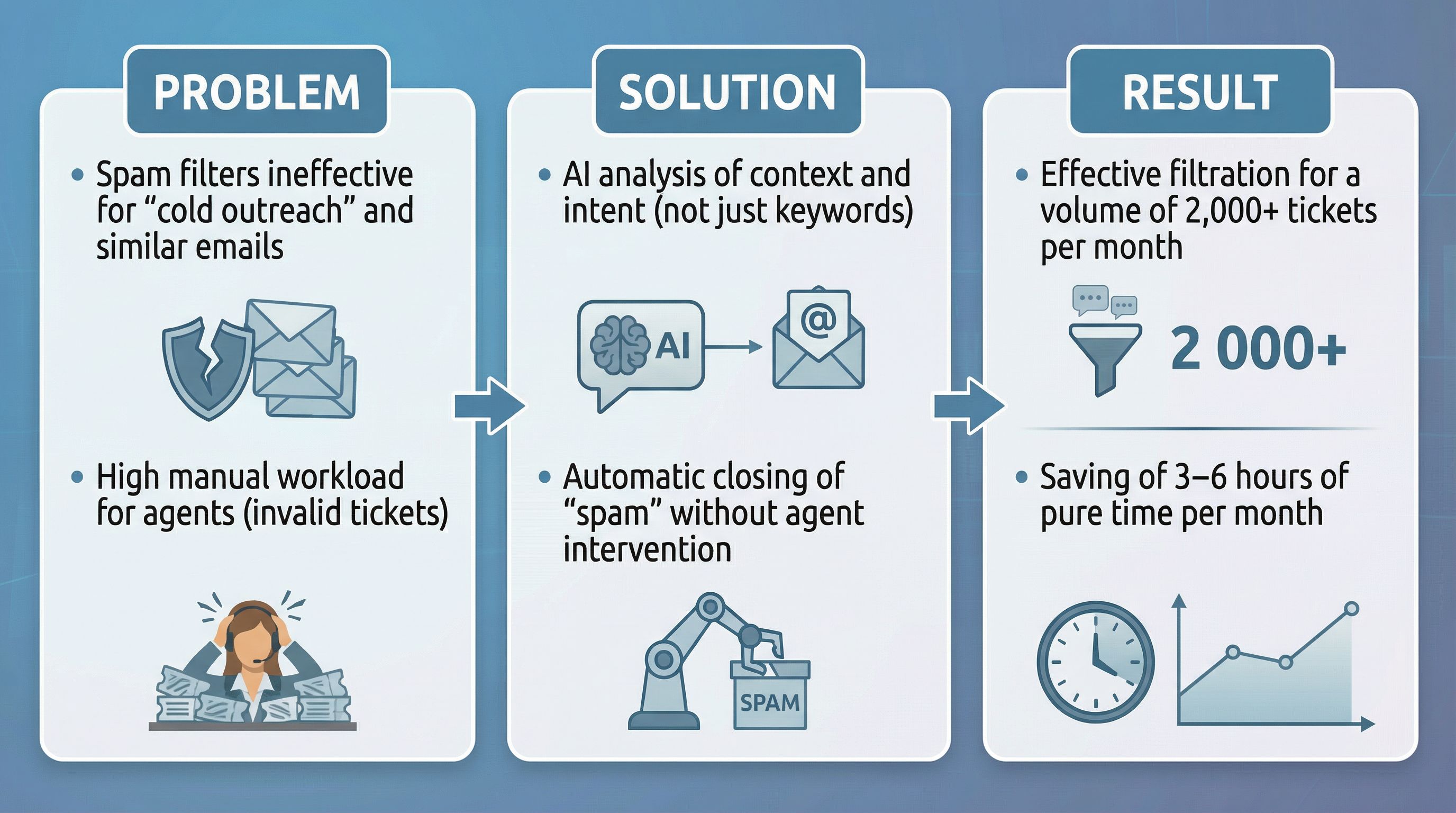
The AI Spam & Irrelevance Filter works as part of a broader ticket validation and autoresponse workflow. When a new ticket arrives, the AI agent evaluates it for relevance and clarity. Messages that pass validation can receive an automated knowledge-based reply. Messages flagged as spam, duplicates, or too vague to act on are filtered out before they reach a human agent.
Tip: The AI filter is credit-based via FlowHunt. Each validation operation consumes a small number of credits, making it affordable even for high-volume support teams. You only pay for the AI operations you use.
Filtering alone is not enough. You need clear automation rules that determine what happens to tickets once they are classified as spam. The goal is to keep your agents’ queues clean without permanently deleting anything that might be a false positive.
Create these automation rules in your help desk:
Rule 1: Auto-quarantine high-confidence spam
Rule 2: Flag medium-confidence tickets for review
Rule 3: Auto-close confirmed spam after review period
Important: Never immediately delete spam tickets. Always quarantine them first. A legitimate customer email caught by mistake is far more damaging than a few spam tickets in your queue.
For LiveAgent users, the AI Spam & Irrelevance Filter returns a strict TRUE or FALSE output that integrates directly with automation rules. You can configure rules that use this output to control exactly what happens to each ticket: route it to agents, tag it for review, or discard it entirely.
Many phishing attempts do not arrive via email. They come through web forms, chat widgets, and support portals. Securing these channels is essential.
Enable CAPTCHA on all public forms. This single step blocks automated bots that submit thousands of spam or phishing messages through contact forms. Most help desk platforms include CAPTCHA as a built-in option.
Add honeypot fields to custom forms. A honeypot is a hidden form field that real users cannot see but bots fill in automatically. If the field contains data, the submission is silently rejected.
Rate-limit submissions. Restrict the number of tickets a single IP address can submit within a time window. This prevents denial-of-service attacks and script-based spam floods.
Require email verification for new contacts. Send a verification link before allowing a new email address to create tickets. This adds friction for attackers while remaining manageable for genuine customers.
Use the AI filter on all channels. The AI Spam & Irrelevance Filter processes tickets from all sources, not just email. Whether a message arrives via chat, web form, or social media, the same validation logic applies.
No technical control is perfect. Some phishing emails will inevitably reach your agents. When they do, your agents need to be the last line of defense.
Train agents to recognize these red flags:
Run phishing simulations tailored to support scenarios. Standard corporate phishing tests are often too generic. Simulate realistic inbound scenarios such as fake password reset requests, escalated executive complaints, or vendor software verification emails.
Provide a one-click “Report Phishing” button in the email client or help desk. Make reporting fast and frictionless. Every reported phishing email improves your automated filters over time.
Spam and phishing tactics evolve constantly. A filter that works perfectly today may miss tomorrow’s attack. Continuous monitoring is essential.
Review the spam queue weekly. Assign a team member to check the spam or suspended tickets folder at least once a week. Restore any legitimate tickets that were incorrectly flagged and adjust your rules to prevent similar false positives in the future.
Track key metrics:
Update your rules regularly. Add new keywords, sender domains, and patterns as you discover them. If you observe a new type of phishing attack, create rules to catch it next time.
Retrain the AI filter. If your platform uses machine learning, consistently mark misclassified tickets as “Spam” or “Not Spam” to train the algorithm. In LiveAgent, the AI ticket triage and categorization agent learns from your team’s actions over time, improving accuracy with each corrected ticket.
| Problem | Possible cause | Solution |
|---|---|---|
| Legitimate customer emails are being marked as spam | Spam filter threshold too aggressive | Lower the spam score threshold, add the customer’s domain to the allowlist, or review the AI Spam & Irrelevance Filter configuration |
| Phishing emails are still reaching agents | Authentication not configured, AI filter not enabled, or bypass rules too permissive | Verify SPF/DKIM/DMARC are published, enable the AI filter, tighten automation rules |
| DMARC reports show legitimate mail failing | Missing SPF record for a third-party service (newsletter, CRM, invoicing) | Add the service’s sending infrastructure to your SPF record or DKIM-sign mail through it |
| High volume of bot-submitted spam through web forms | CAPTCHA disabled or ineffective | Enable CAPTCHA, add honeypot fields, implement rate limiting |
| Agents are not reporting phishing emails | Reporting process is too cumbersome or agents fear blame | Add a one-click report button, create a blameless reporting culture, share phishing statistics with the team |
| AI filter is using too many credits | Ticket volume is higher than expected or validation is running on every message | Adjust the automation rule to only trigger the filter on messages from unknown senders, or batch-process low-priority channels |
Preventing phishing emails from reaching support agents requires a layered approach. Start with email authentication (SPF, DKIM, DMARC), add secure email gateway filtering, and then layer on AI-powered detection that catches threats traditional rules miss. Configure your help desk to auto-quarantine spam, train your agents to recognize what survives, and continuously monitor and refine your system.
The combination of strong technical controls and an AI spam filter like LiveAgent’s gives your support team the best chance of staying focused on real customers, not phishing threats. With these layers in place, you can significantly reduce the risk of phishing emails reaching your support agents while keeping false positives to a minimum.
Share this article
Spam filters detect and block unsolicited and malware-laden emails using algorithms and various filters to protect against phishing, viruses, and scams. LiveAge...

Cisco Secure Email offers robust protection against phishing, spam, and malware for large companies. Integrate it with LiveAgent's ticketing system to enhance c...
Email forwarding in LiveAgent connects different email providers to your help desk for seamless ticket creation. Instantly transfer email communication without ...
Cookie Consent
We use cookies to enhance your browsing experience and analyze our traffic. See our privacy policy.