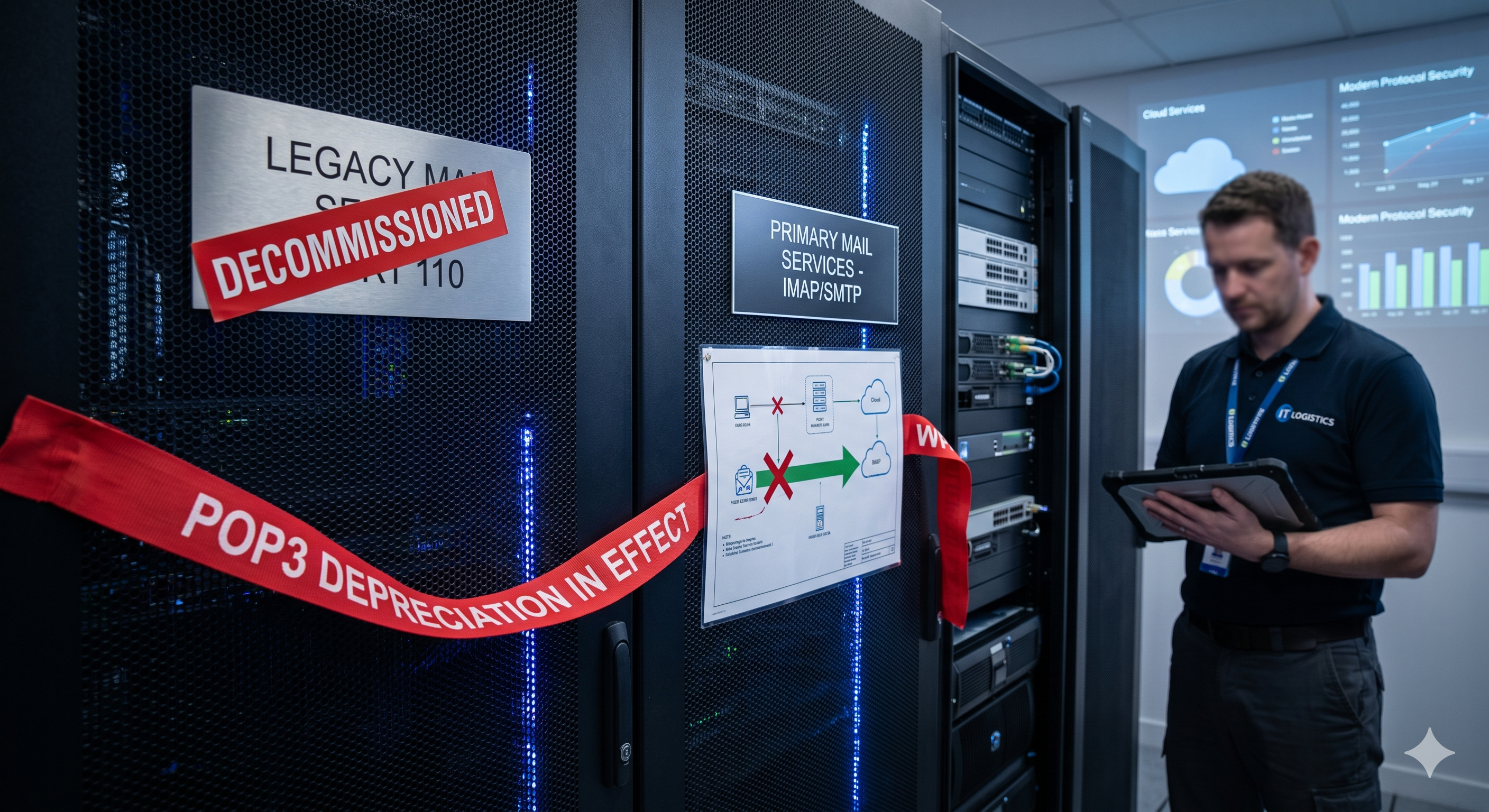
In Q1 2026, Google closed new sign-ups for its ‘Check mail from other accounts’ feature. Existing users have until January 2027. After that date, Gmail will no longer fetch email from external addresses via POP3 or Gmailify.
If you have been using Gmail to centralize email from multiple addresses, something in your workflow is going to break. This guide explains what changed, which migration paths exist, and how to decide which one fits your situation. For a broader look at Gmail POP3 alternatives, see our complete alternatives guide
.
What happened, and who is affected
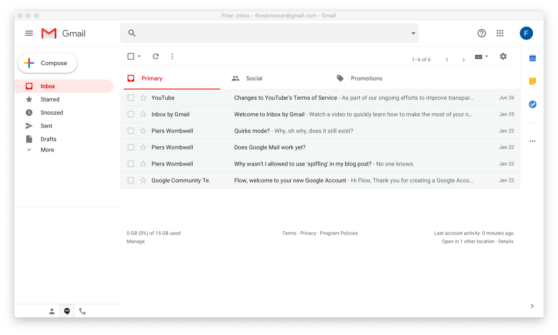
Google’s ‘Check mail from other accounts’ let you add an external address to Gmail so it would periodically fetch messages via POP3 and deliver them to your inbox. Gmailify was a related feature that added Gmail interface benefits to non-Gmail accounts.
The shutdown timeline:
- New users: feature closed in Q1 2026. You can no longer add new external accounts.
- Existing users: feature continues until January 2027, then stops.
- Affected accounts: both free Gmail and Google Workspace. This is a Gmail UI change, not a plan-level change.
How to check if you are affected
Open Gmail. Go to Settings (gear icon) > See all settings > Accounts and Import. Look for the ‘Check mail from other accounts’ section. If you see one or more external addresses listed there, you are using POP3 fetch and will be affected by the January 2027 cutoff.
If that section is empty or missing, you are not affected and do not need to take any action.
Three common misconceptions
‘Google Workspace protects me from this’
No. The shutdown applies to the Gmail interface regardless of whether your account is on free Gmail or a paid Google Workspace plan. The feature being removed is in the Gmail client, not tied to any subscription tier. Workspace users are equally affected.
‘I can just switch to IMAP instead’
Gmail’s own IMAP access is for connecting external clients (like Outlook or Thunderbird) to your Gmail account. It does not allow Gmail to pull messages from a different external mailbox. The feature being retired is inbound fetch, and IMAP does not replace it. If you want to connect external accounts to a support tool via IMAP, see the IMAP/POP3 setup guide
for a technical walkthrough.
‘Forwarding from my other mailbox will be enough’
Forwarding works in some situations but comes with real tradeoffs. Forwarded email is more likely to be flagged as spam because the message origin does not match the sending domain. More importantly, when you reply to a forwarded message, your reply comes from your Gmail address rather than the original address the customer wrote to. For professional use, that is often a problem.
Ready to grow your business?
Start your free trial today and see results within days.
Four migration options compared
There is no single right answer. The best option depends on how many people handle your email, how many addresses you manage, and what you need after migration. If you are not yet familiar with what a team inbox actually is, the article What is a unified inbox
explains the concept and the problems it solves.
| Feature | A: Email client (Outlook) | B: Google Workspace | C: Forwarding only | D: LiveAgent |
|---|
| Multiple address merge | Partial | No | Partial | Full |
| Team sharing and support | No | Partial | No | Full |
| Missed reply prevention | No | Partial | No | Full |
| Mobile and desktop parity | No | Yes | Yes | Yes |
| DNS change needed | None | Possible | None | None |
| Starting cost | Free | €8.40/mo/user | Free | $15/agent/mo |
Option A: Email client (Outlook or Thunderbird)
You install a desktop client and configure each email account separately. It works for one person managing their own addresses. The limitation is that it does not scale to teams: there is no shared view, no collision detection, and no visibility into whether a colleague has already replied. If you are a solo operator and only need to consolidate your own inboxes on one computer, this is a zero-cost option worth considering.
Option B: Google Workspace
Moving your domains to Google Workspace gives you proper multi-user email management under Google infrastructure. It works well if you want to stay in the Google ecosystem and are comfortable managing DNS records and MX changes. The per-user cost adds up quickly for larger teams, and you still need to set up shared inboxes manually. It is a reasonable choice if your main goal is reliable email hosting rather than support workflow management.
Option C: Forwarding only
Setting up forwarding rules at your domain is free and requires no new tools. It is the right solution if you have a very low volume of inbound messages and work alone. As your business grows, the problems compound: reply-from address mismatches, no thread tracking, and higher spam risk for forwarded messages. Treat this as a temporary bridge, not a long-term fix.
Option D: LiveAgent
LiveAgent connects to your existing email addresses via OAuth, IMAP, or forwarding without requiring DNS or MX changes. For Google accounts, Gmail OAuth connection
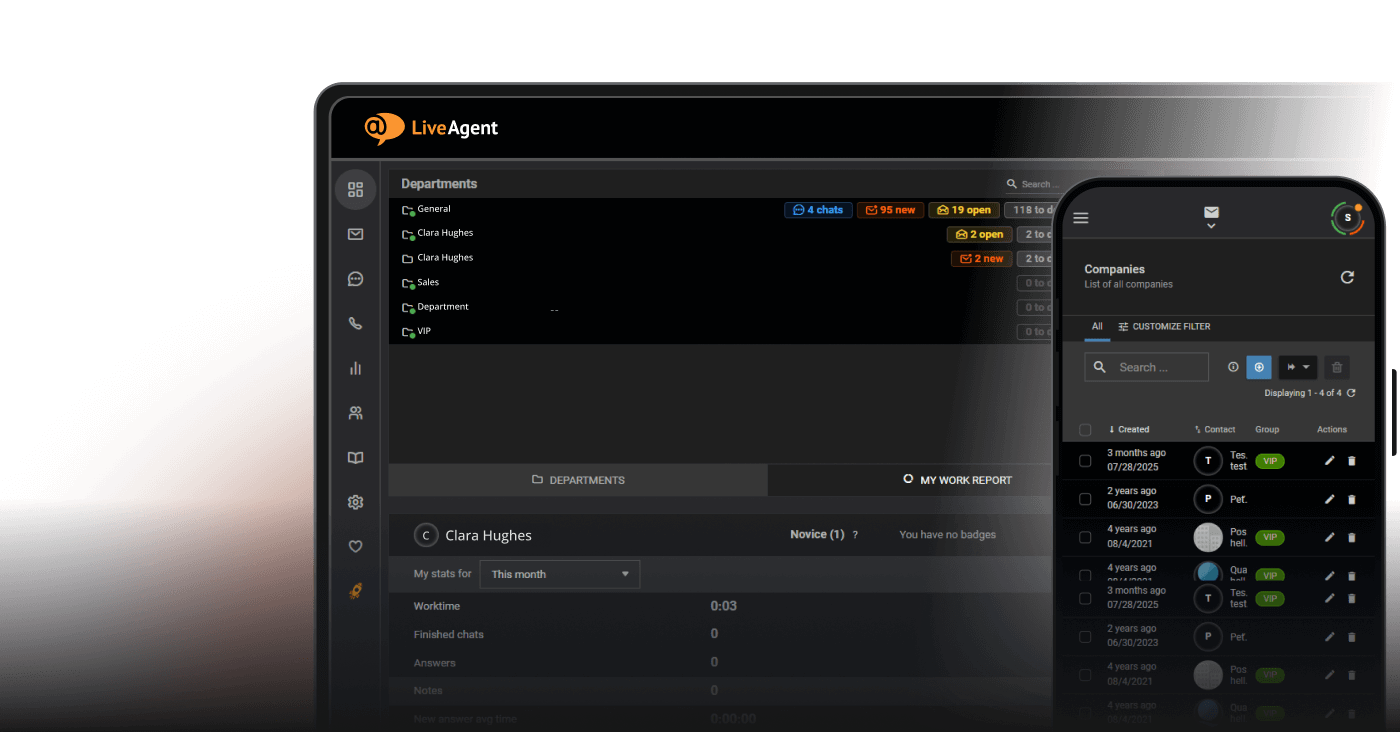
is the recommended method as it is more reliable than password-based IMAP. Every incoming message becomes a ticket. Your team sees a shared queue, assignments are tracked, and duplicate replies are blocked by collision detection. This option makes the most sense if more than one person handles customer email, or if you want support workflow features (SLA, departments, canned responses) rather than just email consolidation.
Migration timeline: why acting now makes sense
January 2027 may feel distant, but production email migrations rarely go smoothly under deadline pressure. A parallel-running period gives you a safety net.
| Phase | What to do |
|---|
| Now (Jun 2026) | Start a free trial. Connect your email addresses. Run parallel with Gmail POP3. |
| Summer 2026 | Commit to full setup. Configure departments, routing rules, and agent assignments. |
| Fall 2026 | Switch fully to LiveAgent for production. Stop relying on Gmail POP3 fetch. |
| January 2027 | Gmail POP3 and Gmailify fully shut down. You are already migrated — zero impact. |
Join our newsletter
The latest tips and deals delivered straight to your inbox.
How to migrate to LiveAgent in 5 steps
Step 1 — Sign up (5 minutes)
Create your LiveAgent account at liveagent.com. No credit card required for the trial. You keep your existing email addresses throughout.
Step 2 — Connect your email addresses (10 to 20 minutes)
In LiveAgent, go to Configuration > Email. For Google accounts, use the Gmail OAuth connection
method for the most reliable setup. For other providers, connect via IMAP or set up forwarding from your current mailbox. Full instructions are in the IMAP/POP3 setup guide
. No DNS or MX changes are required for most setups.
Step 3 — Set up departments and routing rules (30 to 60 minutes)
Create departments that match how your team is organized: Support, Sales, Billing. Set rules to route messages from each address to the right department automatically. Assign agents to departments.
Step 4 — Test in parallel (1 to 3 days)
Run LiveAgent alongside your existing Gmail POP3 setup. Check that messages are arriving correctly, routing rules are working, and agents can reply from the right address. Fix anything that looks off before you fully switch over.
Step 5 — Go live (15 minutes)
Once you are confident in the setup, stop checking email in Gmail and route all customer communication through LiveAgent. Your Gmail inbox stays intact for personal use. Existing emails in Gmail are not affected.
Related reading: Gmail POP3 alternatives: full guide
| What is a unified inbox
| IMAP/POP3 setup guide
| Gmail integration guide