


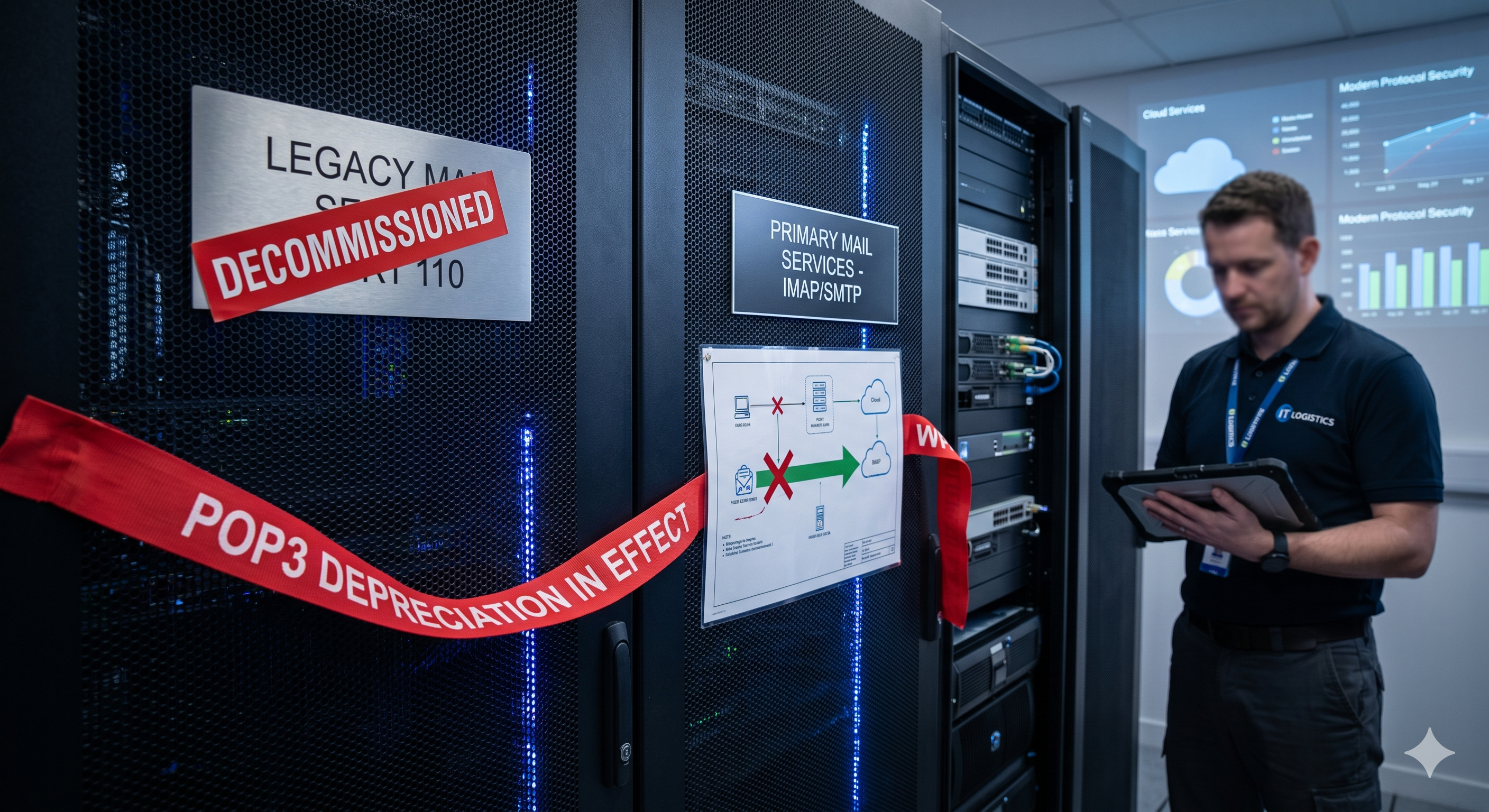
Gmail POP3 shutdown guide 2026: migration options compared
Gmail is shutting down POP3 email fetch in January 2027. This guide explains what changed, who is affected, and which migration option — email client, Google Wo...
6 min read
Gmail
POP3
+3

Google shut down Gmail POP3 fetch in 2026. If you pulled external email addresses into Gmail, your setup stops working in January 2027. Here are your real options — and how to choose the right one.
In January 2026, Google removed the ability to fetch emails from other accounts via POP3. If you managed info@, support@, and orders@ inside one Gmail inbox, that setup is now broken. Existing users have until January 2027 before the feature disappears entirely. If you have not found a replacement yet, this guide covers your real options — and helps you choose the right one for your situation.
For years, Gmail offered a feature called “Check mail from other accounts.” It used POP3 to pull emails from external addresses — your domain email, a legacy provider, a second business account — directly into Gmail. One inbox, multiple addresses, no extra apps.
Google shut it down for new users in early 2026. Anyone who had it configured before the cutoff can still use it — but only until January 2027. After that, the feature is gone for everyone with no replacement from Google.
Gmailify went with it. The integration that let you pull in Yahoo, Hotmail, and similar accounts directly into Gmail is no longer available for new connections either.
That leaves two options Google still supports: email forwarding and IMAP.
Forwarding sounds like a simple fix but creates real problems in practice. Emails forwarded from your domain provider often get flagged as spam by the receiving server. Deliverability drops and you miss messages without knowing it. When you reply, the email goes out from your Gmail address — not your business address. Your customer sees a personal Gmail instead of support@ or info@. It looks unprofessional, causes confusion, and makes it harder for customers to find your replies later.
IMAP in Gmail works on mobile, but not in the desktop web version. For anyone who manages business email from a browser — which is most small business owners — it simply does not work. You can add an IMAP account in Gmail settings, but you will only see it on your phone.
Neither option is a real substitute for what POP3 fetch provided: a single desktop inbox that aggregated multiple addresses with full send-and-receive capability.
Open Gmail on desktop. Go to Settings (the gear icon) → See all settings → Accounts and Import → Check mail from other accounts. If you see any email addresses listed in that section, you are using POP3 fetch. Those connections will stop working in January 2027. You need to set up an alternative before that date.

Start your free trial today and see results within days.
There is no perfect like-for-like replacement for POP3 fetch inside Gmail. The right solution depends on whether you work alone or with a team, and whether your email addresses are primarily personal or customer-facing.
| Feature | Email forwarding | Outlook / Apple Mail | Google Workspace | LiveAgent |
|---|---|---|---|---|
| Multiple address aggregation | Partial | ✓ | ✗ | ✓ |
| Team shared access | ✗ | ✗ | Partial | ✓ |
| Missed reply prevention | ✗ | ✗ | Partial | ✓ |
| Mobile + desktop | ✓ | ✓ | ✓ | ✓ |
| DNS change required | None | None | Possible | None |
| Starting price | Free | Free / $6+ | €8.40/mo | $15/agent/mo |
Forwarding is the path of least resistance. You set a rule in your domain provider or email host to forward all incoming mail to your Gmail address. It takes five minutes and costs nothing.
It works if your only goal is making sure emails arrive somewhere. It stops working the moment you need to reply professionally, manage multiple people, or track whether messages have been answered. Forwarding is a workaround, not a solution — and it has the deliverability and reply-from problems described above.
Both are legitimate alternatives if you work alone. You can connect multiple accounts via IMAP, reply from the correct address, and manage everything from a single desktop application. Outlook in particular handles multi-account setups well and has a strong mobile app to match.
If you are a solo operator — one person, a couple of email addresses, no team — this is probably the simplest migration path. It is free or low-cost, requires no new infrastructure, and your existing email addresses continue working exactly as before.
The limitation is that it is built for individuals. There is no shared access, no way to see whether a colleague has already replied to something, and no visibility into team workload or response times.
Google Workspace gives you a proper business email setup on your own domain, hosted by Google. It solves the “Gmail is my business email” problem cleanly. You get professional addresses, good spam filtering, and tight integration with Google’s tools.
What it does not do is aggregate multiple inboxes. Each address in Workspace is a separate account. There is no built-in way to see info@, support@, and orders@ in one view. Some aggregation is possible through delegated access or Google Groups, but the setup is fiddly and the result is still not a true shared inbox.
If your main problem was just using Gmail as a business email address and POP3 fetch was how you bridged that gap, Workspace is a clean upgrade. If your problem was managing multiple addresses and multiple people in one place, Workspace does not fully solve it.
LiveAgent is the right fit if you have a team, multiple customer-facing addresses, or any real volume of incoming email that needs to be tracked and responded to reliably. It is not an email client — it is a shared inbox platform built for businesses that handle customer communication.
The difference matters. An email client shows you messages. A shared inbox platform manages them: assigning ownership, tracking status, preventing duplicate replies, and giving you visibility across the whole team.
The goal here is not to find something that works the same way Gmail POP3 did. POP3 fetch was a workaround that let small businesses delay building a proper email infrastructure. Its removal is an opportunity to set things up the right way.
LiveAgent connects POP3, IMAP, Gmail OAuth , and forwarding — all in a single inbox. Every incoming email automatically becomes a ticket with a status, an assigned agent, and a full visible history. Your whole team can see at a glance what is open, what has been answered, who is handling what, and how long things have been waiting.
Your email addresses stay exactly the same. Customers continue emailing support@, info@, or orders@ as they always have. No DNS changes are required. You do not need to migrate your domain or change any settings on the sender’s side. From the outside, nothing changes — but internally, your team has real visibility and control for the first time.
Setup takes around 30 minutes for most small businesses. The first few days usually involve running LiveAgent alongside Gmail in parallel, checking both until you are confident nothing is being missed. Full migration typically takes one to three days.
The latest tips and deals delivered straight to your inbox.
These are the scenarios that expose the limits of forwarding and email clients — and where a shared inbox platform earns its cost within the first week.
The email came in on Friday afternoon. Three people on your team saw it in the shared Gmail account but each assumed someone else would pick it up. By Monday morning, the customer has already gone with a competitor. There was no system failure — just no clear ownership. With LiveAgent, every incoming email is assigned. If it is not picked up within a set time, it escalates. Nothing sits unanswered because everyone assumed someone else was handling it.
They sent the same message to both info@ and support@, wanting to make sure someone saw it. Two different agents reply with slightly different answers on the same day. The customer is confused and loses confidence. With LiveAgent, when two emails arrive from the same sender within a short window, they are merged into a single thread. One agent handles it, one consistent reply goes out.
You need them to handle customer emails starting Monday. With Gmail, your options are: share the account password (a security risk), create a new Google account and forward everything (messy), or add them as a delegate (limited and clunky). With LiveAgent, you add them as an agent in two minutes, assign them to the relevant department, and set exactly what they can see and do. No password sharing, no workarounds.
They emailed four days ago and got nothing. You need to find out whether the email arrived, whether anyone saw it, and whether a reply went out. In a shared Gmail account, you are searching through everyone’s sent folders hoping someone remembers. In LiveAgent, you open the ticket, see the full timeline — received, assigned, replied to, or still open — and have an answer in ten seconds.
Your business has grown to the point where response time is a real operational metric. A partner asks how quickly your team responds to customer emails on average. A new hire asks what the expected standard is. With Gmail, you have no data to show. With LiveAgent, response time, resolution rate, and ticket volume are tracked automatically and available as reports whenever you need them.
Moving from Gmail POP3 to LiveAgent does not require a hard cutover or a stressful migration weekend. You can run both systems in parallel for as long as you need to, switching fully only when you are ready.
Step 1: Sign up for LiveAgent
Go to liveagent.com and start a free 30-day trial. No credit card is required. You will be asked for your company name and a subdomain for your LiveAgent account — this is just for your team’s login and is not customer-facing.
Step 2: Connect your email addresses
In LiveAgent, go to Configuration → Email → Add mail account. You can connect accounts via IMAP, POP3, or Gmail OAuth. For Gmail-hosted accounts, OAuth is the simplest method — it connects in a few clicks without needing to configure server settings manually. For domain email hosted elsewhere, use IMAP with the settings your email provider gives you. LiveAgent will start pulling in new emails immediately after the connection is confirmed.
Step 3: Set up departments
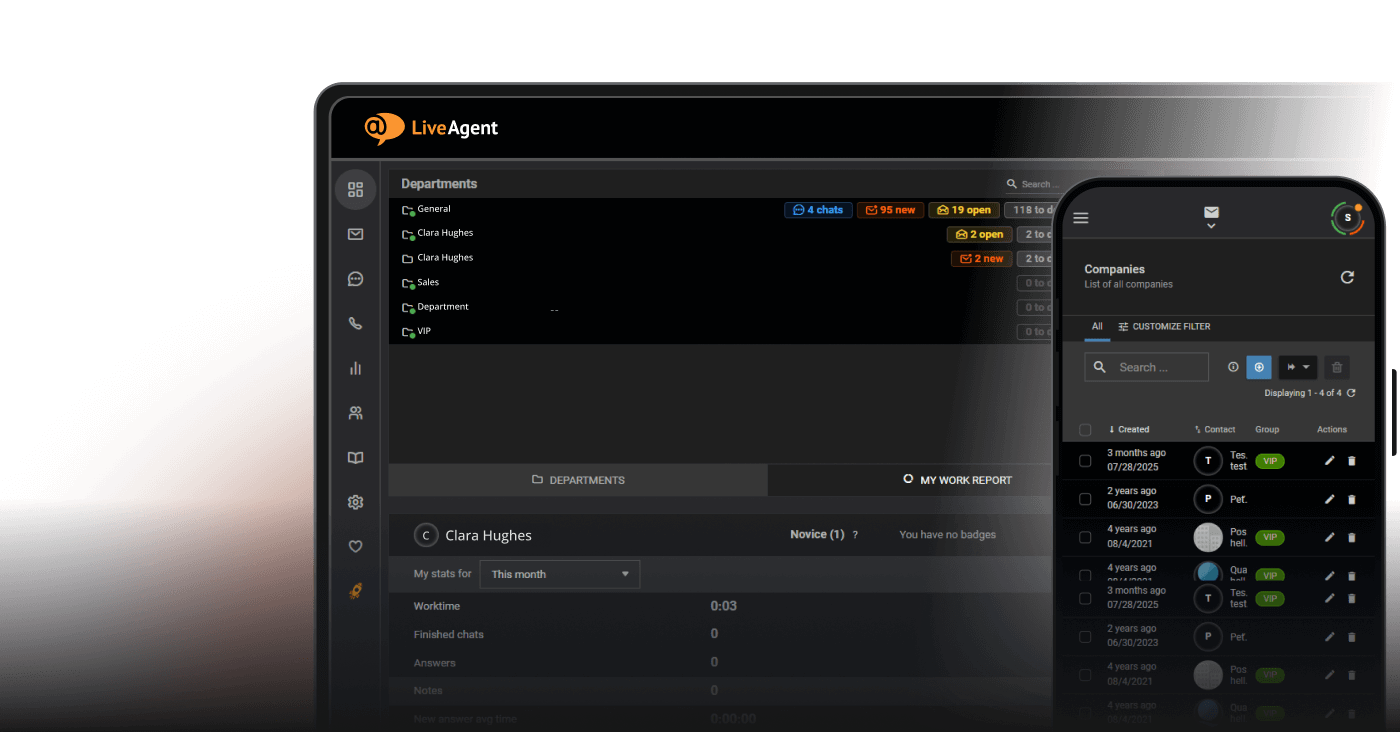
Departments in LiveAgent let you group addresses and route emails to the right people. A simple setup for a small business might be: Support (support@, hello@), Sales (info@, sales@), and Operations (orders@, billing@). Assign agents to each department based on their role. This takes around ten minutes and is the most important configuration step for making sure the right person sees the right emails.
Step 4: Run parallel for a few days
Keep Gmail open alongside LiveAgent during the first few days. Reply to emails from LiveAgent, but check Gmail as a backup to make sure nothing is being missed during the transition. Most teams find that after two or three days they are confident enough to stop checking Gmail regularly.
Step 5: Switch fully to LiveAgent
Once you are comfortable that all emails are arriving correctly and your team knows how to use the system, stop checking Gmail for those addresses. LiveAgent is now your inbox. The email addresses themselves have not changed — only where you manage them.
Total time: 30 minutes to set up, a few days to feel fully confident.
Parallel operation is still possible until January 2027 — but new POP3 setups are already closed. The window to migrate without pressure is now. Start your free trial, connect your email addresses, and run LiveAgent alongside Gmail for a week. By the time January 2027 arrives, you will have been using it for months.
Share this article
Gmail is shutting down POP3 email fetch in January 2027. This guide explains what changed, who is affected, and which migration option — email client, Google Wo...
Looking for a Gmail alternative after POP3 was removed? Explore 15 options — from personal email clients to business helpdesks — and find what fits your needs....
Discover top email management software for streamlining communication and boosting productivity. Learn about key features, pricing, and benefits to enhance emai...
Join our community of happy clients and provide excellent customer support with LiveAgent.
Cookie Consent
We use cookies to enhance your browsing experience and analyze our traffic. See our privacy policy.