



LiveAgent eCommerce Features
Enhance your eCommerce site with LiveAgent's fast live chat and knowledge base. Boost engagement, satisfaction, and sales.
2 min read
eCommerce
Live Chat
+2

WooCommerce is a free WordPress plugin that turns websites into online stores, offering features like blogging, product reviews, and various sales options. It integrates with LiveAgent for order management and customer support.
WooCommerce is a free e-commerce plugin for WordPress. It can help you turn your website into an e-commerce site through which you can sell your products or services. If you want to start using WooCommerce, all you need is a WordPress site and you’re good to go.
WooCommerce has all the important features you need to create a great e-shop. It has great blogging features, embedded products, checkout systems, custom categories, tags, product ratings and reviews, and unlimited image galleries amongst others.
The possibilities are endless– you can start selling both digital and physical goods, sell affiliate products, provide shipping options, payment gateways, tax options, and even geolocation support. WooCommerce can also help you with better order management and store optimization so more people will find your products online.

Start your free trial today and see results within days.
The WooCommerce plugin can be used to keep track of new customers, coupons, orders, products, line items in an order, or to see subscriptions from LiveAgent. You can also use it to create and update coupons, customers, orders, products, and subscriptions all from your help desk software.
Customer support remains a crucial part of any physical or online store. Use WooCommerce to sell your physical or digital products, while providing the best customer service. The connection between LiveAgent and WooCommerce can ensure your customer support team will always know about your customer’s orders and needs.
The latest tips and deals delivered straight to your inbox.
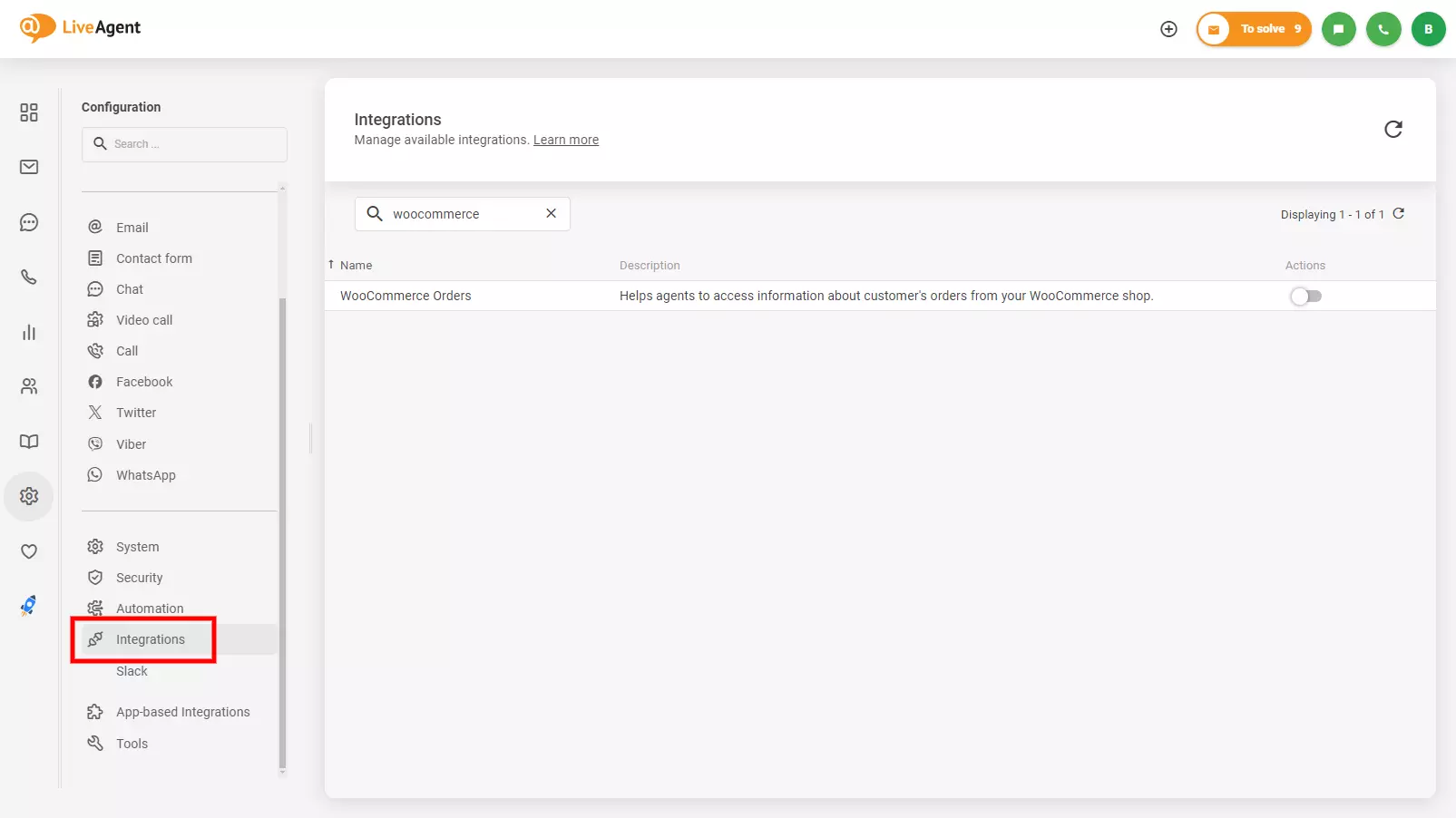
You can connect LiveAgent with WooCommerce via our native integration. You can find it in the LiveAgent configuration panel. Go to your account and open Configuration > Integrations and find the WooCommerce Orders plugin in the list. Click on the activate switch and LiveAgent will restart.
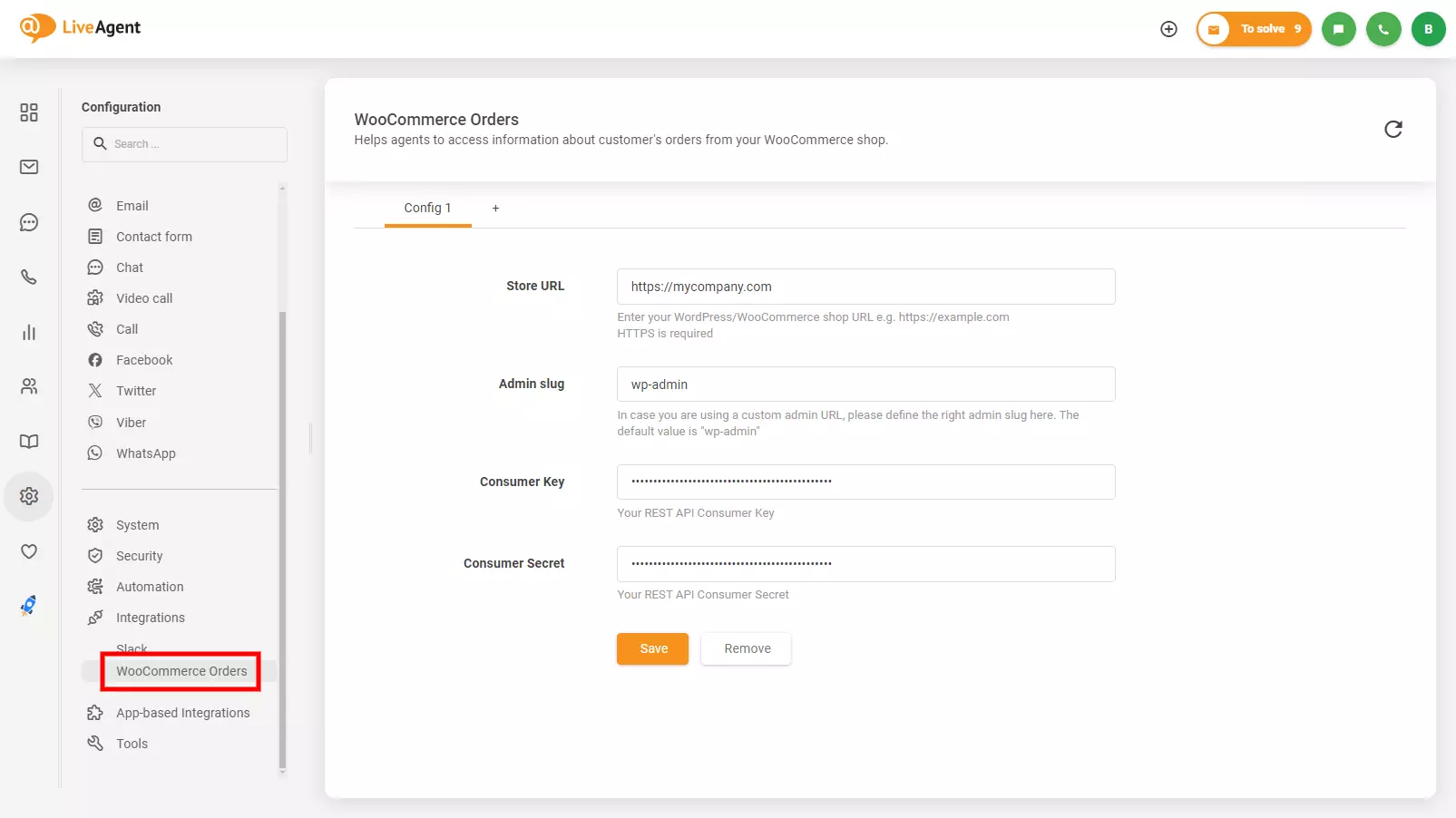
After the restart, configure the WooCommerce Orders integration in Configuration > Integrations > WooCommerce Orders. Put in your Store URL, Admin Slug, Consumer Key, and Consumer Secret, and click on Save.
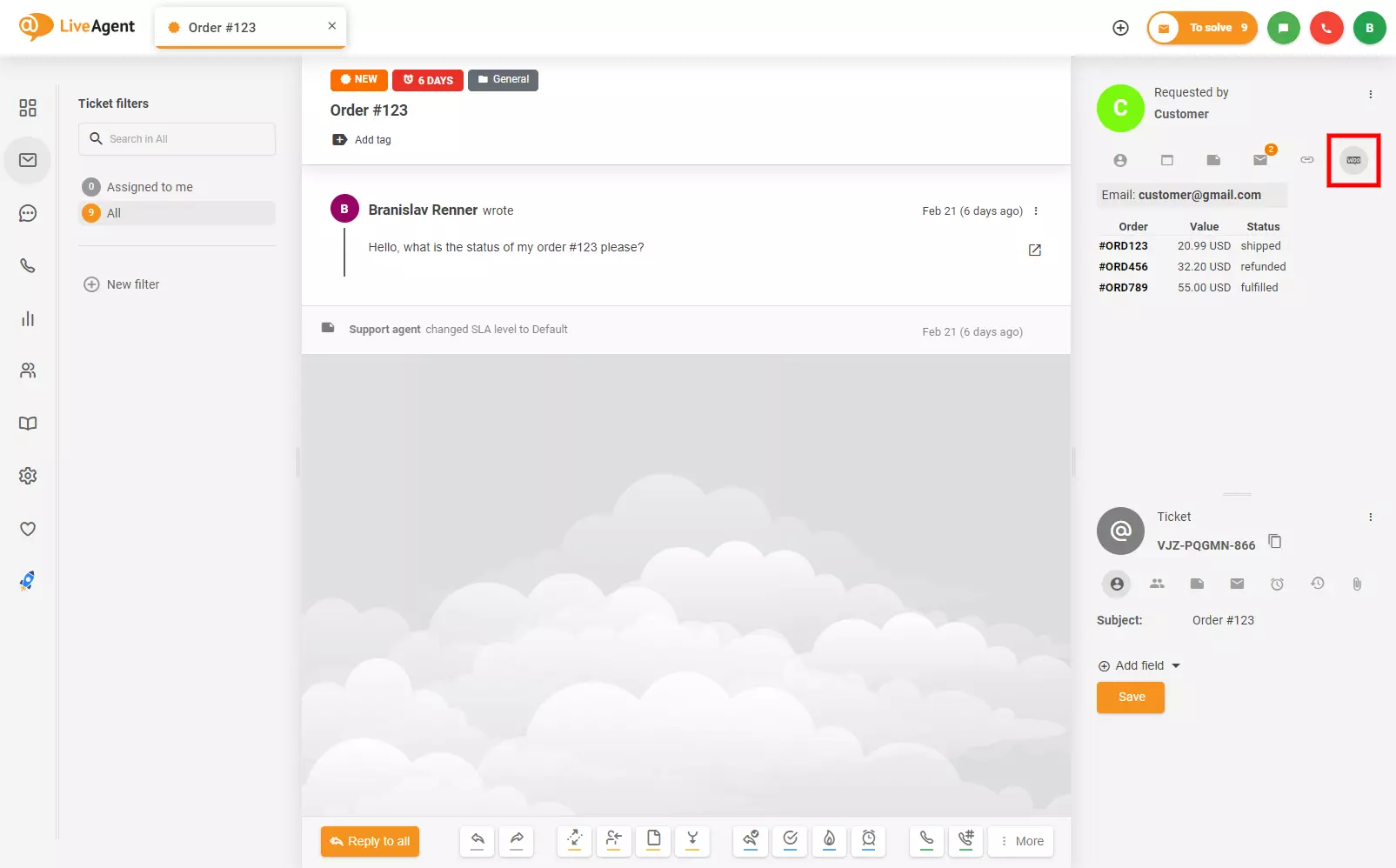
You’re done and the plugin is active. You should be able to see your WooCommerce Orders in your ticketing view and create new payments. Click on any order to be redirected to WordPress and view the order details.
If you want to create a custom-tailored integration, you can try doing so with Zapier. If you don’t have a Zapier account, create one here. After that continue to the LiveAgent + WooCommerce integrations page.
You can select your own triggers and actions to create a custom integration between the two apps. A trigger in one app will activate the action in the second app, creating an integration between the two.
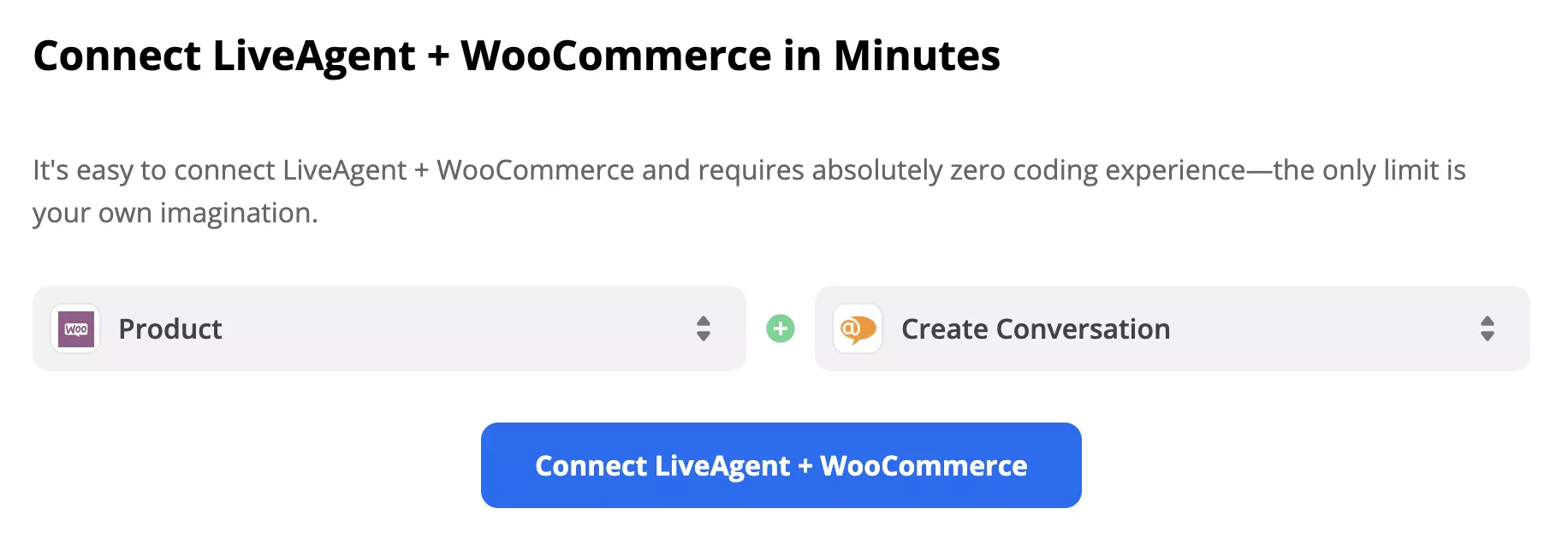
Scroll down to the Connect LiveAgent + WooCommerce in Minutes section. Here’s where you can choose what will happen within your custom integration.
There are multiple options to choose from, so consider what kind of workflow would you like. When you selected the trigger and action, click on the blue continue button.
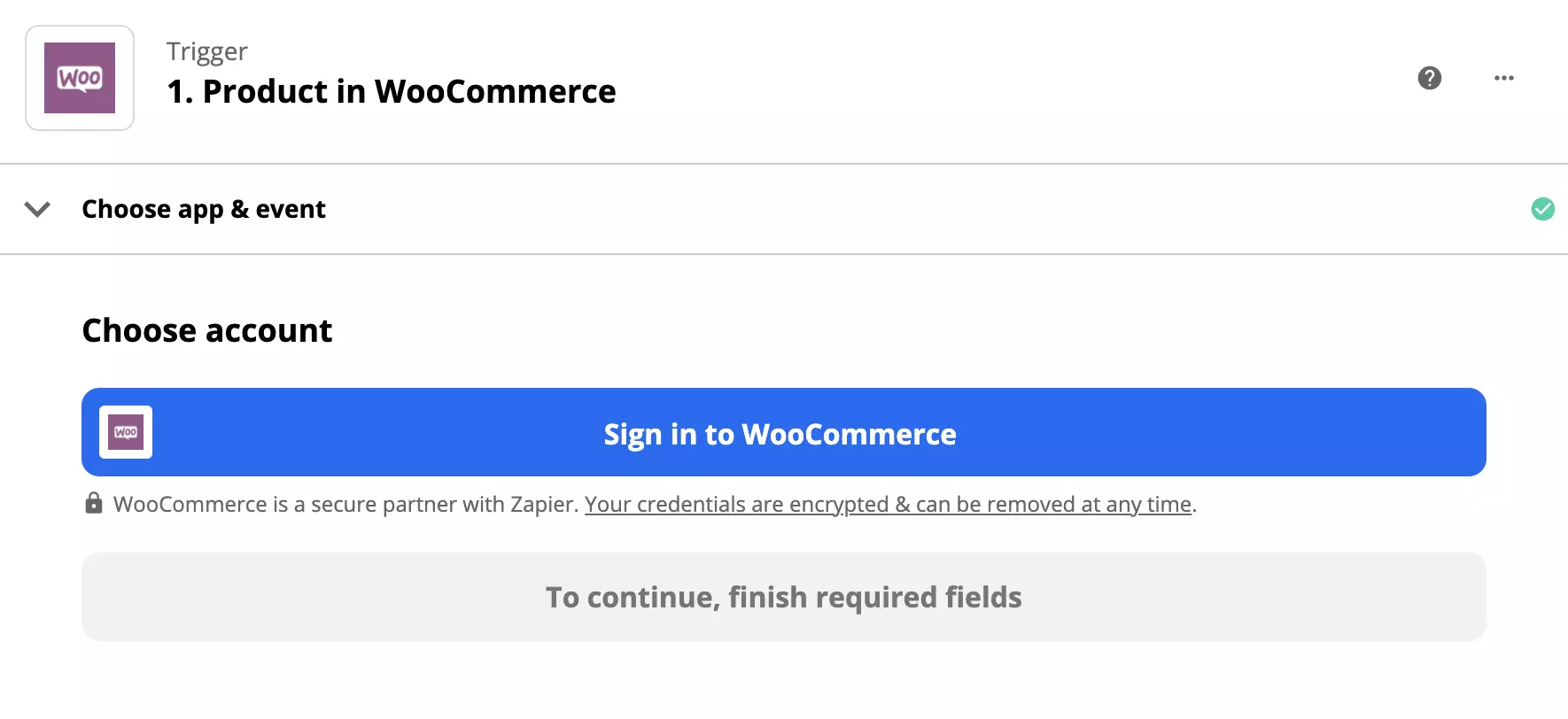
The following step is easy enough, although it can vary depending on the trigger and the action options you choose. In our case, we had to log in to the trigger app with our WordPress log-in details and provide access to Zapier. There is also a trigger test that will check the connection to the trigger app.
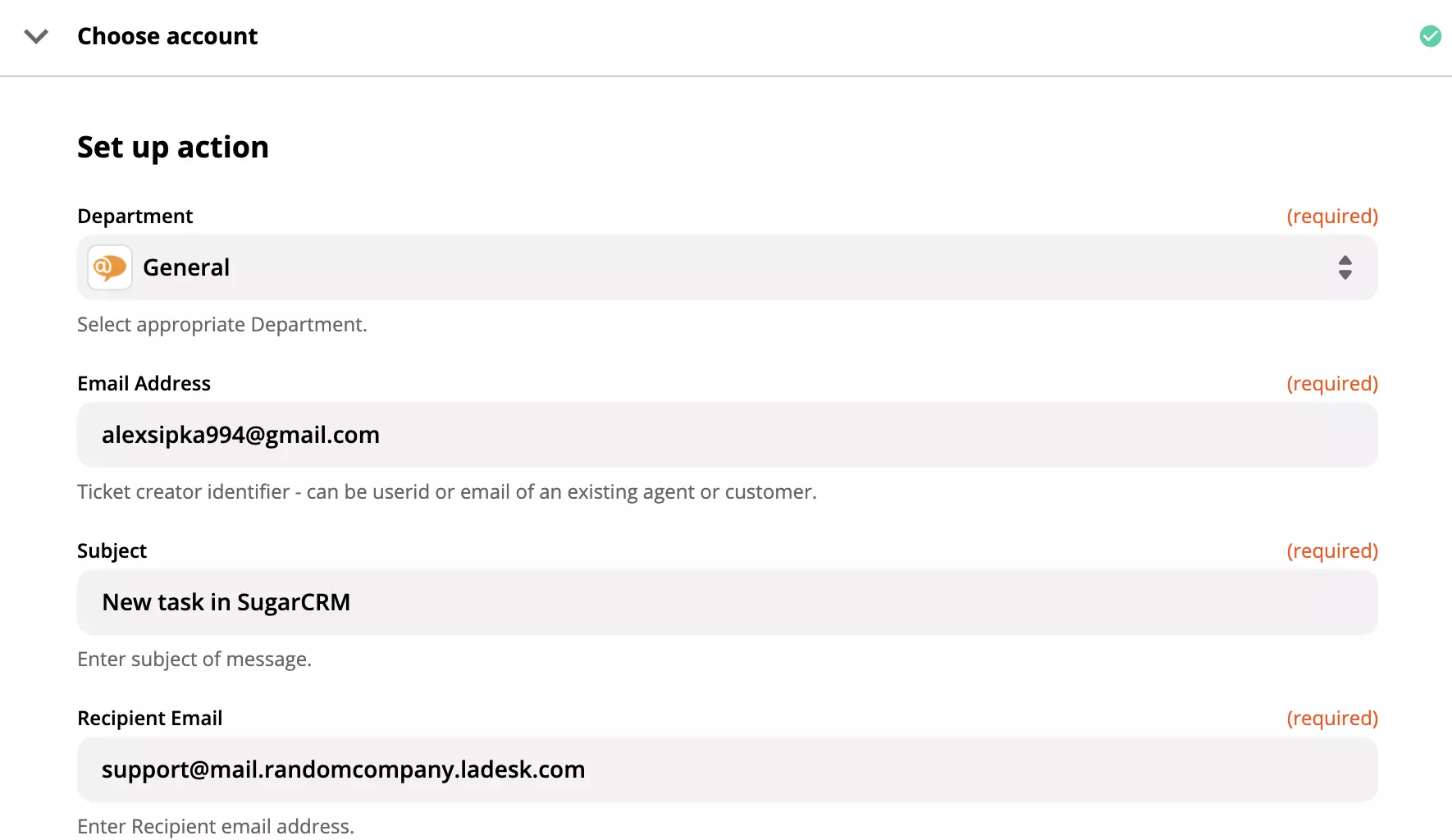
The next step is the action configuration. We selected the action Create Conversation which means an email will be sent to our ticketing system each time a new product is added in WooCommerce.
We had to select a respective LiveAgent department, fill out email addresses, the message subject, and text, and fill out non-required fields such as names, email copies, and message ID.
The final step is the integration test, so go ahead and test your workflow. You can also check your LiveAgent dashboard to see if you received any email notifications.
No problem! LiveAgent offers a 30-day free trial where you can test the free WooCommerce integration!
Enhance your eCommerce site with LiveAgent's fast live chat and knowledge base. Boost engagement, satisfaction, and sales.

Integrate LiveAgent's live chat into your WordPress site to enhance customer support and satisfaction. Follow simple steps to install the plugin, create a chat ...

Enhance your WordPress site with free, easy-to-use plugins for live chat. No credit card needed, deactivate anytime!
Join our community of happy clients and provide excellent customer support with LiveAgent.
Cookie Consent
We use cookies to enhance your browsing experience and analyze our traffic. See our privacy policy.