



LiveAgent eCommerce Features
Enhance your eCommerce site with LiveAgent's fast live chat and knowledge base. Boost engagement, satisfaction, and sales.
2 min read
eCommerce
Live Chat
+2

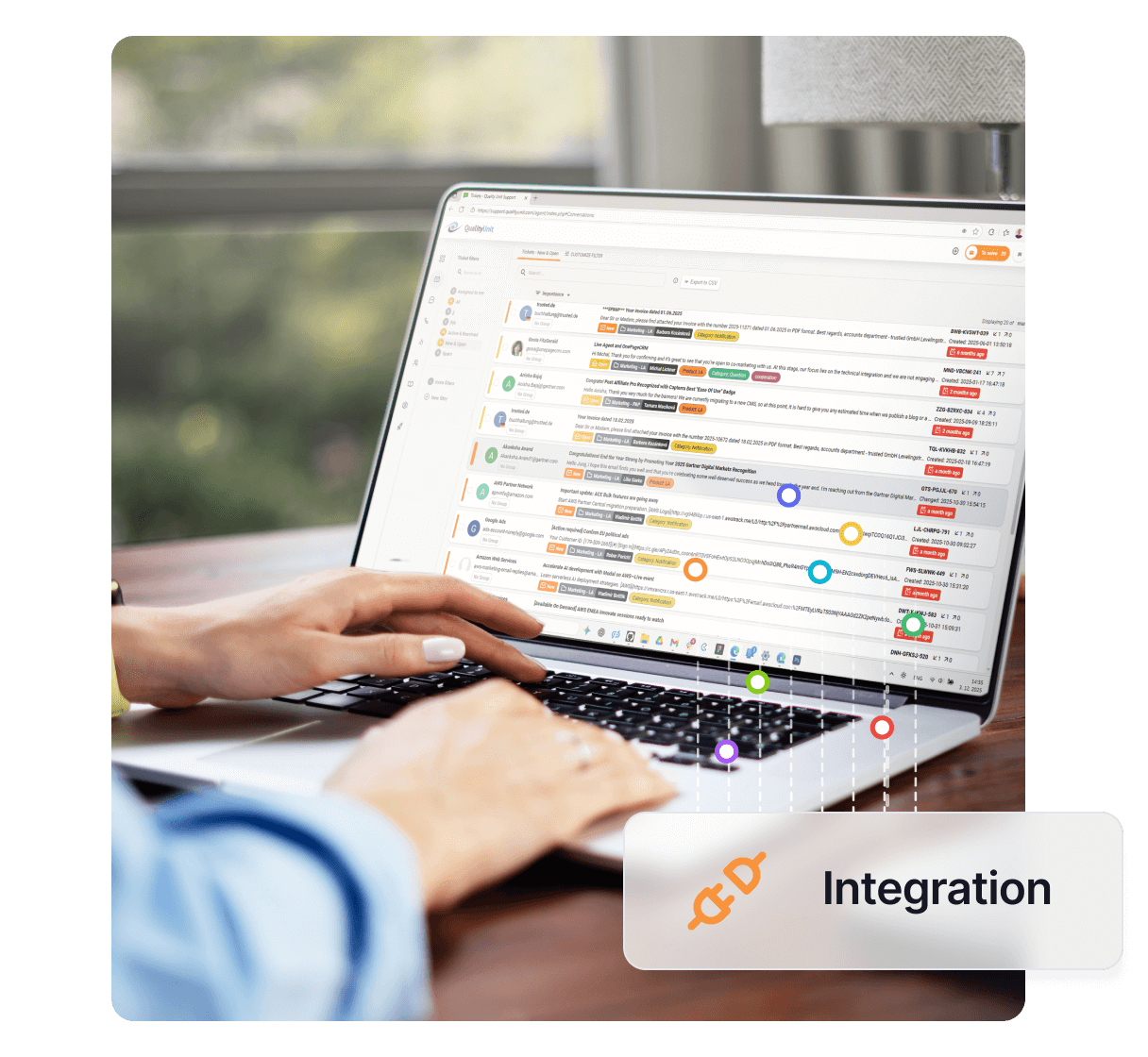
Prestashop is a free, open-source eCommerce solution used in over 250,000 stores worldwide. With LiveAgent, it enables instant communication and order tracking through a live chat widget, enhancing customer support and streamlining operations.
Prestashop is an open-source and free eCommerce website solution. It’s packed with tools and rich in features, so people can make websites their own in various ways. Prestashop is available in 65 languages and it’s hosting more than 250,000 online stores worldwide. Since it’s free, you can easily download it and start building your own eCommerce website. It also offers basic guides that explain how to build on your own.
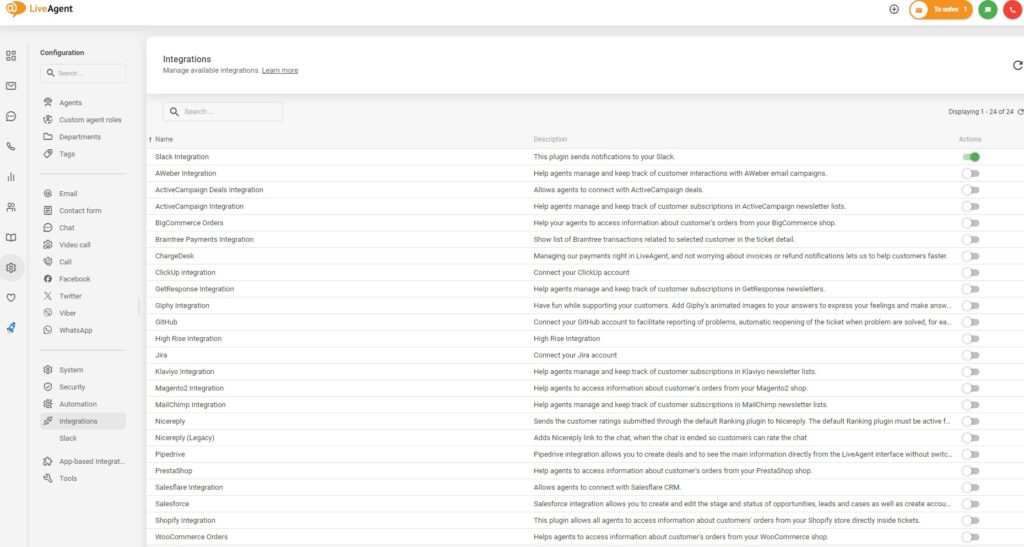
Besides being able to integrate LiveAgent’s super-fast live chat widget on your eCommerce site and provide quick help to your customers, you can keep track of your orders. These are displayed in your dashboard , so you get your order information in one place.

The latest tips and deals delivered straight to your inbox.
If you want to place LiveAgent’s live chat button on your Prestashop, please follow the step-by-step integration guide below.
To add a LiveAgent chat button to your PrestaShop website by editing the installation files, firstly in your LiveAgent panel navigate to Configuration > Chat > Chat buttons , edit your chosen chat button, in its configuration screen navigate to the Integration screen, and copy the script of your button.
Then, in your PrestaShop installation files on your server navigate to themes > classic > assets > js folder, and edit the “theme.js” file. Add the copied script to the very bottom of the file and remove the <script type="text/javascript"> and </script> tags from it.
If you have a custom PrestaShop theme then access its files from the themes folder instead of the classic theme.
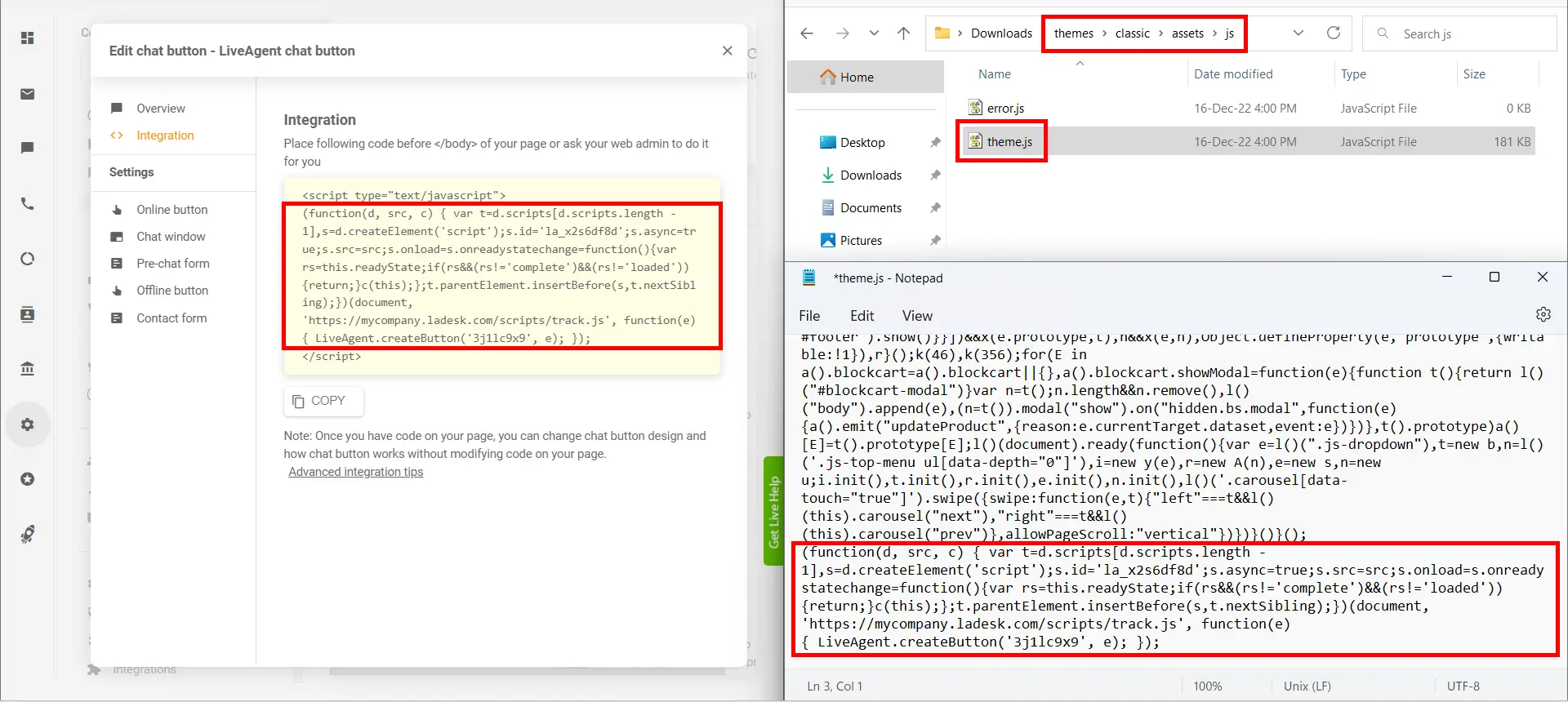
Save the theme.js file and that’s it. Your PrestaShop store is integrated with your LiveAgent chat button.
Enhance your eCommerce site with LiveAgent's fast live chat and knowledge base. Boost engagement, satisfaction, and sales.

OpenCart is a turn-key ready shopping cart solution with order management and multiple payment gateways. LiveAgent's OpenCart integration enables a live chat bu...
Integrate BigCommerce with LiveAgent to enhance customer support by adding a live chat button to your store. BigCommerce offers comprehensive eCommerce solution...
Cookie Consent
We use cookies to enhance your browsing experience and analyze our traffic. See our privacy policy.