


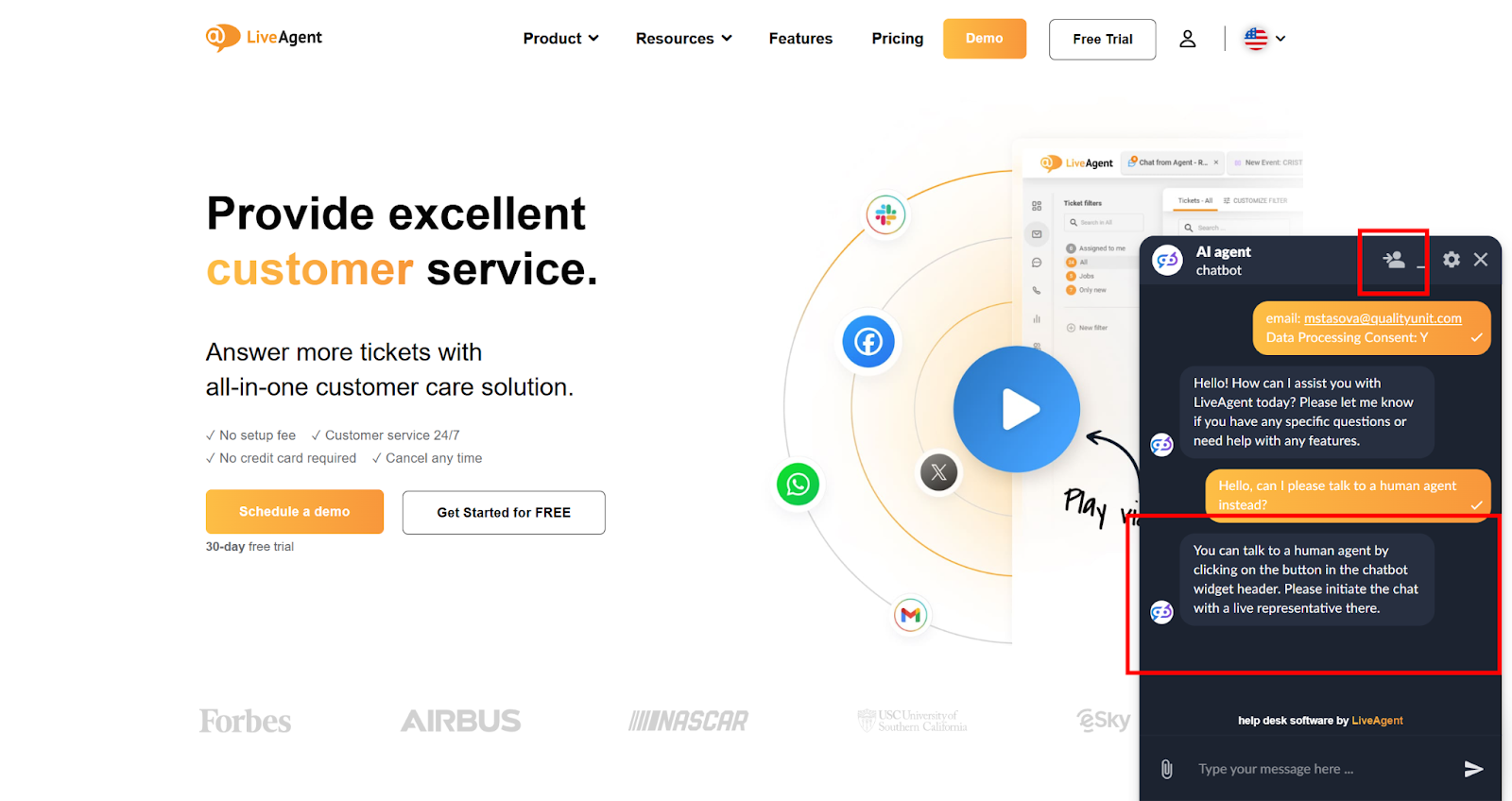
AI Chatbot features
LiveAgent's AI-powered chatbot automates customer interactions, improves response times, and reduces agent workload. Integrated with FlowHunt, it handles FAQs, ...
6 min read
AI Chatbot
Automation
+2
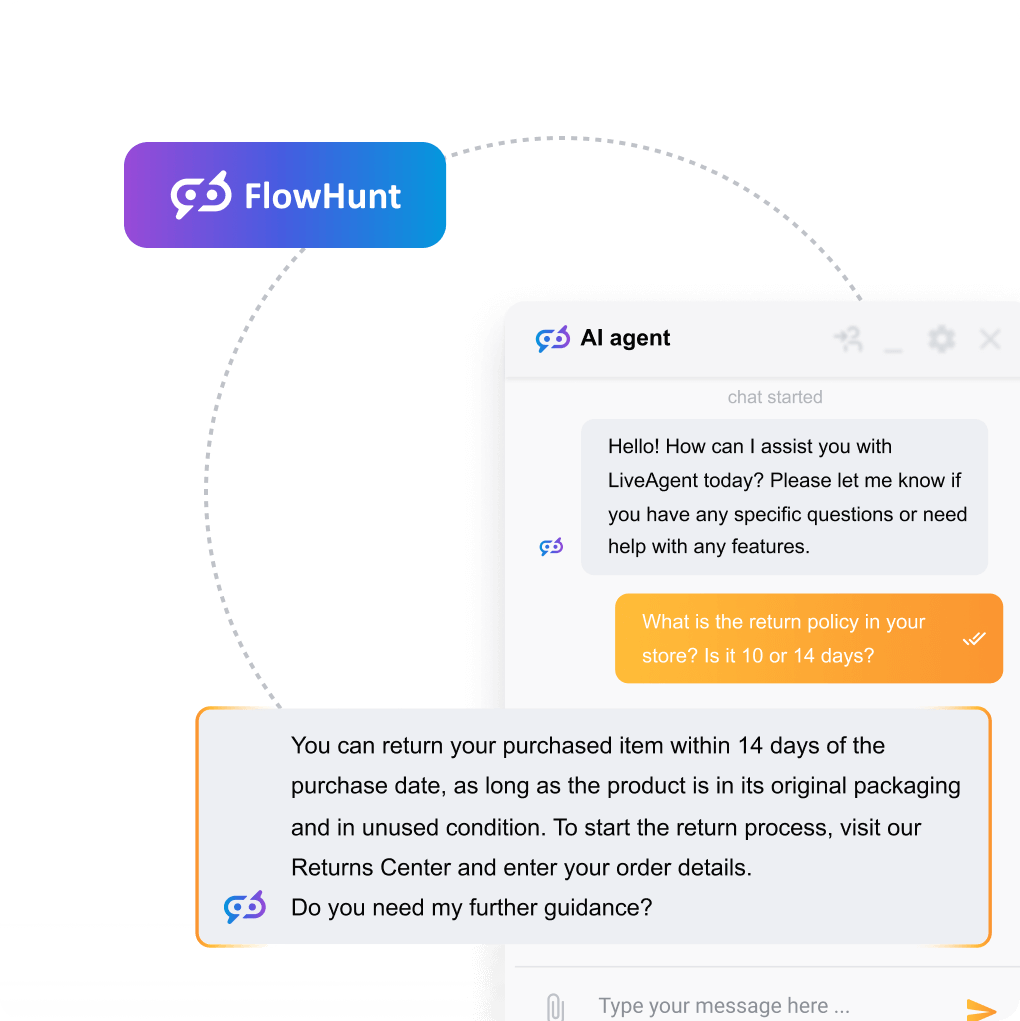
Step-by-step: from enabling AI features to your first automated response. Includes configuration tips, a testing checklist, and escalation rules.
If you are evaluating whether automation belongs in your support stack, start with understanding what an AI virtual assistant is and how it differs from a traditional rule-based chatbot. Once you are ready to act, this guide walks you through every configuration step inside LiveAgent — no development experience required.
LiveAgent ships with two distinct AI layers: the AI Chatbot, which handles visitor conversations autonomously inside your live chat widget, and the AI Answer Assistant, which accelerates agent replies inside tickets. This tutorial covers both, in the order you should configure them.
Before touching a single setting, confirm that every item below is in place. Skipping prerequisites is the most common reason a LiveAgent AI virtual assistant setup stalls mid-way.
Pro tip — use FlowHunt for persistent AI sessions: When you connect the AI Answer Assistant via FlowHunt, LiveAgent maintains the AI session across every draft modification in a ticket thread. If you connect via OpenAI directly, a new session starts each time an agent modifies a draft, which means the assistant loses prior context. For multi-turn ticket conversations, FlowHunt is the stronger choice.
If you want a broader overview of what the platform’s automation layer can do before diving into configuration, browse the full AI features documentation.
AI features in LiveAgent are not enabled by default. You activate each component separately from the admin panel.
Expected outcome: The chat button now routes incoming visitor messages through the AI Chatbot before any human agent sees them. Visitors will not notice a visual change — the widget looks identical.
Expected outcome: Agents will now see an AI Answer Assistant button inside every ticket reply editor. The button will not appear until this step is complete.
Warning — free setup offer: If you have active subscriptions on both LiveAgent and FlowHunt, the LiveAgent support team will handle the full initial integration setup at no additional cost. Email support@liveagent.com before spending time on manual configuration — this can save hours of trial and error, especially if your FlowHunt flows are complex.

Start your free trial today and see results within days.
A generic chatbot that introduces itself as “Bot” erodes trust. Configuring a persona that matches your brand voice is the difference between a tool customers tolerate and one they actively use.
Expected outcome: Every AI-generated draft will reflect your brand voice by default. Agents can still override tone per ticket, but the default reduces the number of manual adjustments needed.
The AI Chatbot is only as useful as the content it can access. Connecting a well-structured knowledge base is the single highest-leverage configuration step in this entire tutorial.
After your first week of live operation, review the Unanswered Questions report (covered in the monitoring section below). Every question the bot could not answer is a missing knowledge base article. Treat this report as your content backlog.
Expected outcome: The AI Chatbot can now interpret visitor questions, search your knowledge base, and return accurate, sourced answers — without any human involvement for common queries.
The latest tips and deals delivered straight to your inbox.
No AI handles every situation correctly. A well-defined escalation path is not a fallback — it is a core feature of a production-ready AI virtual assistant setup. Customers who reach a human quickly after the bot fails are more satisfied than customers who never spoke to the bot at all.
Expected outcome: Complex queries reach a human agent within seconds. Purchase-intent visitors who would otherwise leave silently are now captured as leads. No conversation ends in a dead end.
Never push an AI configuration live without testing it first. Use the checklist below to validate every critical behavior before your customers encounter it.
Run every scenario in the table below. Do not mark the configuration as production-ready until all scenarios pass.
| Test scenario | Expected AI behavior | Pass / fail criteria |
|---|---|---|
| Ask a question directly covered by a published knowledge base article | Bot returns an accurate answer sourced from the article within 5 seconds | Pass: Answer is factually correct and matches article content. Fail: Answer is wrong, hallucinated, or the bot says it doesn’t know. |
| Ask a question not covered by any knowledge base article | Bot acknowledges it cannot answer and triggers escalation to a human agent | Pass: Escalation message appears and chat is routed to the correct department. Fail: Bot invents an answer or conversation ends with no handoff. |
| Type “I want to speak to a human” mid-conversation | Bot immediately acknowledges the request and initiates handoff without asking follow-up questions | Pass: Handoff begins within one bot response. Fail: Bot continues trying to answer or loops back to the menu. |
| Ask a question in a language other than English (e.g., German, Japanese, or Arabic) | Bot detects the language and responds in the same language using the knowledge base content | Pass: Response is in the visitor’s language and content is accurate. Fail: Bot responds in English or returns an error. |
| Simulate purchase intent (e.g., “How much does the Pro plan cost? I’m ready to buy.”) | Bot answers the pricing question and, if lead capture is configured, prompts for contact details or routes to a sales agent | Pass: Pricing answer is correct and lead capture or sales escalation triggers. Fail: Bot answers and ends conversation with no follow-up action. |
| Open an existing ticket and use the Answer Assistant to generate a draft reply | Assistant generates a contextually relevant draft based on the ticket thread in the configured tone of voice | Pass: Draft is coherent, matches ticket context, and reflects the configured tone. Fail: Draft is generic, off-topic, or the button is missing from the editor. |
| Use the Answer Assistant to modify an existing draft (refine mode) | Assistant rewrites or improves the existing draft text while preserving the original intent and tone | Pass: Modified draft is an improvement on the original and does not introduce factual errors. Fail: Draft is replaced with unrelated content or the feature returns an error. |
For every Fail result: identify the root cause (missing knowledge base article, incorrect escalation rule, misconfigured API key), fix it, and rerun only the failed scenario. Do not rerun the full checklist unless you have made changes that could affect multiple scenarios.
Deploying the AI Chatbot is not a set-and-forget action. Performance degrades as your product evolves and customer questions change. Build a weekly review habit using LiveAgent’s native reporting tools.
If you want hands-on help with ongoing optimization — particularly around FlowHunt flow design — the LiveAgent support team is available at support@liveagent.com . Customers with active subscriptions on both LiveAgent and FlowHunt can access free setup and configuration assistance.
Everything covered in this tutorial is available on LiveAgent’s current plans — no enterprise contract required. Set up your AI Chatbot, activate the Answer Assistant, and start deflecting repetitive tickets from day one.
Share this article
LiveAgent's AI-powered chatbot automates customer interactions, improves response times, and reduces agent workload. Integrated with FlowHunt, it handles FAQs, ...
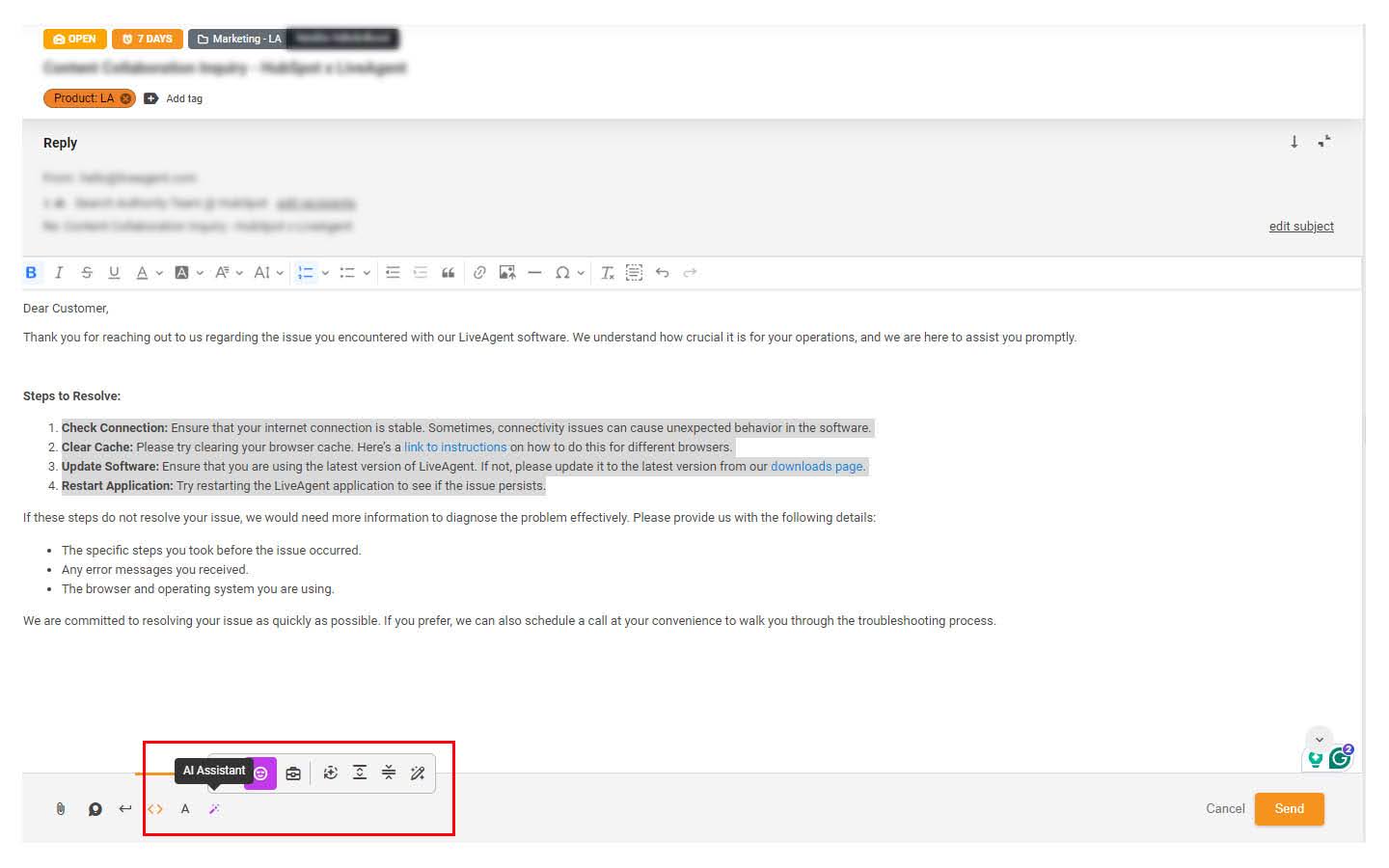
Discover LiveAgent's AI Answer Assistant, designed to streamline customer service with smart, AI-generated responses. Enhance your team's productivity, reduce c...

Setting up an ai customer support bot in LiveAgent takes six steps across two systems. Here's the order, what each step does, and what to test first.
Join our community of happy clients and provide excellent customer support with LiveAgent.
Cookie Consent
We use cookies to enhance your browsing experience and analyze our traffic. See our privacy policy.