



Best VoIP Softphone Apps for Mac in 2026
Explore the best VoIP softphone apps for Mac in 2026, like CounterPath Bria Teams Pro, ZoiPer, and Linphone. Assess based on ease of use, functionality, and use...
17 min read
VoIP
Softphone
+3

Turn your Mac into a fully functional phone. Compare the best standalone SIP softphones and all-in-one VoIP platforms, follow a step-by-step setup guide, and find the right option for your needs.
If you are searching for a VoIP phone for Mac, you are likely in one of two situations. You either have SIP credentials from a provider and need a reliable softphone app to make and receive calls, or you want a complete business phone system with a native macOS application. Either way, the goal is the same: turn your Mac into a fully functional phone without buying a physical desk phone.
This guide covers every angle of the VoIP phone Mac landscape. You will find detailed reviews of standalone SIP softphones, comparisons of all-in-one business VoIP platforms, a step-by-step setup walkthrough, and a practical decision framework to help you choose the right option for your specific needs. We have also included a comprehensive comparison of the best VoIP softphone apps for Mac to supplement the recommendations here.
A VoIP softphone is a software application that uses Voice over Internet Protocol (VoIP) technology to make and receive phone calls over the internet. Instead of routing calls through copper telephone lines, a softphone converts your voice into digital data packets and transmits them via your broadband connection.
On a Mac, a softphone replaces the need for a physical desk phone entirely. You can use your MacBook’s built-in microphone and speakers, though a dedicated USB or Bluetooth headset will deliver noticeably better call quality. The software connects to your VoIP service provider or PBX system using the Session Initiation Protocol (SIP), which is the industry standard for managing VoIP call sessions.
The main advantage of using a VoIP phone on Mac is straightforward: you eliminate hardware costs while gaining flexibility. A softphone travels with your laptop, supports multiple accounts or phone lines, and integrates with macOS features like the address book, notification center, and click-to-dial links in Safari.
If you already have a VoIP provider or PBX and just need a software client to connect, a standalone SIP softphone is the right choice. These apps are designed to work with any standard SIP-compatible service. You enter your credentials, and the app handles the rest.
Below are the top standalone SIP softphones for macOS, ranked by capability, ease of use, and platform compatibility.
Zoiper is the most widely recommended SIP softphone for Mac, and for good reason. It supports audio and video calling, instant messaging, presence, and fax, all within a clean, lightweight interface. The free version covers basic voice calls and works with most VoIP providers and PBX systems without requiring a separate Zoiper account. The paid Pro tier unlocks video calling, TLS/SRTP encryption, call recording, and CRM integration.
Zoiper’s cross-platform support is a standout feature. It runs natively on macOS, Windows, Linux, iOS, and Android, which means your team can use the same softphone across all devices. As noted in our detailed breakdown of the best VoIP softphone apps , Zoiper’s ease of use and smooth integration process make it a top choice for both individual users and small businesses.
Best for: Users who want a polished, multi-platform SIP client with broad provider compatibility.
Linphone is an open-source SIP softphone that delivers a surprising amount of functionality at no cost. It supports HD audio and video calls, instant messaging, conference calling with up to 8 participants, and robust encryption via TLS and SRTP. Unlike many free softphones, Linphone does not lock security features behind a paywall.
The interface, while functional, has a steeper learning curve than Zoiper or Telephone. However, for privacy-conscious users, developers, or anyone who wants complete control over their communication stack, Linphone is hard to beat. It is interoperable with most IP-PBXs and supports standard SIP and SIP SIMPLE protocols.
Best for: Privacy-focused users, developers, and anyone who wants a fully open-source softphone with strong encryption.
Telephone is a native macOS SIP client available directly on the Mac App Store. It is minimalist by design: a clean dialer, contact autocomplete from your Mac address book, and support for multiple SIP accounts. It handles call transfer, hold, mute, and DTMF tones, and it supports TLS and SRTP encryption.
The free version covers basic calling needs. A Telephone Pro subscription unlocks full call history and up to 30 simultaneous calls. If you want a softphone that feels like a built-in macOS application rather than a cross-platform port, Telephone is the closest you will get.
Best for: Solopreneurs and individual users who want a lightweight, Mac-native SIP client.
Bria, developed by CounterPath (now part of Alianza), is widely regarded as the professional standard for business SIP softphones. It offers exceptional audio and video quality, team presence indicators, screen sharing, and deep integration with enterprise VoIP servers and headsets. Bria Solo is available as a free tier for personal use, while Bria Teams Pro adds collaboration features, provisioning, and priority support.
The polish and stability of Bria come at a price. It is a paid product with subscription licensing, which makes it better suited for businesses that need guaranteed reliability and professional support. For a full comparison of Bria against other paid options, see our review of VoIP softphone apps for Mac .
Best for: Businesses and enterprise users who need a reliable, feature-rich SIP softphone with professional support.
SyncPhone is a newer entrant worth mentioning. It is a free, native macOS softphone that is notarized by Apple, meaning it passes Gatekeeper security checks without manual overrides. It supports SIP registration, inbound and outbound calling, call hold, attended and blind transfers, and call waiting. It works over UDP, TCP, and TLS with STUN for NAT traversal, and it is optimized for FreePBX, FusionPBX, and SyncPBX environments.
Best for: Users of FreePBX or FusionPBX systems who want a free, Apple-notarized native Mac client.
If you need more than a standalone dialer, a business VoIP platform provides a complete phone system with a native macOS app. These services bundle voice calling, video conferencing, team messaging, and often SMS into a single application, and they typically include a business phone number.
RingCentral is one of the largest names in business VoIP, and its macOS desktop app reflects that scale. It combines voice, video, team messaging, and SMS into a unified interface with over 200 software integrations, including Salesforce, HubSpot, and Microsoft 365. The app is polished, reliable, and suitable for organizations of any size. Pricing starts at around $20 per user per month for the entry-level plan.
If your organization already uses Zoom for video meetings, Zoom Phone is a natural extension. It adds VoIP calling to the familiar Zoom interface, with features like call recording, voicemail transcription, call flip between devices, and AI-powered call summaries. The macOS app is well optimized, and the per-user pricing is competitive, especially for existing Zoom customers.
Dialpad distinguishes itself with AI-native features. Its macOS app provides real-time call transcription, sentiment analysis, and automated post-call summaries. For sales and support teams that need to capture and analyze conversation data, Dialpad offers a compelling package. The interface is modern and responsive, and the platform includes SMS and team messaging alongside voice.
CloudTalk is a cloud-native VoIP platform aimed at sales and support teams. Its Mac client works alongside a browser-based dashboard for call management, analytics, and international number provisioning. CloudTalk supports over 160 countries for local numbers and integrates with popular CRM and helpdesk tools. It is a strong choice for growing teams that need advanced call routing and analytics.
For businesses that handle customer support alongside voice communication, LiveAgent offers a help desk and call center platform that integrates seamlessly with VoIP softphones. You can connect any SIP-compatible softphone, including Zoiper, Bria, or Linphone, to LiveAgent’s call center module. This setup lets agents make and receive calls directly within the LiveAgent interface while accessing customer tickets, chat history, and call routing tools.
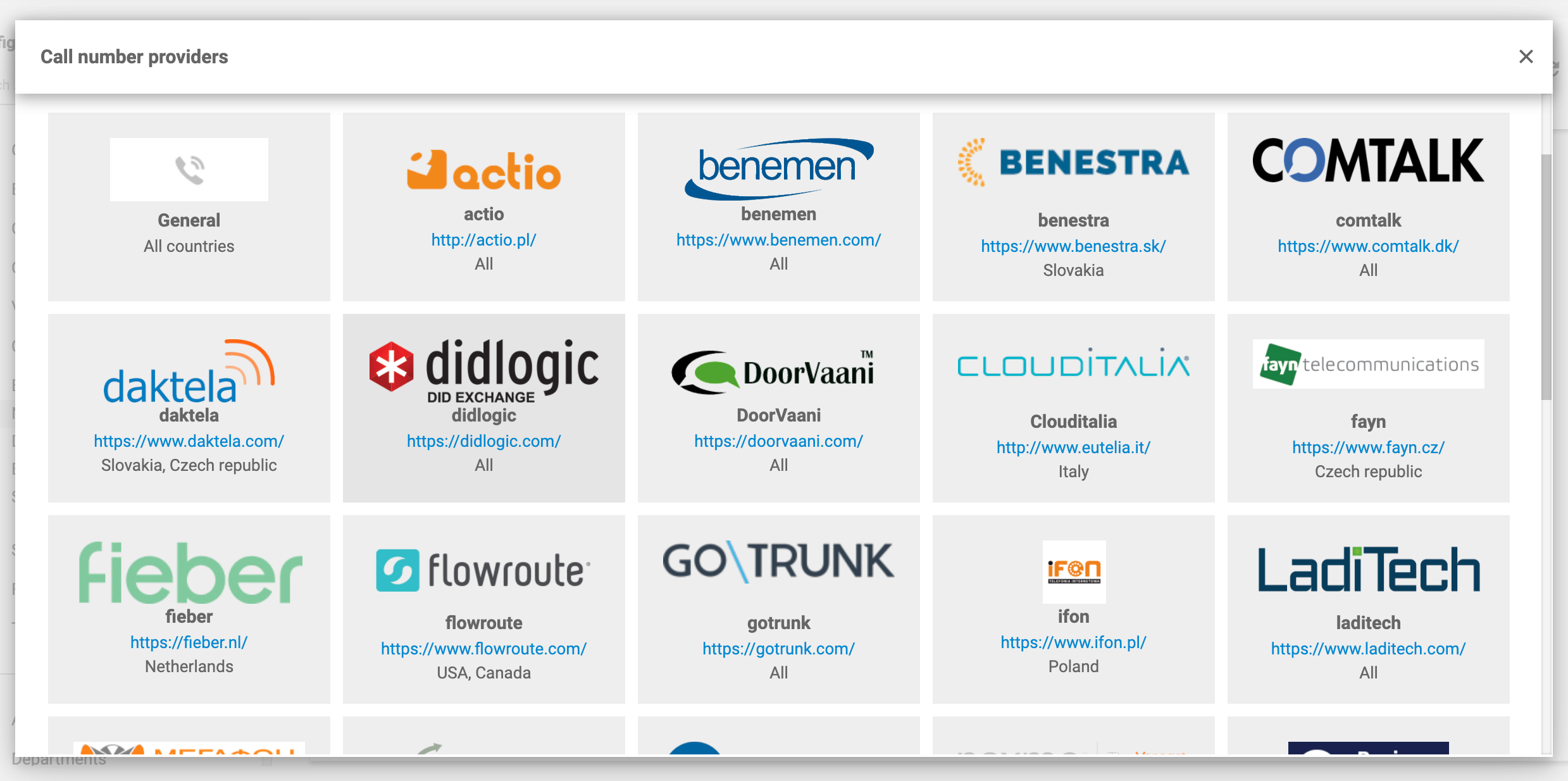
The result is a unified communication workflow that eliminates the need to switch between a softphone and a separate help desk application. Learn more about how softphones work with LiveAgent in our best VoIP softphone apps guide .
The table below compares the most popular Mac-compatible VoIP softphones across key criteria, including pricing, encryption support, and video capability.
| Softphone | Price | Platforms | TLS/SRTP encryption | Video calling | Best for |
|---|---|---|---|---|---|
| Zoiper | Free / Pro paid | Mac, Windows, Linux, iOS, Android | Paid tier only | Paid tier only | Best overall experience |
| Linphone | Free | Mac, Windows, Linux, iOS, Android | Yes | Yes | Open-source with encryption |
| Telephone | Free / Pro subscription | Mac only | Yes | No | Lightweight Mac-native calling |
| Bria | Free Solo / Teams paid | Mac, Windows, iOS, Android | Yes | Yes | Enterprise reliability |
| SyncPhone | Free | Mac only | Yes (TLS) | No | FreePBX/FusionPBX users |
| MicroSIP | Free | Windows only | Yes | Yes (limited) | Lightweight Windows SIP |

The latest tips and deals delivered straight to your inbox.
Setting up a VoIP softphone on macOS is a straightforward process, but it requires the correct SIP credentials from your provider. Here is a step-by-step walkthrough using Zoiper as the example, though the same principles apply to Linphone, Telephone, and Bria.
Before you open any softphone, make sure you have the following information from your VoIP provider or PBX administrator:
Download your chosen softphone from the official website or the Mac App Store. For Zoiper, visit zoiper.com and select the macOS version. For Telephone, search the Mac App Store. For Linphone, download from linphone.org. For Bria, visit counterpath.com.
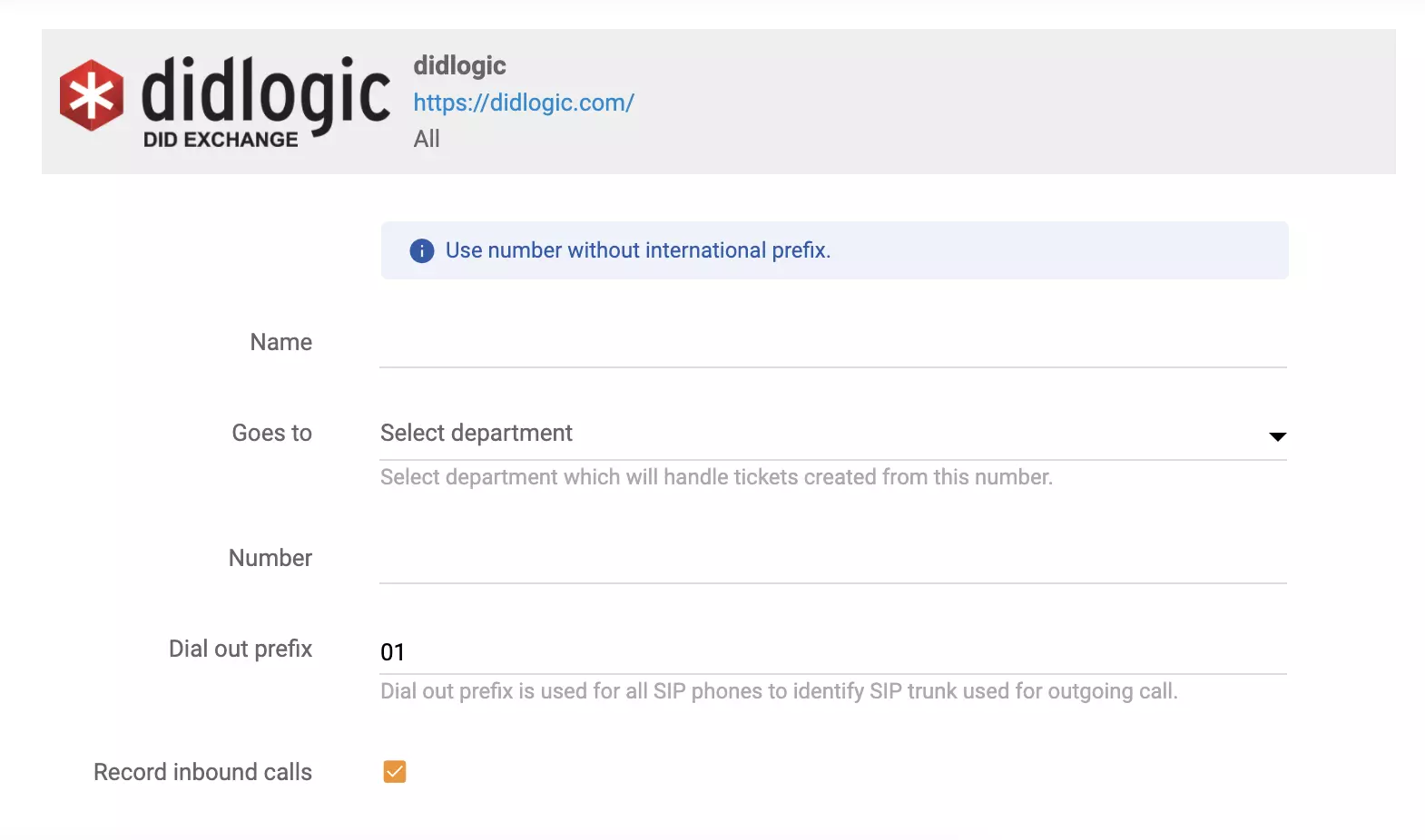
Open the softphone and navigate to the account settings or preferences panel. In Zoiper, go to Settings, then Accounts, and click Add. Select SIP as the account type. Enter your SIP credentials in the corresponding fields: domain, username, password, and authorization ID. Choose the transport protocol your provider supports. If your provider uses TLS for encryption, select TLS and ensure the port is set correctly (typically 5061 for TLS).
Before making your first call, verify that your microphone and speakers are configured correctly. In Zoiper, go to Settings, then Audio, and select your input and output devices. Most softphones include an echo test feature or a test call number. Use it to confirm that your audio is clear and free of echo or background noise.
When you launch a VoIP softphone for the first time, macOS will prompt you to allow microphone access. You must enable this in System Settings, under Privacy and Security, then Microphone. Without this permission, the softphone will not be able to capture audio, and your calls will be silent.
Once your account is configured and audio is verified, dial a test number. If the call connects and both parties can hear each other clearly, your VoIP phone for Mac is ready to use.
The best VoIP phone for Mac depends on your specific use case, not on a single universal recommendation. Here is a decision framework to help you choose.
If you already have a SIP provider or PBX and just need a dialer: Start with Zoiper Free. It offers the best balance of usability, compatibility, and features at no cost. If you need encryption or video, consider upgrading to Zoiper Pro or switching to Linphone for a free alternative with built-in security.
If you want a Mac-native experience with minimal complexity: Choose Telephone. It integrates cleanly with macOS, supports multiple accounts, and keeps the interface simple.
If you run a business and need reliable, supported software: Bria is the professional choice. Its stability, audio quality, and enterprise features justify the subscription cost for teams that depend on phone communication.
If you need a complete phone system with a business number, SMS, and team features: Evaluate RingCentral, Zoom Phone, Dialpad, or CloudTalk. These platforms bundle everything into a native macOS app, and they include phone numbers, call routing, and analytics.
If you run a customer support team and want VoIP integrated with your help desk: LiveAgent’s call center connects with any SIP softphone to unify voice calls with ticket management, live chat, and customer history. This setup eliminates the friction of switching between applications during support calls.
A VoIP phone for Mac gives you the calling power of a traditional phone system without the hardware, the desk footprint, or the cost. Whether you choose a standalone SIP softphone like Zoiper or Linphone, a business platform like RingCentral or Dialpad, or a help desk-integrated solution through LiveAgent’s call center , the setup process is straightforward and the long-term savings are substantial.
The key is matching the tool to your use case. A freelancer managing a single phone line will be well served by Telephone or Zoiper Free. A privacy-conscious developer will gravitate toward Linphone. A growing business team needs the reliability of Bria or the unified experience of a platform like Zoom Phone. And a customer support operation benefits most from a VoIP setup that integrates directly with help desk software, as described in our comprehensive guide to VoIP softphone apps .
Take the time to test a few options with your specific provider. Most softphones are free to download and easy to configure, so you can evaluate call quality, interface comfort, and feature fit before committing to a paid tier. A few minutes of testing now will save you hours of frustration later.
Share this article
Lilia is a content manager at LiveAgent. Passionate about customer support, she crafts engaging content that highlights the power of seamless communication and exceptional AI-powered service.

Explore the best VoIP softphone apps for Mac in 2026, like CounterPath Bria Teams Pro, ZoiPer, and Linphone. Assess based on ease of use, functionality, and use...

A 2026 comparison of the best softphone VoIP apps and platforms, covering pricing, call quality, features, and integrations, to help you pick the right solution...

Explore the top 20 VoIP phone systems for 2026, focusing on features, pricing, and integration benefits to enhance business communication. Discover how to selec...
Cookie Consent
We use cookies to enhance your browsing experience and analyze our traffic. See our privacy policy.