


In this article:
- What does a reply generator actually do?
- How is a help desk generator different from a free online one?
- What can LiveAgent’s AI Answer Assistant do?
- How do you generate a reply step by step?
- Where can agents use the AI reply generator in LiveAgent?
- Which AI models power it, and what does it cost?
- How does an admin set it up?
- How do you get AI replies your team can send with confidence?
What does a reply generator actually do?
A reply generator writes the first version of an answer so the person does not start from a blank screen. You give it a message or a situation, and it gives you text you can edit.
The same idea goes by several names. You will see “AI suggested replies”, “agent assist tools” and “customer service copilot” used for tools that draft text and leave the sending to a person.
Two kinds of tools exist. The first is a free web box: you paste one message, and it returns one reply. The second sits inside a help desk, where the ticket already holds the whole conversation, so nothing needs pasting. For a support team, that difference decides how useful the draft is.
How is a help desk generator different from a free online one?
A free online generator sees only what you paste into it. A generator inside a help desk reads the ticket, keeps every draft, and puts the result straight into the reply editor.
| Free online generator | Generator inside a help desk (LiveAgent’s AI Answer Assistant) | |
|---|---|---|
| What it reads | The message you paste | The ticket conversation, oldest first. Internal notes are excluded |
| Where the reply goes | You copy it and paste it into your inbox | Use in answer puts it in the reply editor |
| Tone | Varies by tool | Casual, neutral or business formality |
| Versions | Usually one | Every version is kept, with Back and Forward |
| Who sends | You | The agent. Nothing is sent automatically |
| AI model | The one the tool picked | Your choice of OpenAI, Anthropic, Gemini or FlowHunt |
| Cost | Often free, with limits | LiveAgent charges nothing for AI. You pay your AI provider |
A free email reply generator is fine for a one-off message. A team that works the same queue every day needs the ticket context, because an answer written without the earlier messages can repeat questions the customer already answered.
What can LiveAgent’s AI Answer Assistant do?
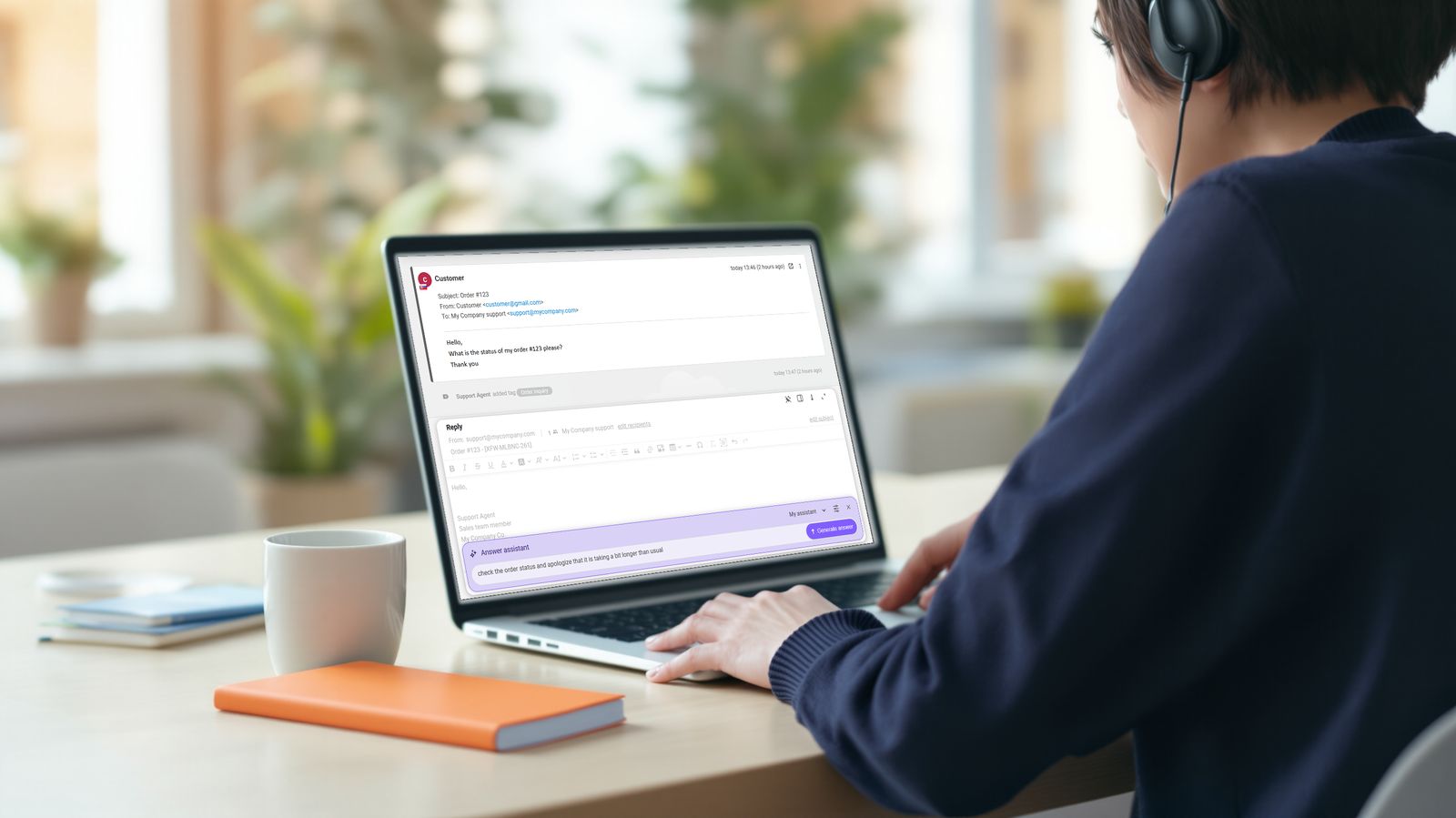
LiveAgent is our product. Its AI Answer Assistant is a panel in the reply editor that writes a reply from the ticket conversation and then helps the agent refine it. The table lists each action with the label you see in the app.
| Action | What it does | When to use it |
|---|---|---|
| Generate answer | Writes a full reply from the ticket conversation. You can add instructions first | The customer asked something and you want a draft to edit |
| Settings | Sets the tone: “Casual formality”, “Neutral formality” or “Business formality” | The reply must match your brand voice or the customer’s style |
| “Type concept or summary of your answer” | Writes text from a short idea when you have no draft | You know what to say but not how to phrase it |
| Improve | Rewrites for clarity, grammar and style, with the same meaning | Your own draft is rough |
| Extend | Turns short text into a full answer, without greeting or signature | You wrote two lines and need a complete reply |
| Simplify | Makes the text simpler | The customer is not an expert |
| “Type instructions to improve answer” | Improves the draft with your own instruction | You want a specific change, such as a shorter reply |
| Back, Forward, Try again, Stop | Moves between draft versions, asks for a new one or stops the run | The first draft is close but not right |
| Use in answer | Moves the result into the reply editor | You are happy with the draft |
The formality setting works as an AI tone changer: the same draft can be rewritten in a casual, neutral or business voice. The three quick actions are also useful when you want to rewrite an email with AI instead of writing a new one. Our deep dive on how the improve actions work covers them in detail.
If you select text in the editor first, the panel opens on that text and improves it instead of writing a new reply. Ticket summaries and translation are separate features, so the panel does not do them. Read about the AI ticket summary if you need that, or browse all AI features in LiveAgent .
How do you generate a reply step by step?
You open the panel from the reply editor, choose a model and tone, add an instruction, click Generate answer, refine the draft and click Use in answer. The agent edits and sends the reply.
Step 1: Open the panel
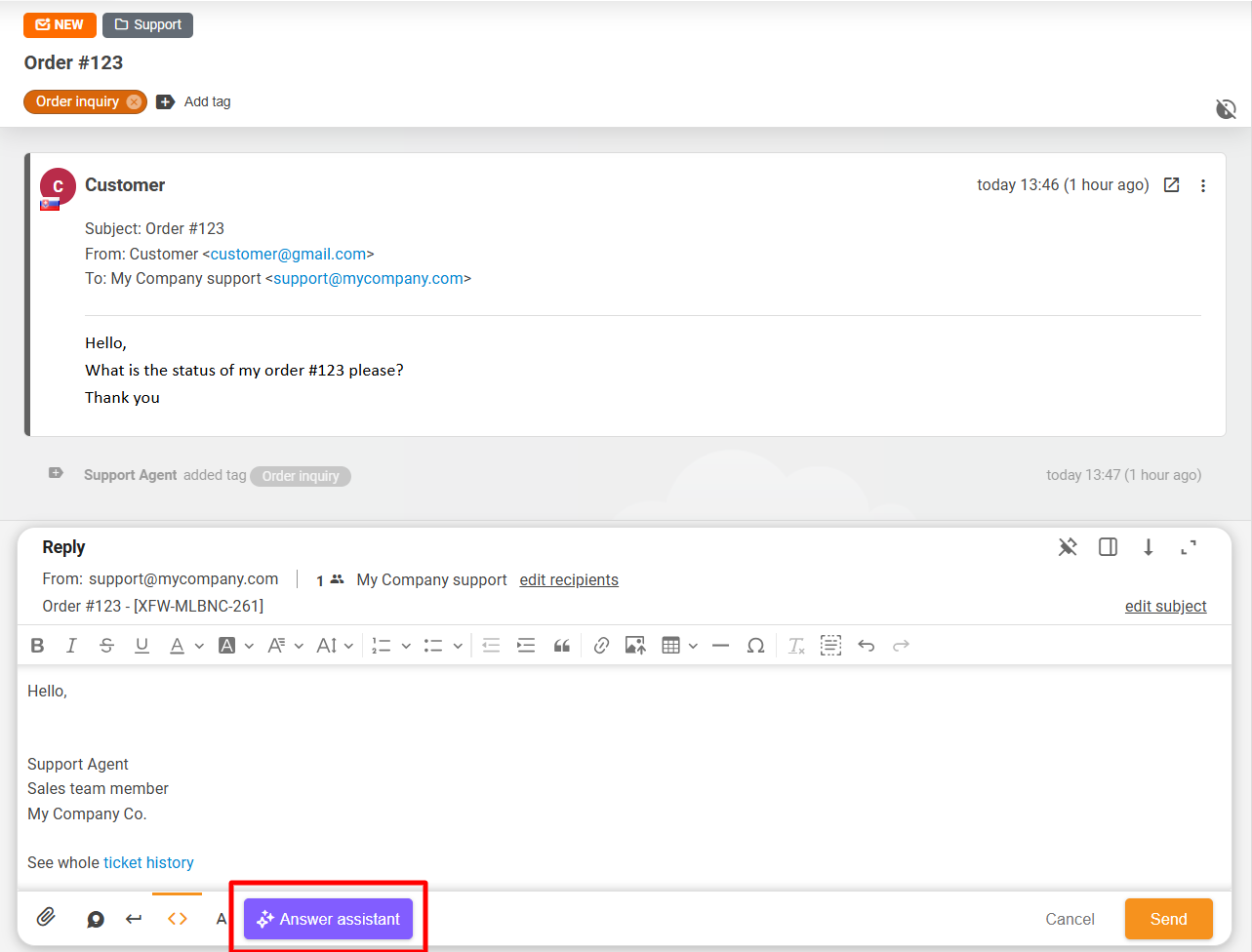
Open the ticket and click Answer assistant in the reply editor. The keyboard shortcut is Ctrl+Shift+A, or Cmd+Shift+A on a Mac.
Step 2: Pick the model and the tone
Choose a model from the list in the panel, then open Settings and select casual, neutral or business formality.
Step 3: Add an instruction
Type what the reply must say. For example: “Offer a replacement and ask for the order number.” The instruction field is optional, but a clear fact in it gives a better first draft.
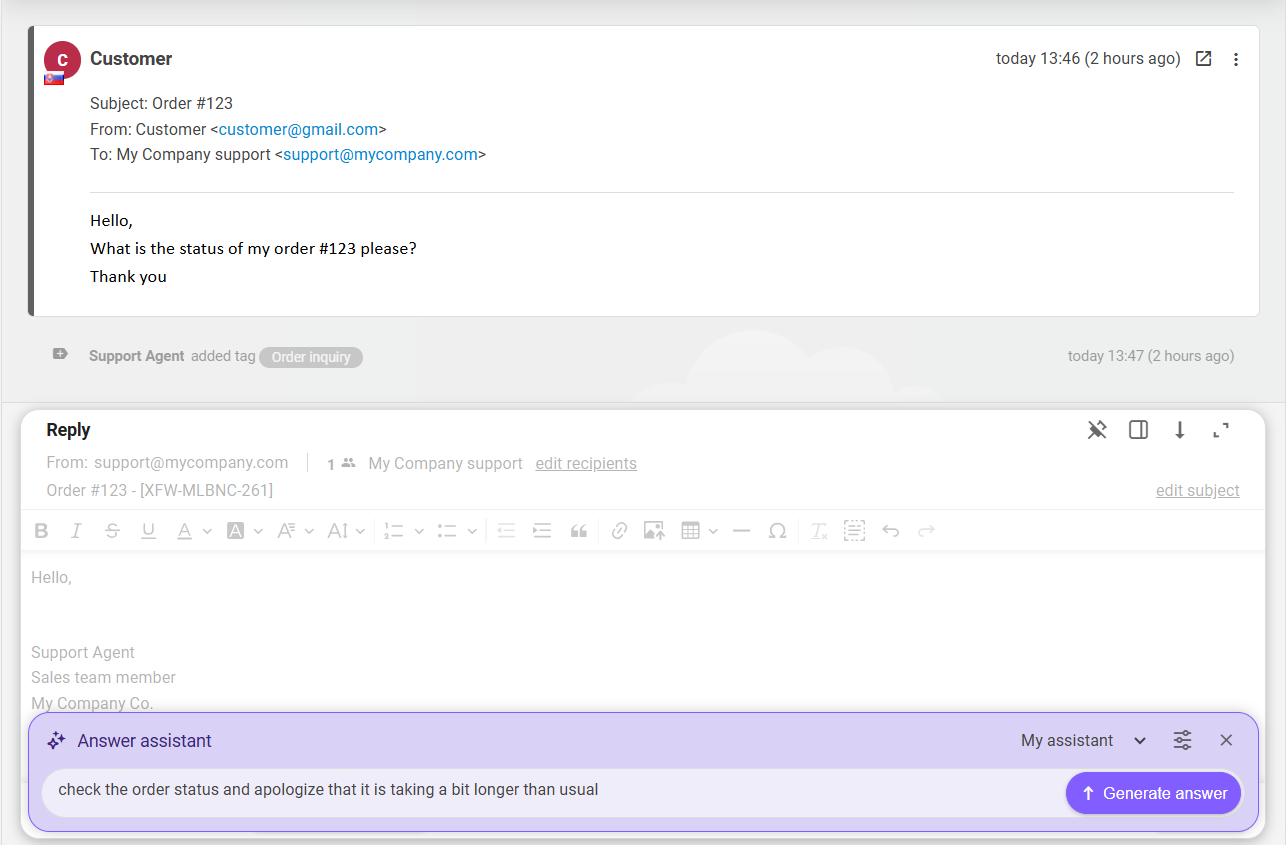
Step 4: Click Generate answer
Read the draft in full. Check names, dates and promises before you do anything else.
Step 5: Refine and compare
Use the quick actions Improve, Extend or Simplify, or change the formality. Every version is stored, so click Back and Forward to compare, or Try again for a fresh draft.
Step 6: Use it and send it yourself
Click Use in answer. The text replaces what is in the editor. Edit it as you like and send it yourself.

Join our newsletter
The latest tips and deals delivered straight to your inbox.
Where can agents use the AI reply generator in LiveAgent?
Agents can use it for email replies and in the reply editor shared by Facebook, Instagram direct messages, Telegram, X (Twitter), Viber and WhatsApp. Generating a full reply and improving a draft both work there.
So the AI Answer Assistant works as an AI email reply generator and an AI message reply generator, and agents open the same Answer assistant button on every one of these channels.
One exception: when you write a new outgoing email, there is no ticket history yet. Only the improve step works there, and Generate answer is not available.
Which AI models power it, and what does it cost?
The AI Answer Assistant works with OpenAI, Anthropic, Gemini or FlowHunt. FlowHunt is Quality Unit’s own AI platform and is one option, not a requirement.
An admin can add several models, and agents switch between them for each reply.
LiveAgent doesn’t charge for AI. The pricing page shows “$0 for AI”: no AI fees, no token markup and no per-resolution fees. You connect the provider of your choice, and the provider bills you directly at its own prices.
If a limit is reached, the error message points to your AI provider’s usage limits. Your provider’s own data policy applies to the ticket conversation it processes, so read that policy before you turn the AI Answer Assistant on.
How does an admin set it up?
An admin connects at least one AI provider and then adds a model under Answer Assistant in the AI settings. Until that is done, agents who click the button see an “AI Answer Assistant” information dialog instead of the panel.
- Open Configuration > AI > “Setup AI provider” and connect a provider.
- Open Configuration > AI > Answer Assistant and click Add model.
- Under “Choose AI provider”, pick the provider, then a model. With FlowHunt, pick one of your FlowHunt AI agents.
- Enter an “Internal name” and save.
A model shows the status “Active”, “Paused” or “Broken”, and you can pause or delete it later. With FlowHunt, what the AI agent reads is set up in FlowHunt, not in LiveAgent. See our FlowHunt integration page for that side.
How do you get AI replies your team can send with confidence?
Treat every AI-generated response like a draft from a new colleague: useful, fast and not yet checked. The rest of this section is our recommendation, not a product rule.
- Put the fact in the instruction. The generator works from the ticket conversation, so it may not know facts that live in other systems. If the answer depends on a refund date or a stock level, type it in.
- Keep fixed text for fixed answers. Legal wording, return rules and prices should not change from one reply to the next. Use canned messages or predefined answers for those, and generated replies for the rest.
- Start with your newest agents. One large study of 5,179 support agents (NBER Working Paper 31161 , published in The Quarterly Journal of Economics in 2025) found that an AI tool that suggested replies raised issues resolved per hour by 14% on average and by 34% for novice and low-skilled agents. The study did not test LiveAgent, so measure the effect on your own tickets.
- Know the limits. Our guide to the disadvantages of AI in customer service lists where a person should stay in charge.
If you want AI to send emails on its own, that is a different decision. We cover it in our AI email assistant guide . The AI Answer Assistant never sends by itself.
Your next step
Pick five recent tickets and generate a reply for each one with the AI Answer Assistant. Compare each draft with what your agent actually sent, and note where the draft was better, equal or worse. Then check the pricing page to see how “$0 for AI” works with the provider you choose.