


In this article:
- What is BYOK AI?
- Why do support teams bring their own AI key?
- Which AI providers can you connect to LiveAgent?
- What do you pay when you bring your own AI to LiveAgent?
- How do you set up your own AI provider in LiveAgent?
- Which LiveAgent AI features use your provider?
- What should you check before you connect your own key?
- How do you get started?
What is BYOK AI?
BYOK AI is a setup where you bring your own account with an AI provider and give the software an API key to use it. The software sends the request, the LLM provider’s model does the thinking, and the provider charges your account. People also search for it as “bring your own AI”, “bring your own model” or “bring your own LLM”. It is the same idea.
The phrase “bring your own key” has a second meaning in security. There it describes a company that controls the encryption key for its own stored data. This article is about the AI meaning: an API key from a provider such as OpenAI, Anthropic or Google.
An API key is a long secret string that identifies your account. Whoever holds it can use your account, so treat it like a password.
Why do support teams bring their own AI key?
Most teams have three reasons, and the first is the vendor. The company has already chosen an AI provider and wants the help desk to use it instead of adding a second one.
If your company has already reviewed that provider, a help desk that works with it saves you a second review. The second reason is billing: usage lands on an account your company controls, so finance sees it in one place.
The third reason is flexibility. A help desk that is LLM agnostic lets you change the model behind your support AI without changing the help desk. That lowers the risk of AI vendor lock-in, because switching means changing a key and a setting, not your whole support tool. LiveAgent’s own September 2026 update, where we added Anthropic and Google Gemini , gave the same reasons: a preferred vendor, compliance needs and not depending on one AI company.
Which AI providers can you connect to LiveAgent?
LiveAgent is our product. You can connect four AI providers: OpenAI, Anthropic, Google Gemini and FlowHunt. You can connect several at once and choose a provider for each AI agent.
An AI agent in LiveAgent is an AI assistant you set up for a specific job, such as answering chats or replying to tickets. Each one runs on the provider you choose for it. Our overview of LiveAgent’s AI features lists what the AI can do.
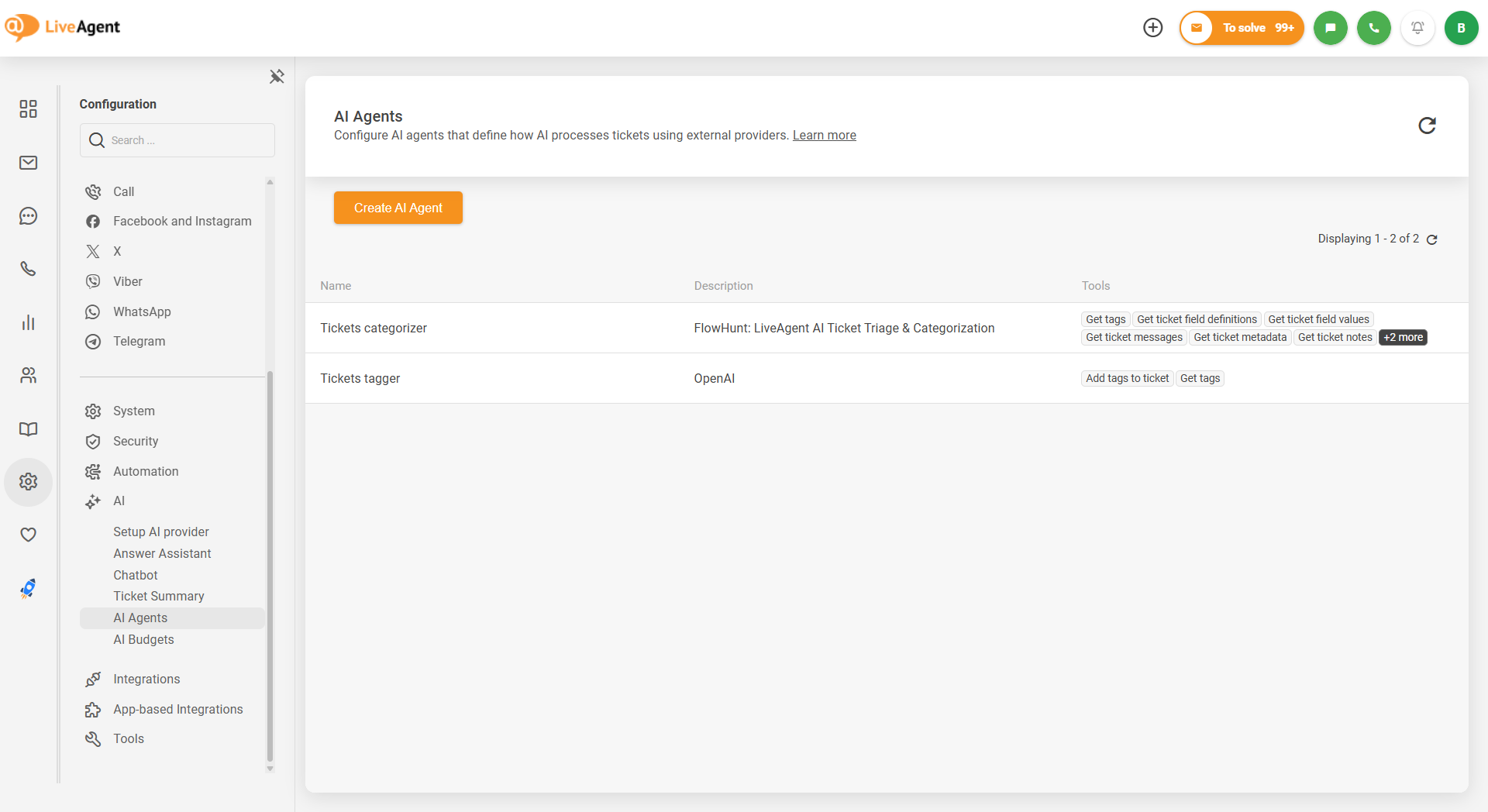
The AI Agents page, where each AI agent runs on the provider you choose for it. The two agents shown are examples.
Two details help when you set this up:
- Gemini is the label in the app for Google Gemini.
- FlowHunt is Quality Unit’s own AI platform. With FlowHunt you pick a FlowHunt AI agent instead of a model, and what that agent reads is set up in FlowHunt.
What do you pay when you bring your own AI to LiveAgent?
You pay two parties for two different things: LiveAgent for your plan, and your AI provider for the AI usage on your account, at its own prices.
| Who you pay | What for | What LiveAgent adds |
|---|---|---|
| LiveAgent | Your plan | No AI fees, no token markup, no per-resolution fees |
| Your AI provider | The AI usage on your own account, at the provider’s prices | Nothing |
Plans differ in how many AI agents you can create: 1 on Starter, 5 on Team, 50 on Business and unlimited on Enterprise. Check the AI billing on the pricing page for the current plans. LiveAgent does not publish your provider’s prices, so look up the current rates with your provider before you decide.
The MCP server works the other way round. It lets your own AI tools, such as Claude Desktop or Cursor, connect to LiveAgent. Connecting outside AI tools this way needs the Business or Enterprise plan. LiveAgent’s own AI agents use their built-in tools on every plan.

Join our newsletter
The latest tips and deals delivered straight to your inbox.
How do you set up your own AI provider in LiveAgent?
To bring your own API key to LiveAgent, create the key at your provider, add the provider under Configuration > AI > Setup AI provider, and then choose it in the feature that should use it.
Step 1: Create an API key at your provider
Open your provider’s console and create an API key. Each provider has its own steps, and LiveAgent’s knowledge base has help pages for OpenAI , Anthropic and Gemini . Keep the key private and give it a name that tells you who owns it.
Step 2: Add the provider in LiveAgent
Go to Configuration > AI > Setup AI provider. Add your provider there and paste the key. A provider must exist before a feature can use it. If none does, the Answer Assistant page tells you: “You must first set up at least one AI provider that supports Answer Assistant.”
Step 3: Choose the provider in the feature
AI Answer Assistant is a good first test. Go to Configuration > AI > Answer Assistant and click “Add model”. Then use “Choose AI provider”, pick a model and enter an “Internal name”. With FlowHunt, you pick one of the available FlowHunt AI agents instead of a model.
The add-model screen only offers providers that support Answer Assistant, and all four do. You can pause or delete a model later. Its status shows as “Active”, “Paused” or “Broken”.
Step 4: Try it on a ticket
Open a ticket and use the assistant panel. If you set up more than one model, agents can switch between them there. “Use in answer” puts the AI text into the reply editor. The agent reads it, edits it and sends it, because nothing goes out automatically. The AI Answer Assistant overview in the knowledge base explains the feature further.
Which LiveAgent AI features use your provider?
AI Answer Assistant works with all four providers: OpenAI, Anthropic, Google Gemini and FlowHunt. AI agents run on whichever provider you pick for each one. Other features, such as the “Chatbot” and “Ticket Summary”, have their own setup pages under Configuration > AI, so open each one to see what it offers.
What should you check before you connect your own key?
Check four things before you connect, because the key moves cost and responsibility to your side. This is our recommendation, not a LiveAgent rule.
- Usage limits. Know the limits on your provider account. If a limit is reached, AI Answer Assistant shows an error.
- The provider’s data terms. Read how your provider handles the prompts that come through your key, including retention and training, before you connect it.
- Your plan’s AI agent count. Make sure your plan allows as many AI agents as you want to run.
- Who owns the key. Name one person or team. When that person leaves, you want to know who rotates the key.
How do you get started?
Start a free 30-day trial, no credit card needed, and connect your AI provider. When you want an AI agent to work on its own, follow our guide on how to set up an AI agent in LiveAgent .