



AI Chatbot setup service
Effortlessly set up your AI chatbot with LiveAgent's free service. Boost customer support with tailored flows, knowledge sources & more!
5 min read

Setting up an ai customer support bot in LiveAgent takes six steps across two systems. Here’s the exact order, what each step actually does, and what to test before launch.
In this article:
Most guides to setting up an AI chatbot skip straight to “connect your AI provider” and leave out the part that actually determines whether it works: what content it answers from, and in what order to build it so nothing breaks halfway through.
This walkthrough covers LiveAgent’s AI chatbot specifically, so every step maps to a real setting you’ll actually click through, not a generic checklist. If you haven’t picked a platform yet, our guide to how to choose an AI chatbot is the better starting point.
Two things need to exist before you touch any settings. First, a defined scope: which questions is this bot actually meant to answer, and which should go straight to a human? Second, knowledge source content: help center articles, product docs, or written FAQ answers the bot can draw from. Skipping either one doesn’t stop the setup from finishing, it just produces a bot with a fine-looking configuration and no reliable answers.
| What you need | Where it comes from |
|---|---|
| A defined scope | Your team’s list of common, repeatable questions |
| Knowledge source content | Help center, product docs, or content you write directly |
| An AI provider account | OpenAI, Anthropic, Google Gemini, or another supported provider |
| A FlowHunt account | Free with LiveAgent, no separate signup fee |
A Flow is the logic that decides how the bot reads a question and what it does with the answer. You build this in FlowHunt , LiveAgent’s no-code AI automation platform, not inside LiveAgent itself.
Start from a template if one matches your use case, rather than building from a blank canvas. A Flow built from scratch takes noticeably longer to test properly than one adapted from a working starting point, since you’re validating both the logic and the content at once instead of just the content.
This is also the point to decide scope in concrete terms, not just in principle. Write down the specific categories of questions the Flow should handle, and just as importantly, the categories it should route straight to a human without attempting an answer first.
This is the step that actually determines whether the bot performs well. Connect your help center, product documentation, or any written content the bot should draw answers from. If a knowledge source is incomplete or outdated at this stage, the bot will confidently repeat that gap back to every customer who asks.
For example, a team launching support for a new product tier needs that tier’s documentation connected before launch, not added afterward once customers start asking about it.
Organize the source content before connecting it, not after. A knowledge base written for human browsing, with information spread across five linked pages, doesn’t automatically translate into a clean answer for a bot pulling from all five at once. Consolidating the core facts into fewer, more direct pieces of content usually produces better answers than connecting the existing site structure as-is.
The API key is what lets LiveAgent and FlowHunt communicate as one connected system. Generate this inside FlowHunt once the Flow and knowledge sources are in place, since you’ll need it for the LiveAgent side of setup in the next steps.
Treat this key the same way you’d treat any other credential: store it somewhere your team can find it later, and don’t paste it into a shared document or chat message where it might linger longer than it should.

The latest tips and deals delivered straight to your inbox.
Back in LiveAgent, connect the AI provider that will actually power the responses. LiveAgent supports OpenAI, Anthropic, and Google Gemini as of the September 2026 update, alongside FlowHunt’s own provider option.
Which one to pick depends less on raw model quality and more on practical fit: an existing vendor relationship, a compliance requirement pointing to a specific company, or simply not wanting every AI feature dependent on a single provider.
With the provider connected, create the Chatbot object in LiveAgent and link it to the Flow built in step 1. This is also where you set the transfer threshold, the minimum number of AI responses before a handoff to a human becomes available, or whether the AI agent decides on its own when to transfer.
Set this threshold deliberately, not as a default left untouched. Too high, and frustrated customers cycle through unhelpful responses before reaching a person. Too low, and the bot escalates questions it could have handled, which wastes agent time on requests that never needed a human at all.
The final step is applying the configured Chatbot to your live chat widget, so it’s the first thing a customer interacts with when they open chat. Nothing customer-facing changes until this step, which makes it the natural point to pause and test everything built so far.
Before this bot ever talks to a real customer, run it against your own list of known questions, the same ones you used to define scope back in step one. Note every wrong, incomplete, or confusing answer, and fix the knowledge source or Flow logic behind it before flipping the switch on the live widget.
Once it’s live, the work isn’t finished. Escalation rate, repeat-wrong-answer patterns, and customer language all shift over time, which is exactly what our guide to fixing an underperforming chatbot covers in more depth, for when performance drifts a few months in. A good first-week review habit catches most of that early, before it becomes a pattern customers notice.
Share this article
Adam is the Organic Growth Strategist at LiveAgent. He is genuinely excited about what AI agents can take off a support team's plate, and equally suspicious of any automation that makes the customer work harder to be understood.

Effortlessly set up your AI chatbot with LiveAgent's free service. Boost customer support with tailored flows, knowledge sources & more!
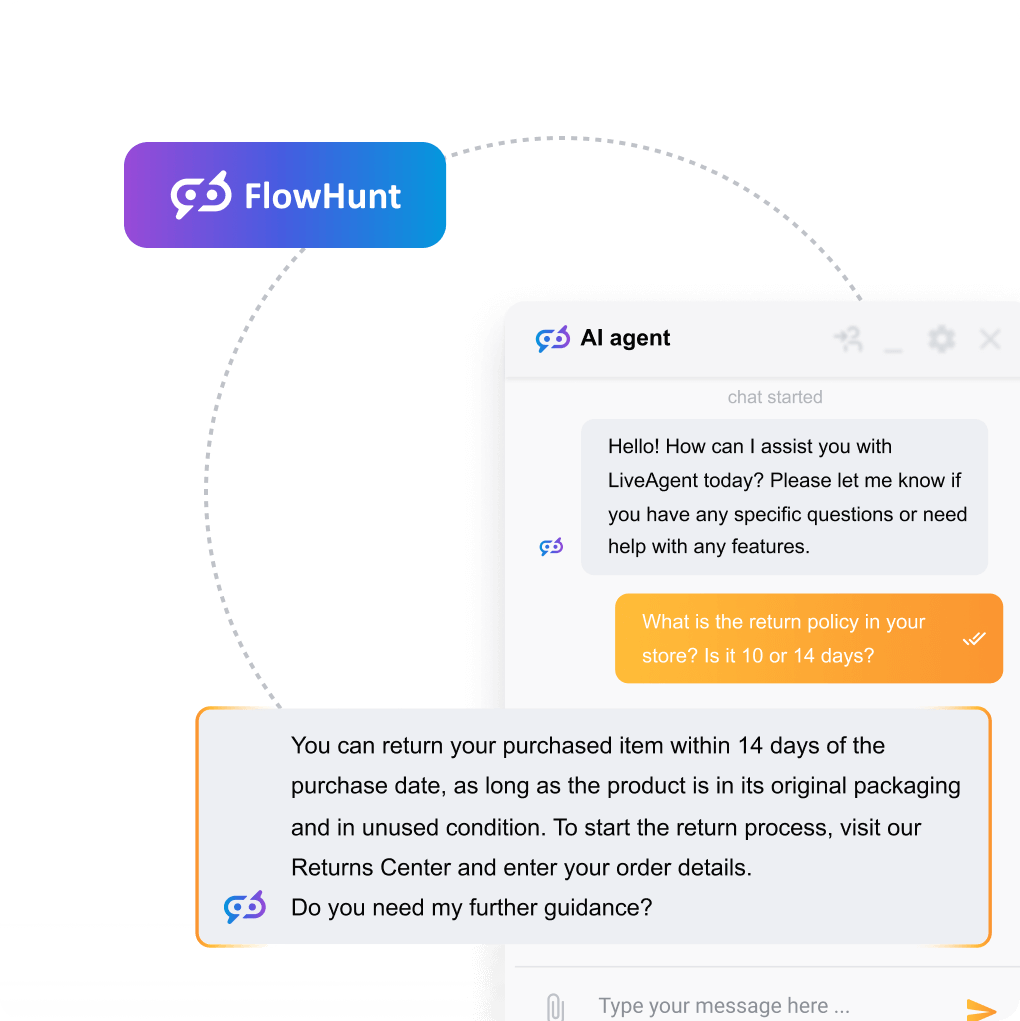
Step-by-step guide to enabling and configuring AI features in LiveAgent — AI Chatbot, Answer Assistant, escalation rules, and performance monitoring. No develop...
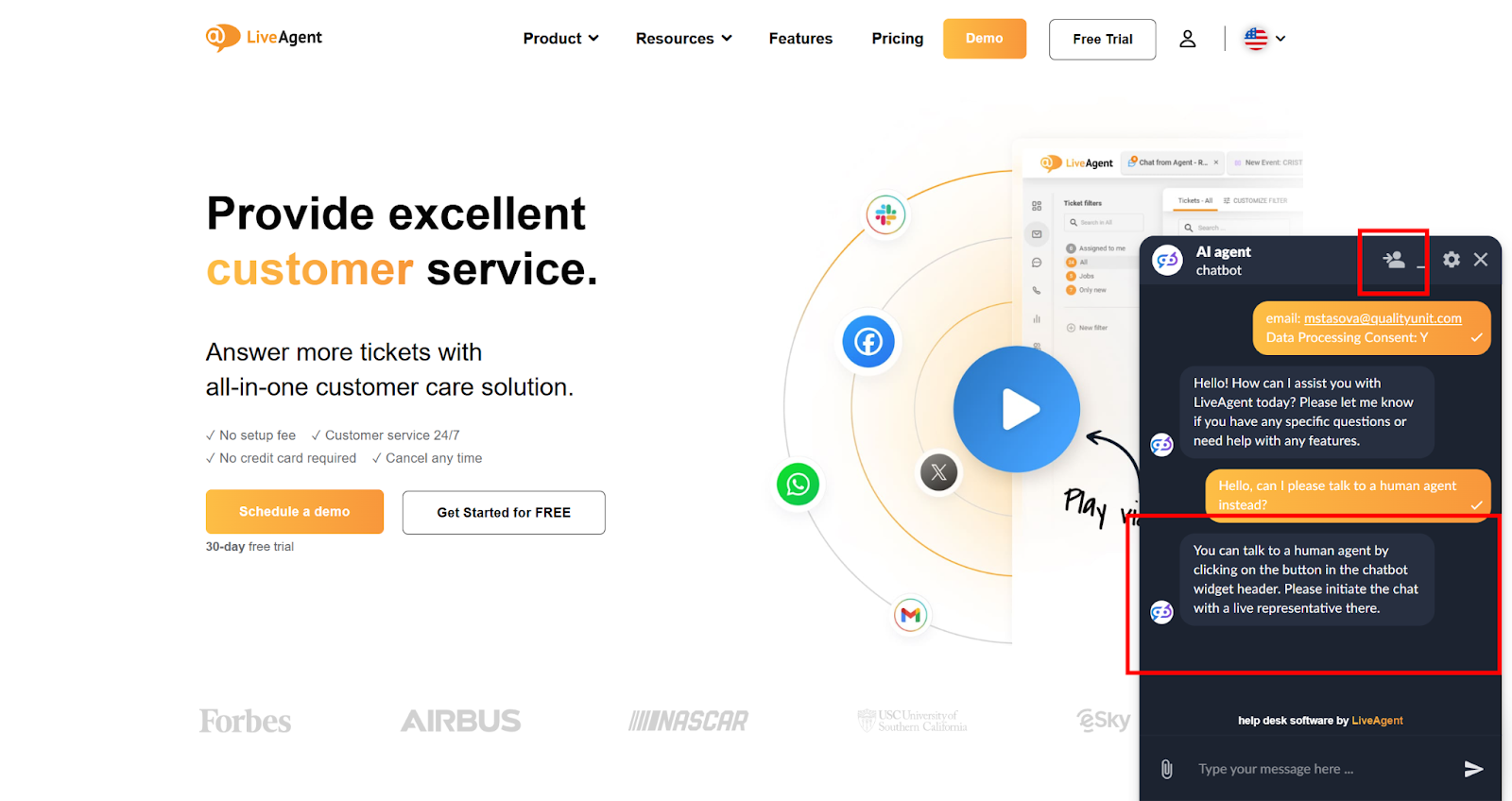
LiveAgent's AI-powered chatbot automates customer interactions, improves response times, and reduces agent workload. Integrated with FlowHunt, it handles FAQs, ...