


Migration to LiveAgent
Switch to LiveAgent with free data migration, 24/7 support, no setup fees, and a 30-day free trial. Streamline support and boost efficiency today!
6 min read
Migration
Help Desk
+1

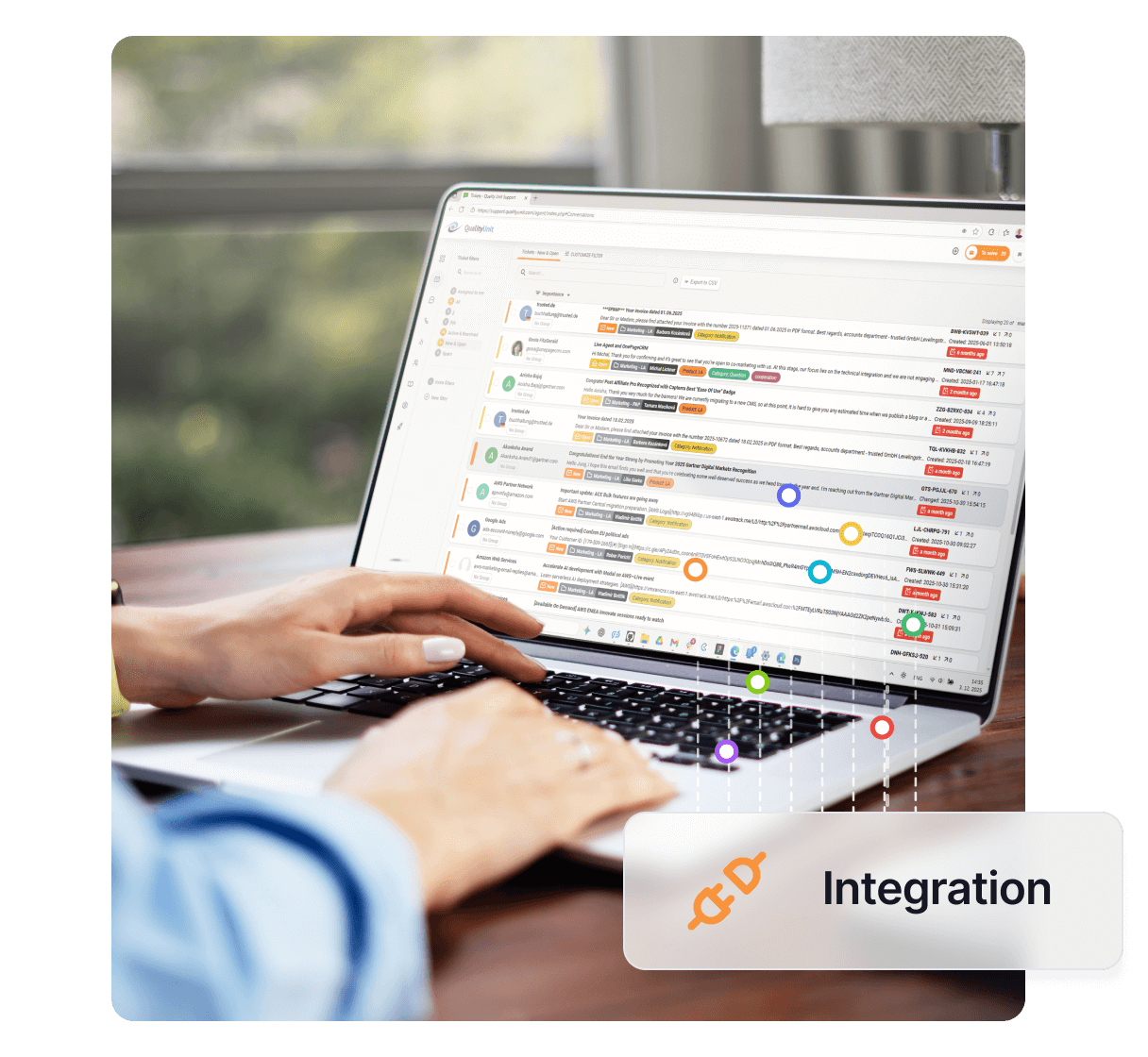
Effortlessly migrate data between help desk systems with Help Desk Migration by Relokia. Fast, secure, and reliable service for tickets, agents, contacts, and more.
Help Desk Migration by Relokia offers an easy way to import data to LiveAgent from various help desk platforms. Our migration service combines an automated data migration tool with an expert team dedicated to ensuring a smooth transition tailored to your specific requirements.
Whether you’re looking to merge LiveAgent accounts or customize a migration process, we’ve got you covered. Our service is designed to handle a wide range of data types, including tickets, agents, groups, contacts, companies, tags, attachments, and custom fields.
With Help Desk Migration, you can trust that your data migration to LiveAgent will be executed efficiently and accurately, allowing you to focus on delivering exceptional customer support without any disruptions.

Start your free trial today and see results within days.
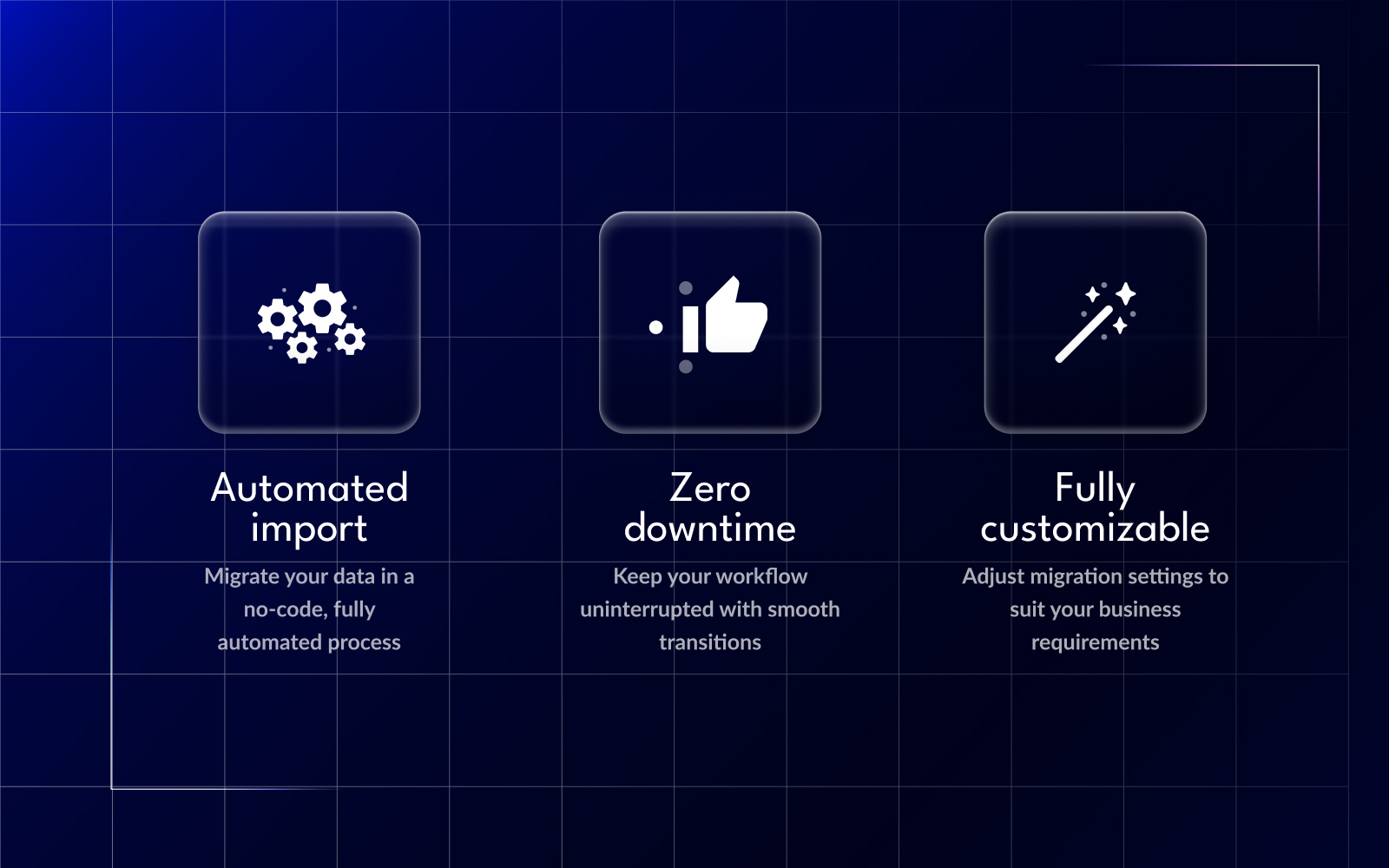
Help Desk Migration enables users to effortlessly move data between on-premise and cloud-based help desks without requiring any coding or specialized skills. The data import process is straightforward: users simply log in, configure their migration settings, run a free trial migration, and proceed with the Full Data Migration when they’re ready.
With over 8 years of experience in the field, Help Desk Migration understands the unique needs of different industries. The team is dedicated to providing assistance with specific requirements, whether it involves planning, filtering data, setup, or customizations, ensuring a smooth and tailored migration experience for every user.
You can leverage Help Desk Migration to import your data between your help desk and other business solutions, as well as vice versa. This migration service eliminates the need for countless hours typically required for manually moving data between help desk platforms.
For many companies, data migration can be a daunting and time-consuming task. Some may consider using APIs and developing their own migration tools, while others resort to manual data importing methods. However, both approaches demand significant time and effort. Moreover, diverting human resources from their primary tasks often incurs more costs than utilizing an automated data migration tool.
Help Desk Migration works similarly to some of our migration plugins and integrations with popular software like Mailchimp, Slack, Gmail, or Shopify. With Help Desk Migration and LiveAgent integrations, data is seamlessly extracted from one application and imported into the LiveAgent ticketing system.
This enables you to share information, maintain customer contacts, gather files and documents, and leverage them to enhance your operations. Additionally, Help Desk Migration offers the option to migrate your data from other help desks into LiveAgent permanently, should you decide to switch permanently to our solution and provide exceptional customer support.
And how can you use this data migration? It can work similarly to some of our migration plugins and integrations with software such as Mailchimp, Slack, Gmail, or Shopify. Help Desk Migration by Relokia and LiveAgent integrations gather data from one app and place it into the LiveAgent ticketing system.
You can use this to share information, keep track of customer contacts, gather files and documents, and use them to your advantage. Last but not least is the option to permanently transfer your data from other help desks into LiveAgent in case you want to switch permanently to our solution and provide amazing customer support.

The latest tips and deals delivered straight to your inbox.
When using Help Desk Migration, the following types of data can typically be migrated, depending on the source help desk:
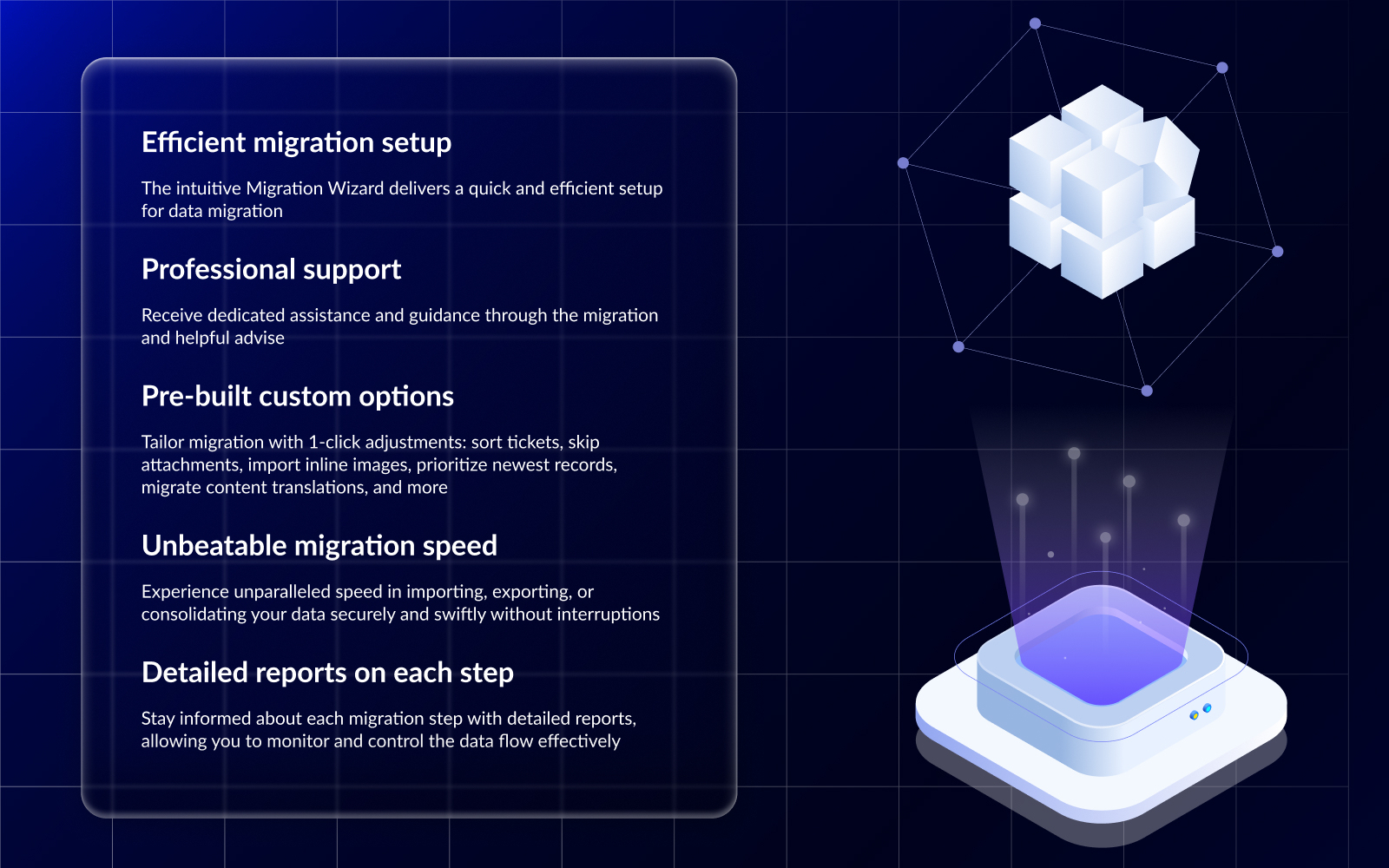
Using Help Desk Migration offers a range of benefits to streamline your data migration process:
Let’s dive into mastering Help Desk Migration—it’s easier than you might think, and it ensures a seamless data import. Here’s your step-by-step guide to breeze through this user-friendly process.
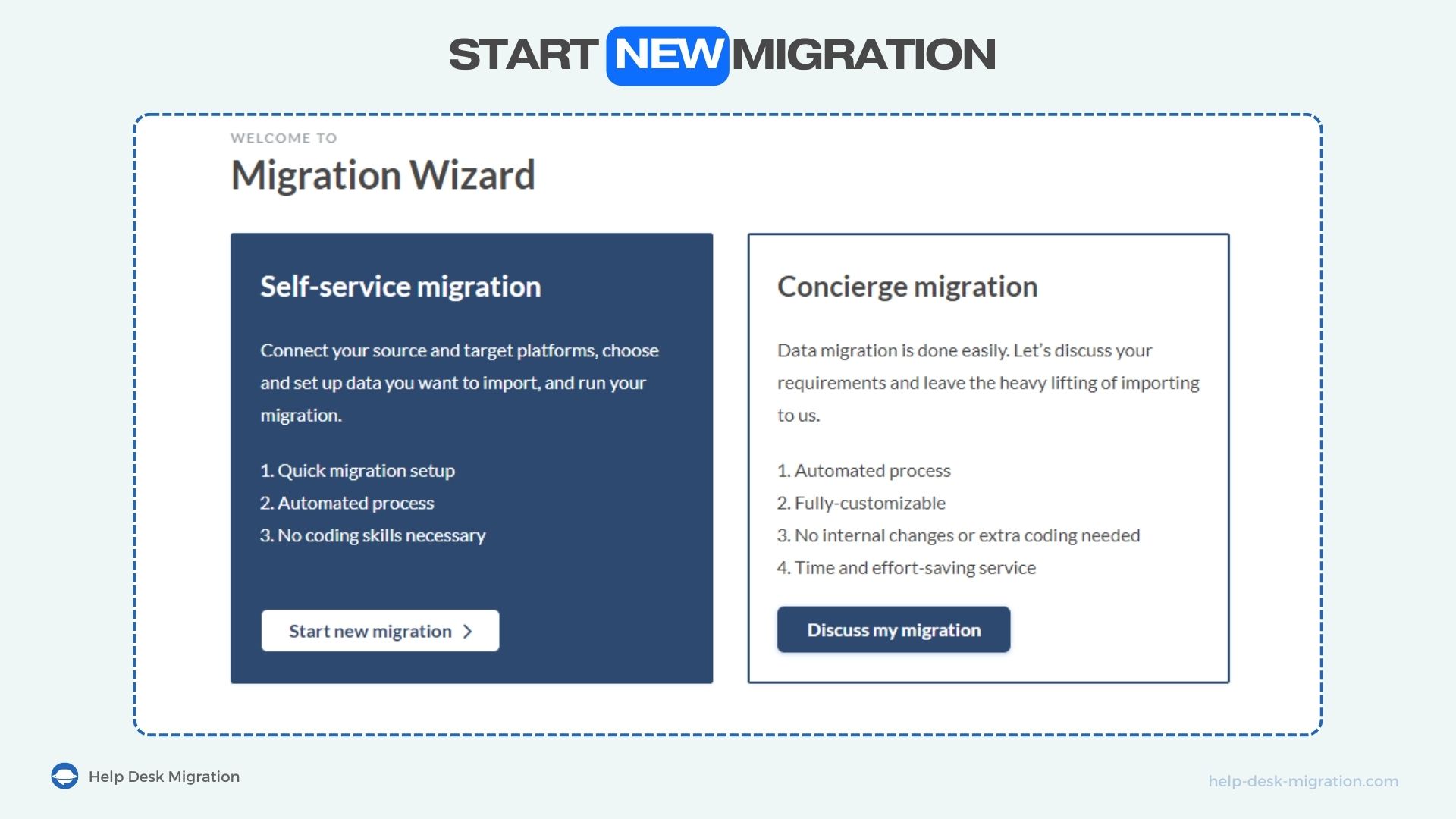
Step 1: Create an account and start a new migration
Go to Migration Wizard and create an account via a business email. Click ‘Start new migration" to set up a trial – Demo migration.
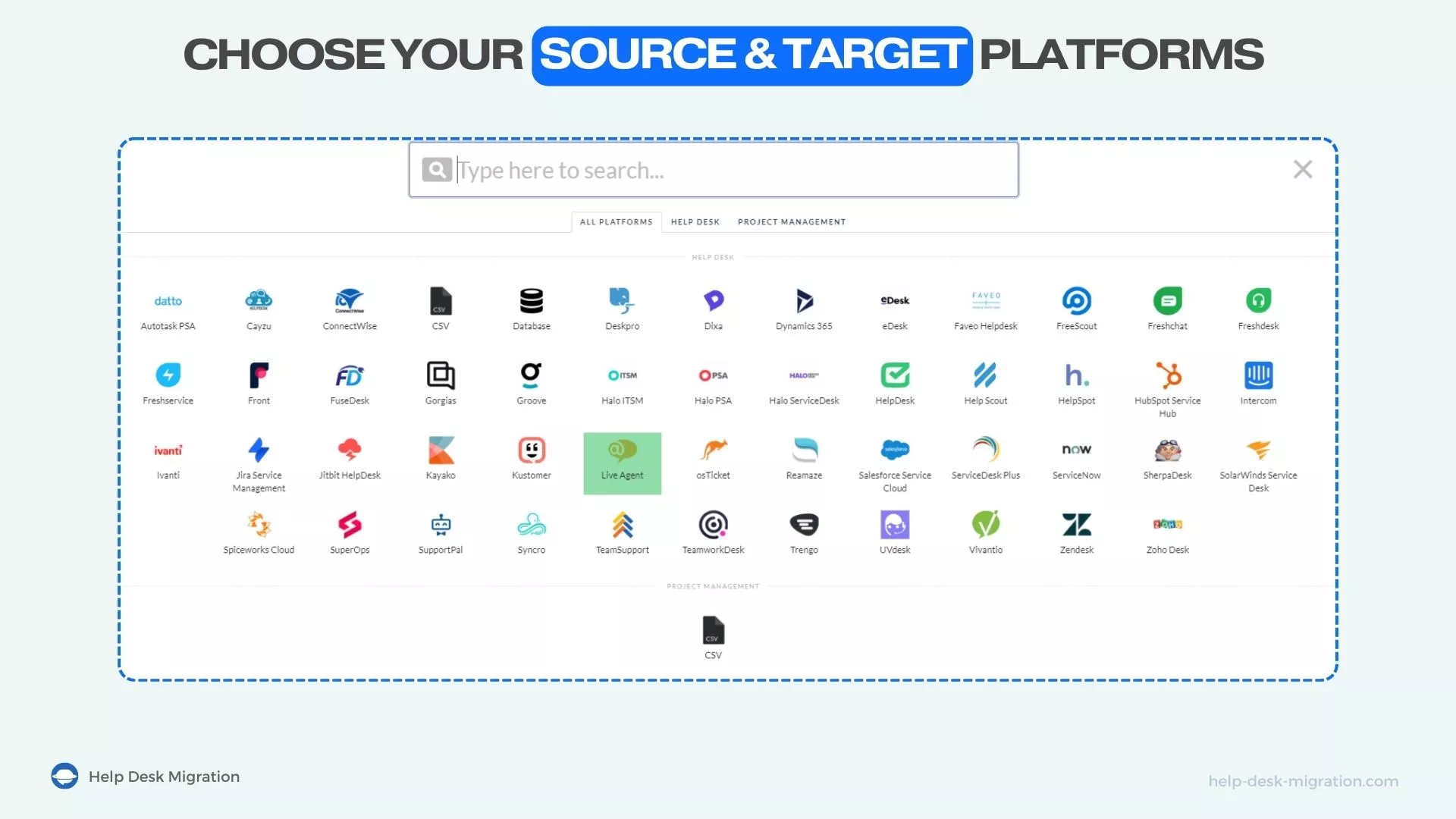
Step 2: Connect your source platform
Now, let’s get your source platform connected. You have a variety of options to choose from—whether it’s a help desk, service desk, ITSM, or PSA system, we’ve got you covered. Simply select your platform from our list of supported systems, and if you don’t see yours listed, don’t worry! You can always request a custom Source option tailored to your specific needs.
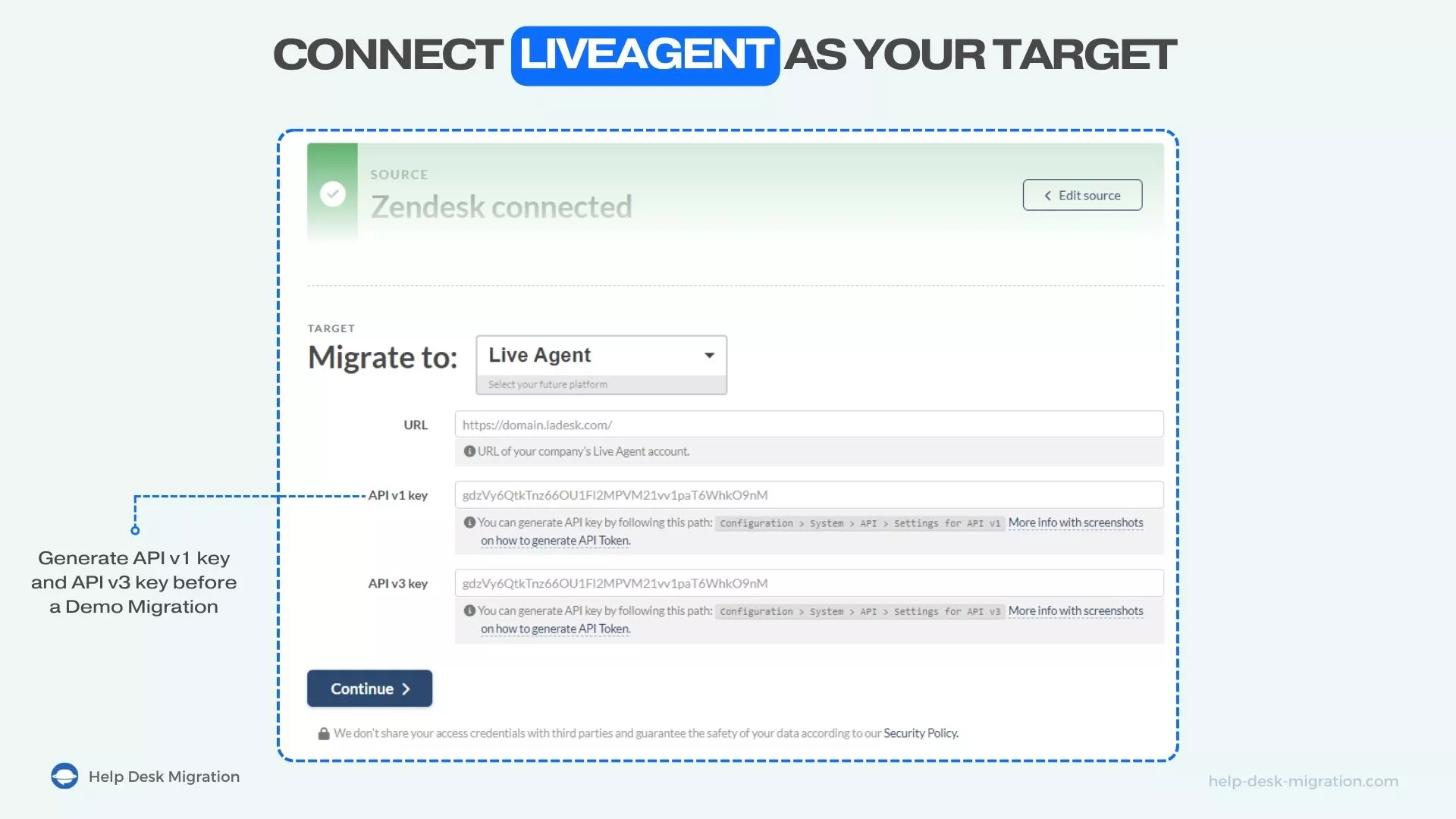
Step 3: Provide your credentials
Depending on your current help desk, you might need to provide either a URL or an API key, and sometimes both. Don’t worry, it’s a piece of cake! You can easily copy your help desk URL straight from your browser’s address bar. As for the API key, you can generate it directly within your help desk software’s settings or configuration.
If you’re not sure where to find this information, no sweat! Just refer to a guide specific to your help desk software—it’ll point you in the right direction. Once you’ve got those credentials handy, simply enter them in the designated fields and click ‘Continue" to proceed.
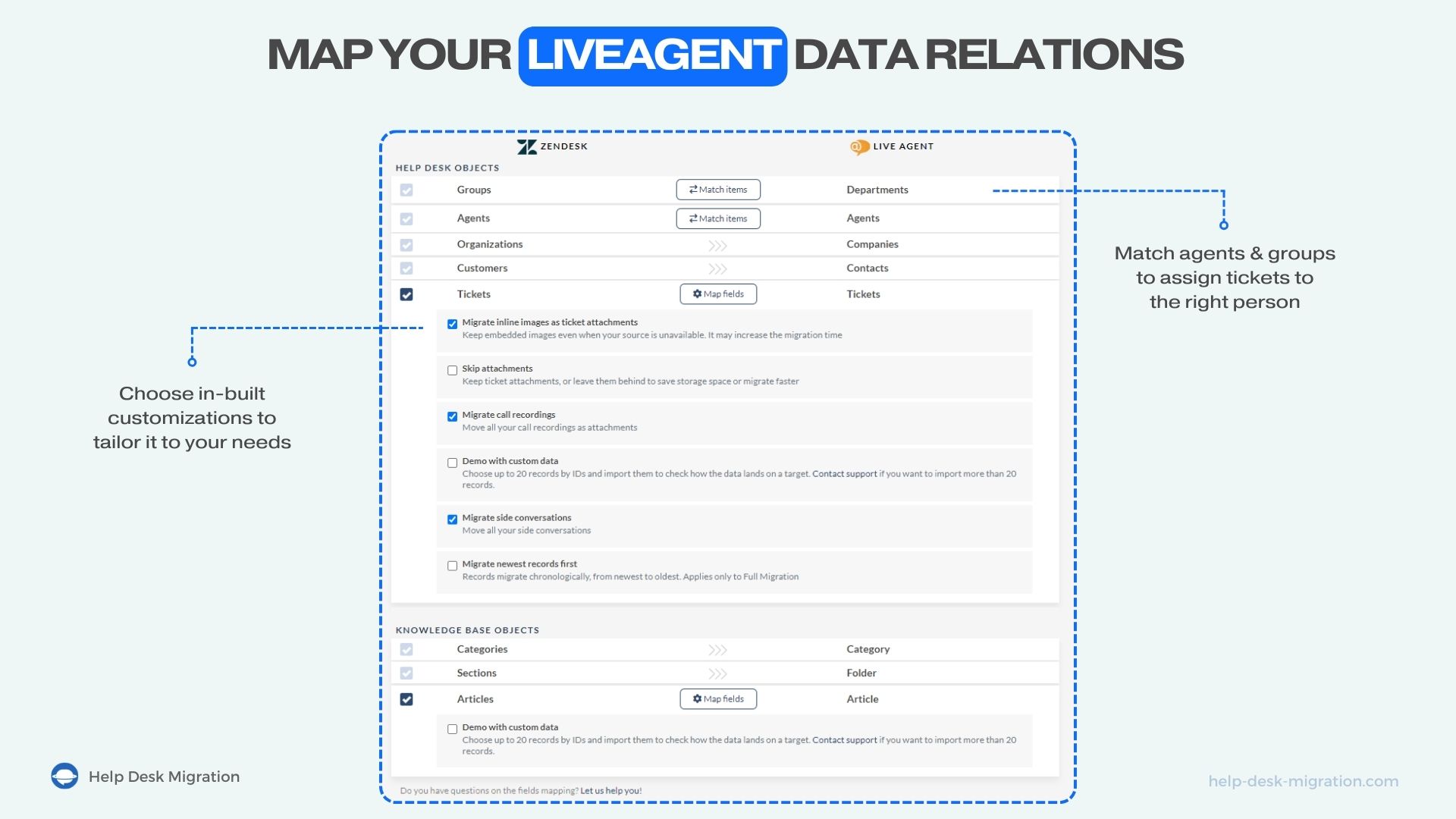
Step 4: Map your data relations
Start by selecting the data you wish to migrate. Start by matching groups and setting a default group for all inactive, deleted, and unassigned groups. Repeat this process for agents to ensure everything’s in order.
Next, it’s time to map the source and target ticket fields to maintain accurate data relations. Once that’s done, do the same for the article fields to keep things consistent.
If you’re looking to add some extra flair to your migration process, consider choosing from our pre-built automations.
Step 5: Run a Free Demo and proceed to Full Migration
Run a Free Demo to see how a small portion of your data will be migrated. Check the Demo results to ensure that everything is accurate and on point. And proceed to the payment and then to the Full migration.
The Help Desk Migration team can customize your order to fit your business needs. To request customization, submit a ticket .
That’s it, you have successfully finished the Help Desk migration by Relokia integration, and transferred your data from your old help desk to LiveAgent.

No problem! LiveAgent offers a 30-day free trial where you can test the Help Desk Migration by Relokia integration!
Switch to LiveAgent with free data migration, 24/7 support, no setup fees, and a 30-day free trial. Streamline support and boost efficiency today!
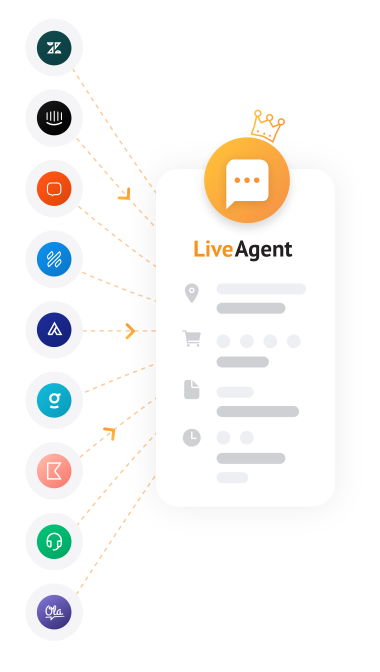
Looking to migrate your data from Teamwork Desk to a different solution? Have a look at LiveAgent and see the benefits. Start your free trial today

Easily migrate tickets, contacts, and agents to LiveAgent with our plugins. Enjoy a clean inbox with the ban IP feature. Free 30-day trial!
Join our community of happy clients and provide excellent customer support with LiveAgent.
Cookie Consent
We use cookies to enhance your browsing experience and analyze our traffic. See our privacy policy.