



Google Contacts
Google Contacts integration enables you to conveniently manage your contacts from LiveAgent. Simply integrate it via Zapier to streamline contact management and...
4 min read

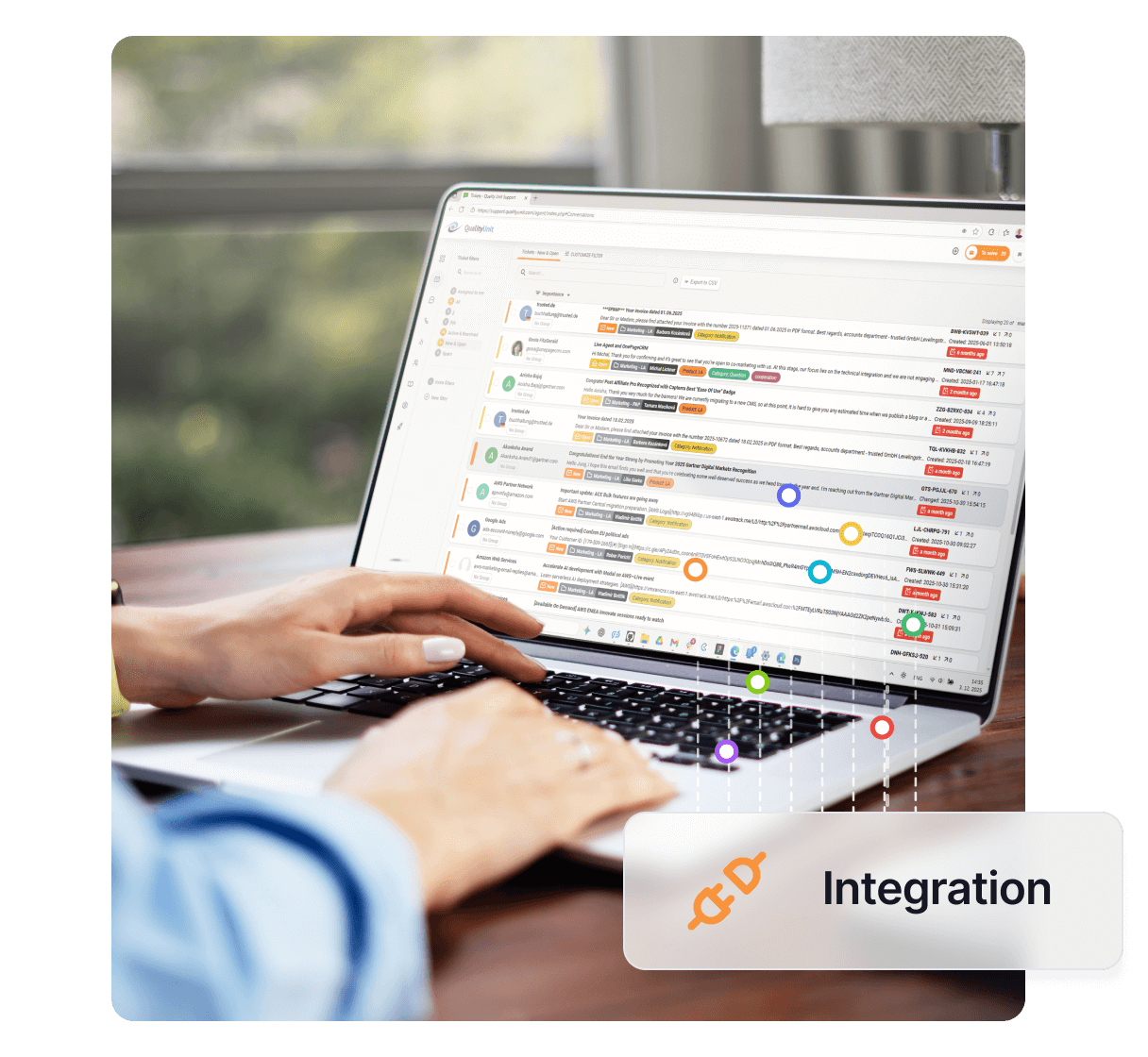
Integrate Gmail with LiveAgent for seamless customer service via a multi-user dashboard. Easily set up and manage emails through native or Zapier integration, efficiently track customer issues.
Gmail is a free email service developed by Google that serves millions of users worldwide. It’s popular due to its ease of use, intuitive user interface, and convenience of access from mobile devices. Gmail can connect to many other Google platforms and apps for easy access, making it an excellent choice for customer support and email marketing. Gmail also comes with a mobile app for on-the-go access.
By now, probably everyone who uses the internet knows what Gmail is. A free email service developed by Google serves millions of users worldwide, and chances are, it’s also their primary email address. It’s popular due to its ease of use, intuitive user interface, and convenience of access from mobile devices. Gmail can connect to many other Google platforms and apps for easy access, but it can serve you well elsewhere too. In customer support or email marketing for example. Gmail also comes with a mobile app.
Providing customer service via email is still one of the core ways how to do it, so email integration is vital. Integrating your Gmail account with LiveAgent is probably one of the first steps you will take after you start using LiveAgent help desk software. We provide you with a custom email address, but there is no reason to let all of your messages and contacts go to waste.
Providing customer support from one shared inbox can be difficult and frustrating. Furthermore, you can integrate more Gmail accounts, for example if you want to connect an extra agent email and provide better support. LiveAgent can transfer all of your messages into its ticketing system and turn them into tickets. You and your colleagues can then manage these tickets straight from your dashboard and keep better track of customer issues. Your email notification will show up in LiveAgent’s dashboard.

The latest tips and deals delivered straight to your inbox.
If you want to get rid of shared customer service inbox, follow this guide to integrate Gmail with LiveAgent. The process can be done in a matter of minutes and there is no coding experience required. The first step is to open your LiveAgent and go to Configuration > Email > Mail Accounts.
You can find the configuration section on the left side as the cogwheel icon. Click on the orange button ADD EMAIL ACCOUNT or the + button when in a smaller browser window.
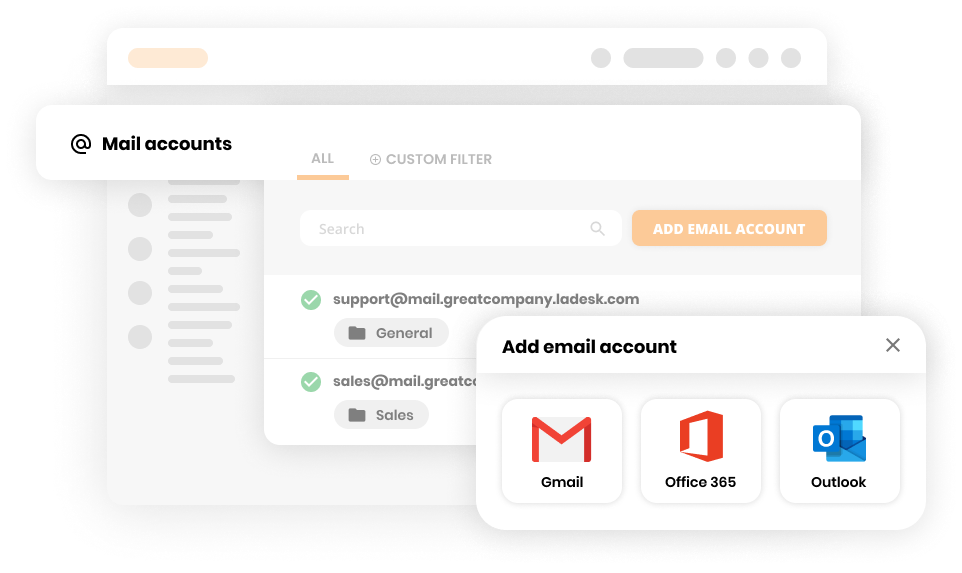
LiveAgent Mail Accounts configuration
A new window will appear, asking you to pick an email service. Pick Gmail. Now you can do a slight configuration change. You can pick a department to which the email will be assigned, you can decide if you want all previous emails from your inbox fetched into LiveAgent or if you want to set an alias for the Gmail email.
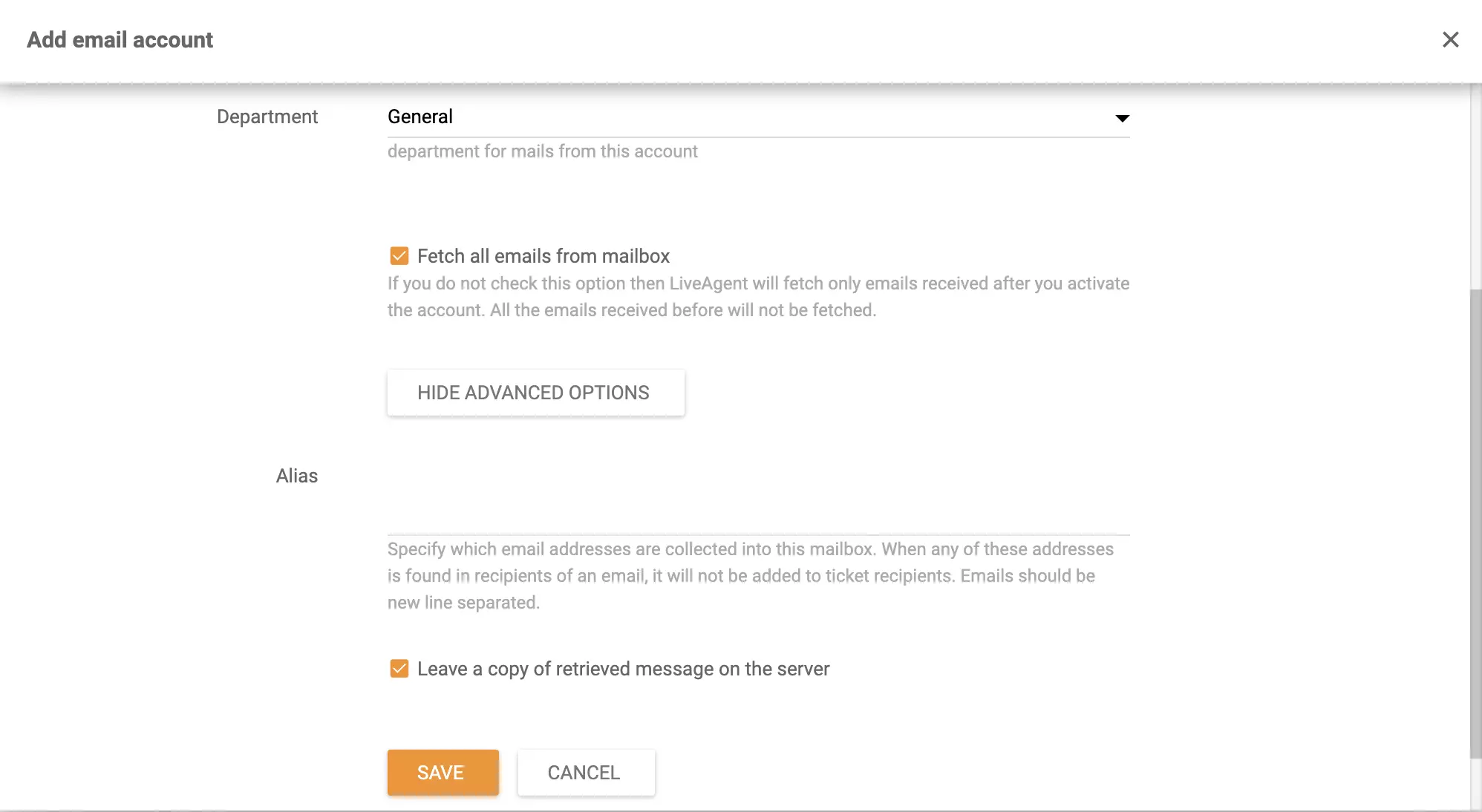
Add email account in LiveAgent
Click Save and a new window will open up asking you to choose a Gmail account you want to integrate. Click an email account connected to your browser or select another account. Click through the options in the window and when you’re finished you can see your Gmail account integrated in LiveAgent.
LiveAgent + Gmail integration on Zapier
Integrating your business Gmail via Zapier is a simple process. It can be used to create a custom integration when you need it. Zapier explains and leads you through every step during the process. If you don’t have a Zapier account, you can create it at this link. After you log in, open the LiveAgent + Gmail integration page and you’re ready to start.
Scroll down until you see Connect LiveAgent + Gmail in Minutes. In this section, you can select a trigger and an action. Trigger triggers an action. So, if something specific happens in your Gmail account, you can select what happens in your LiveAgent or vice versa. These triggers and actions can also work within a single application.
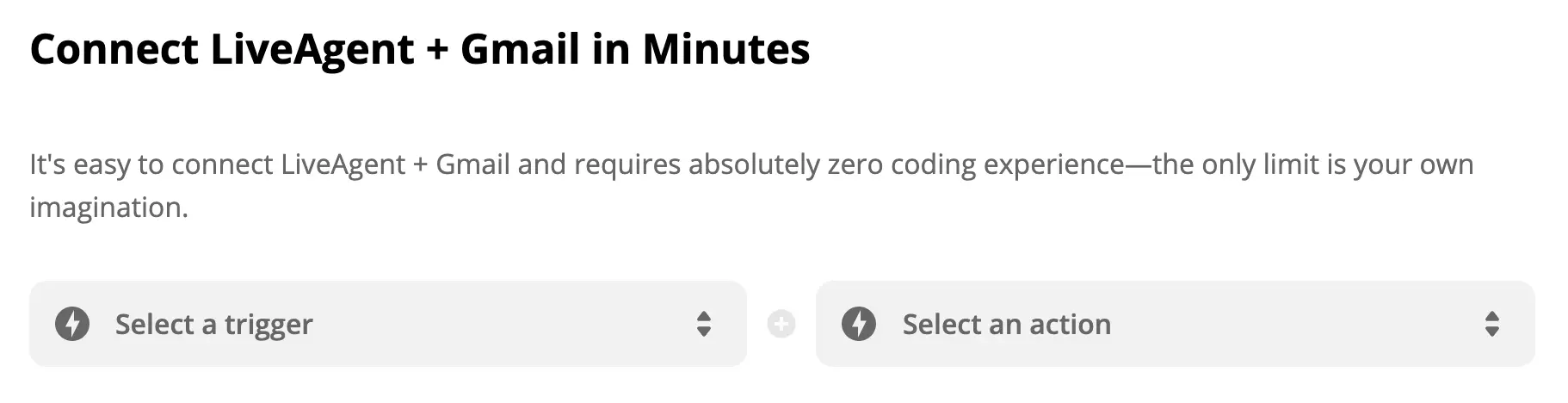
Trigger and action selection
After you made your selection, click on the blue button Connect LiveAgent + Gmail. We are showcasing Trigger: New email with Action: Start a conversation.
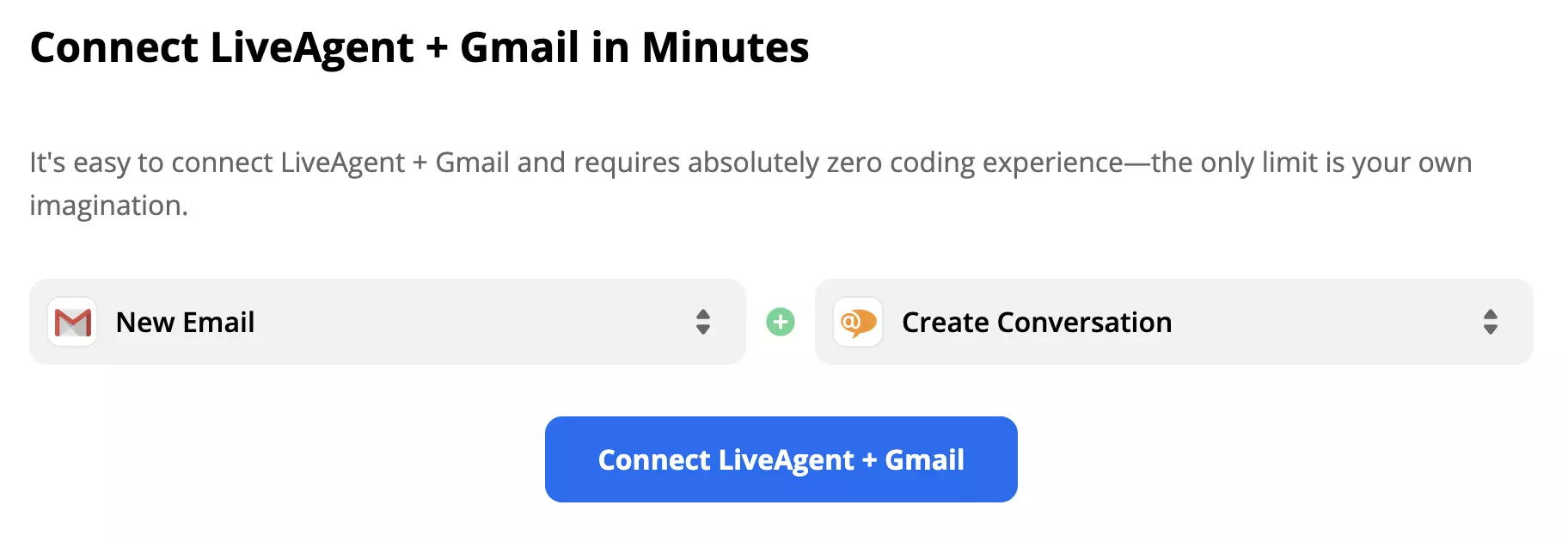
Trigger and Action example
This section is all about setting up your triggers and actions to make sure they work just the way you want them to. Zapier describes each field you need to fill out and that makes the process easier. You will need to connect your Gmail account and adjust your action settings.
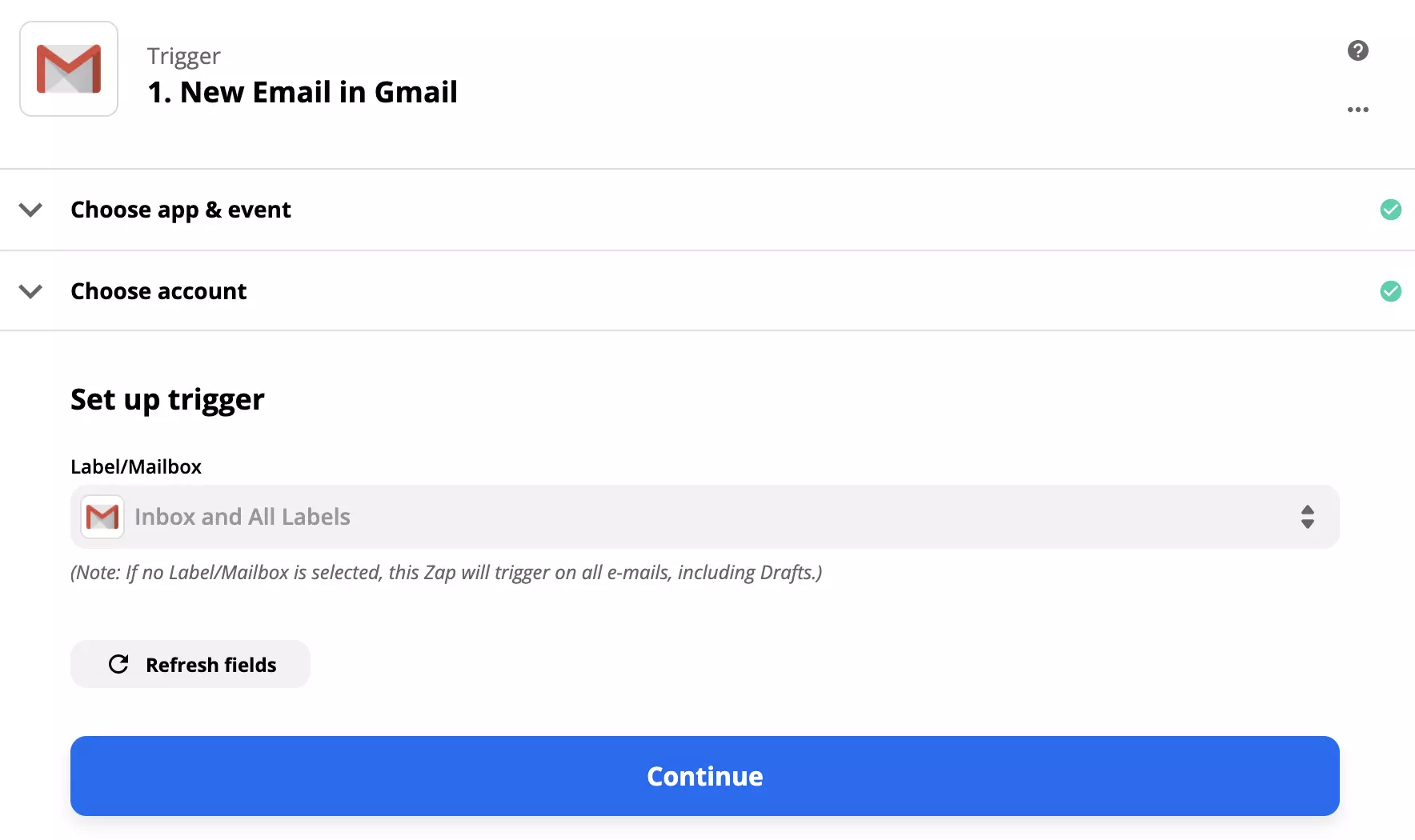
Gmail trigger configuration
When you’re done, make sure to test the trigger and see if it works. If not, Zapier will offer a troubleshooting guide for you.
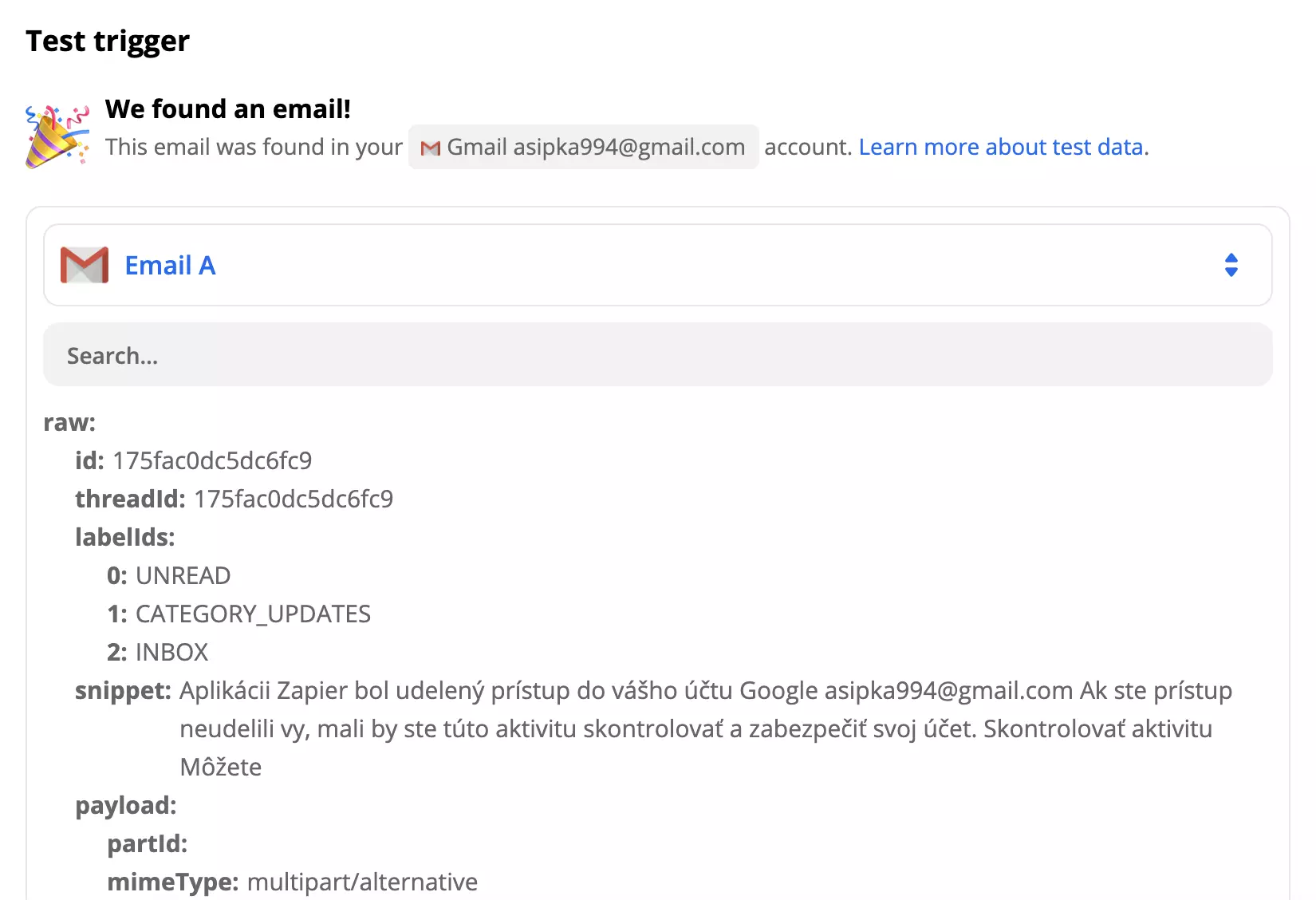
Gmail trigger test example
With your Gmail account tested and connected, it’s time to move on to LiveAgent and set up your action.
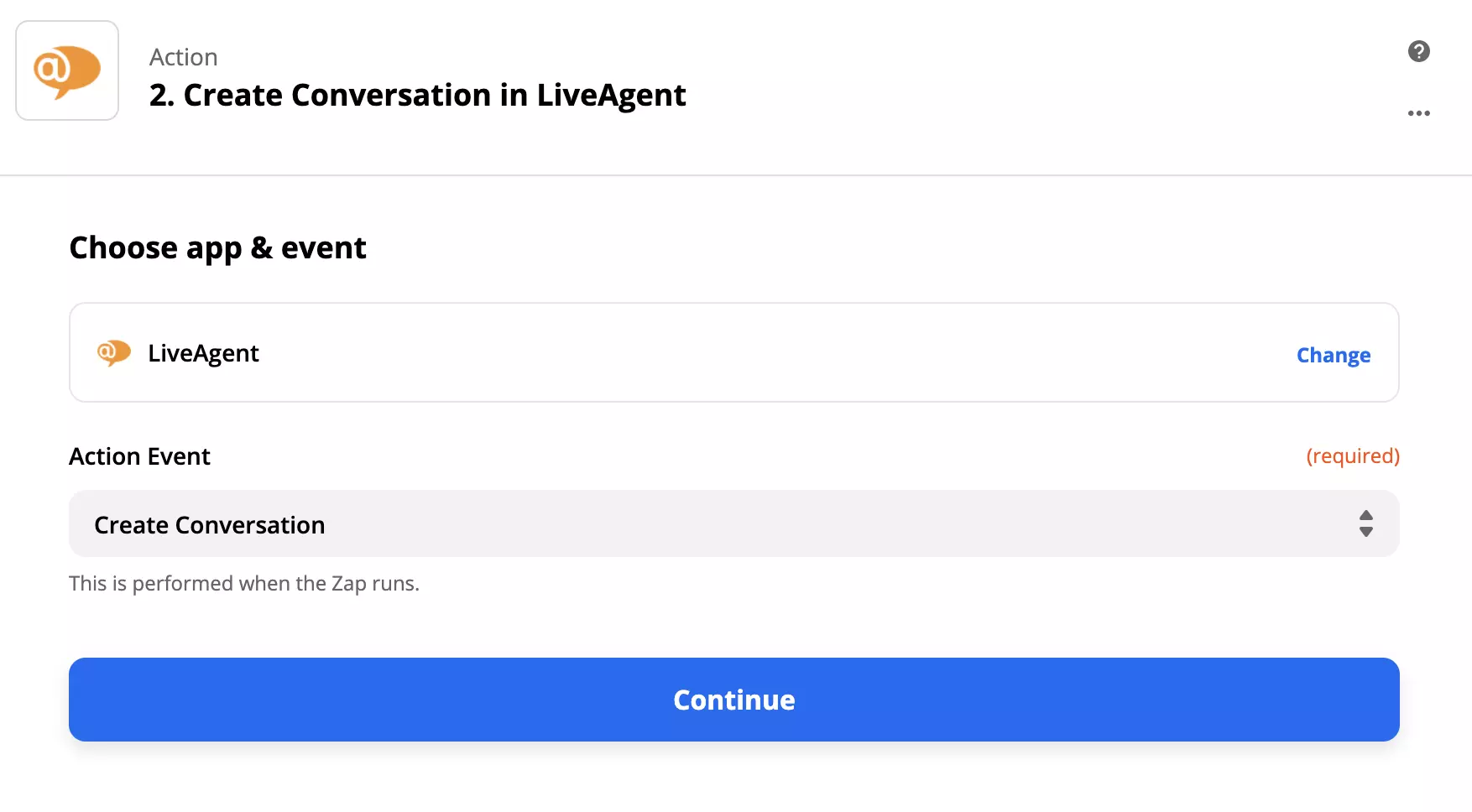
LiveAgent action configuration
LiveAgent requires more specific information about the desired action. These include selecting the affected department, message details, and more. Follow through with each of these steps. After you’re done, test the action and trigger and see if they work. You can see the results of your test in LiveAgent.
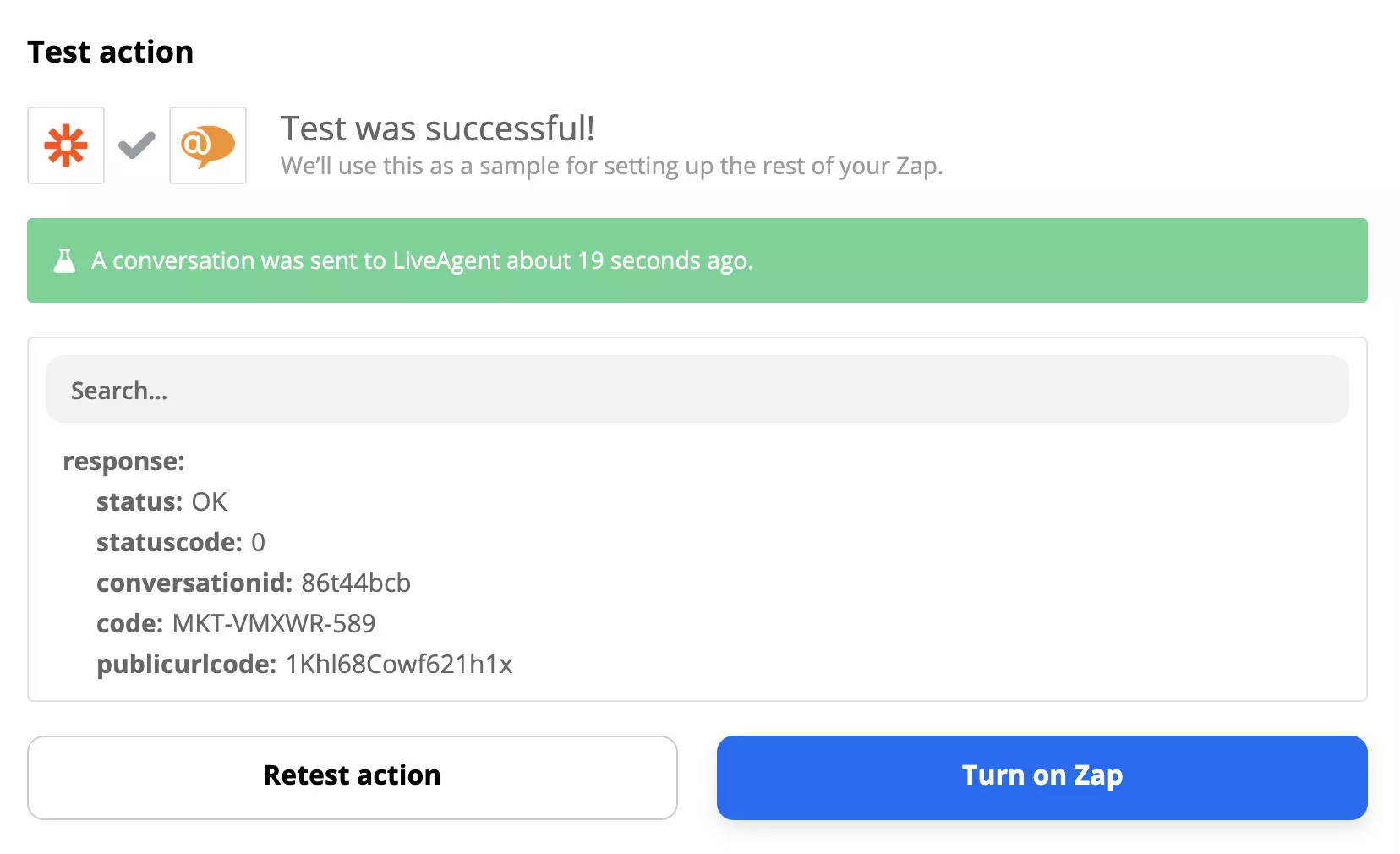
LiveAgent + Gmail integration test successful
That’s it. You can create other triggers and actions via Zapier and customize your LiveAgent and Gmail workflow to your liking.
And if you’re looking for other email solutions, we have a separate article dedicated to finding a good alternative for different needs. It covers a range of options that might be the perfect fit for your business or even personal needs. Check out our comprehensive guide to find the best Gmail alternative that will meet your requirements.
Google Contacts integration enables you to conveniently manage your contacts from LiveAgent. Simply integrate it via Zapier to streamline contact management and...
Zoho Mail integrates with LiveAgent to streamline email management for businesses, enhancing workflow efficiency by consolidating emails into one Universal inbo...

Boost workflow efficiency with LiveAgent's help desk integrations like Slack, Zapier, and API. Automate processes, share data, and enhance customer service. Try...
Cookie Consent
We use cookies to enhance your browsing experience and analyze our traffic. See our privacy policy.