LiveAgent’s custom ticket fields enhance customer support by storing essential data, speeding response times, and improving service quality. Create unlimited fields with various input formats to tailor your helpdesk system.
Ticket Management
Custom Fields
Ticketing
What are ticket fields?
Ticket fields contain data about tickets. Support agents typically use them to gather and store additional information about specific customers and their queries. For example, when a customer reaches out about a problem with their order, you can save their order ID in a custom ticket field for future reference.
As a result of creating a custom field, each support agent will be able to view the essential information pertinent to that ticket, which can speed up follow-up responses and generally improve the quality of service.
What kind of information can you store in ticket fields?
With LiveAgent help desk software, the possibilities are endless. You can create unlimited custom ticket fields with multiple data input formatting options.
Ready to grow your business?
Start your free trial today and see results within days.
Date formats (YYYY-MM-dd or YYYY/MM/dd or dd-MM-YYYY)
Time format (HH:MM)
Social security number (123-45-6789)
Join our newsletter
The latest tips and deals delivered straight to your inbox.
Examples of ticket fields
Don’t know what kind of ticket fields might be helpful? Check out our examples for inspiration:
Order ID
Credit card number
Social security number
Credit score
Faulty promotion code
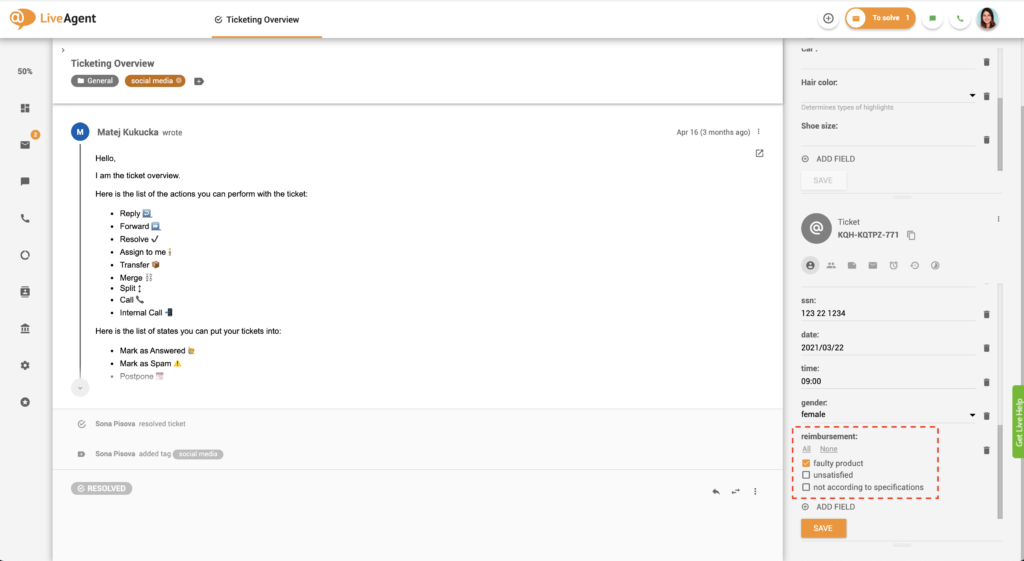
Reason for reimbursement
Website
Account name
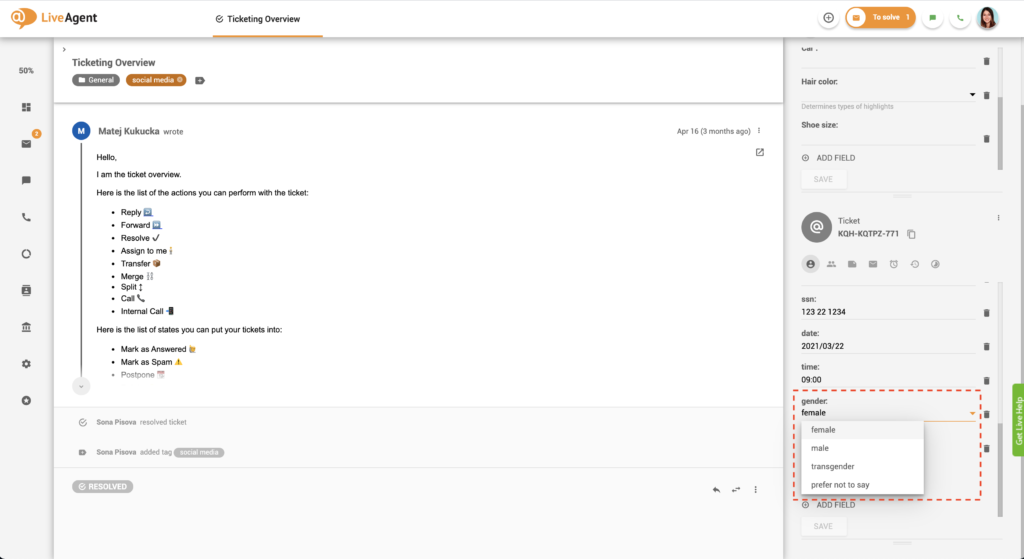
Gender and pronouns
How to create ticket fields
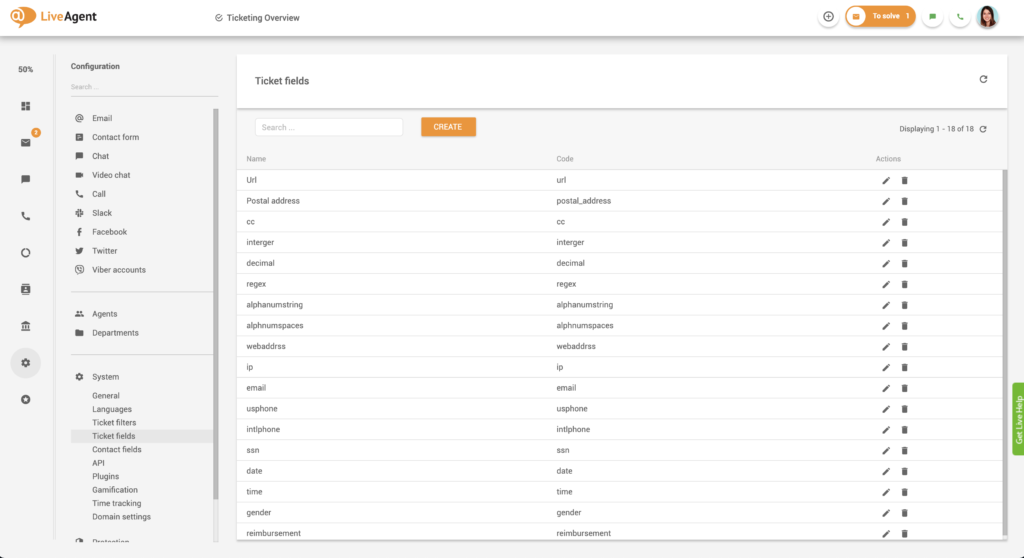
Log in to LiveAgent.
Click on Configuration.
Click on System.
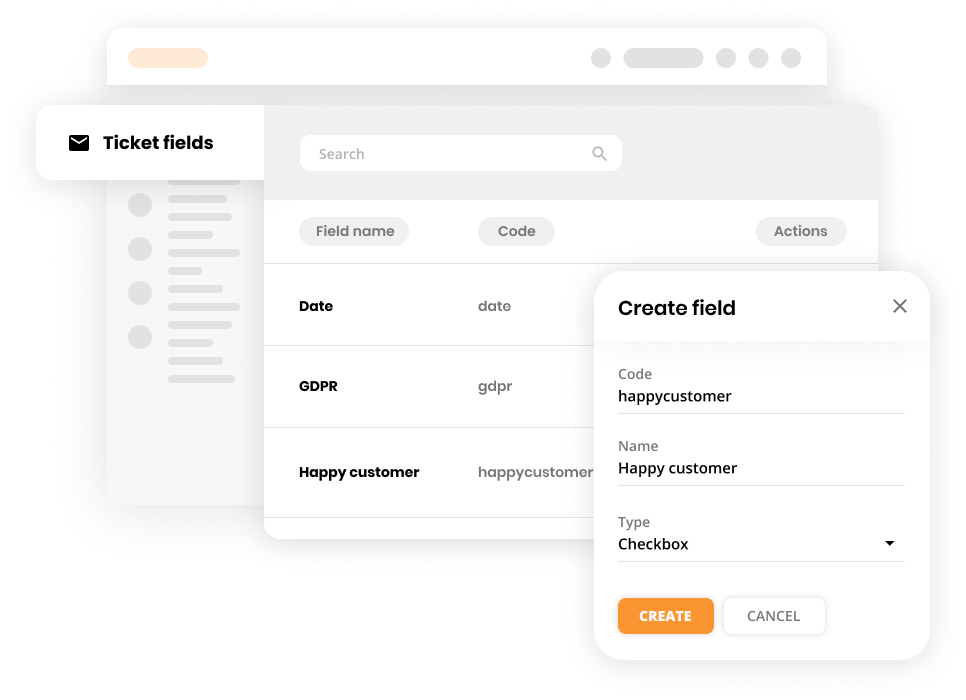
Click on Ticket fields.
Click on the orange Create button next to the search bar.
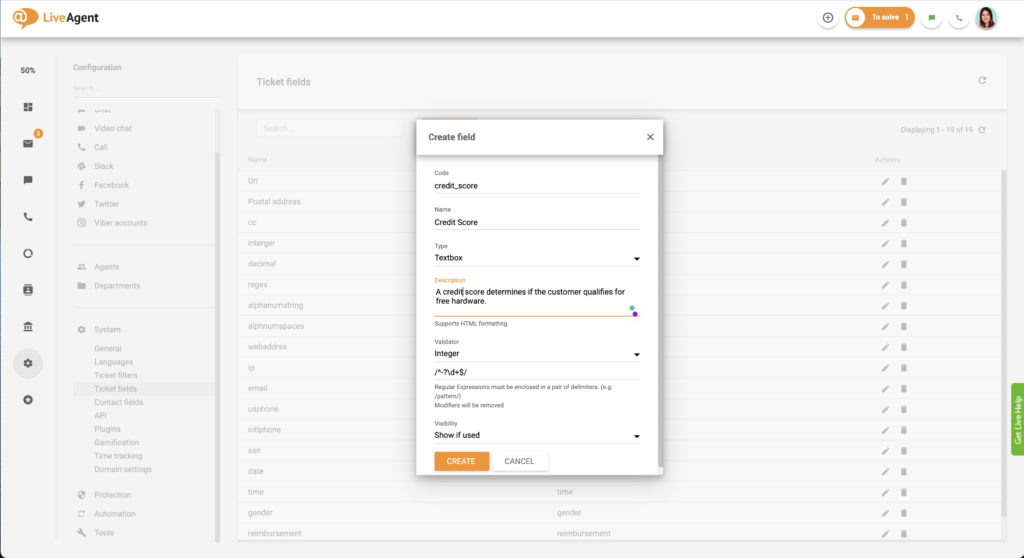
Set a code name for your custom ticket field. For example, it can be something like “order_id” or “reimbursement”. Please note that only lowercase letters, numbers, hyphens, or underscores are allowed in the code. You may not use spaces.
Name your custom ticket field. This time you can name it “Order ID” or “Reimbursement Reason” without any formatting restrictions.
Click on Type and select the input option that suits you best. You can choose from the following formats: textbox input, list box, checkbox, checkbox group, or postal address.
Optional: Click on the description and write a description for the custom ticket field. You and your staff can find out additional details about the ticket field after reading the explanation.
Select the Visibility option and choose whether you want the ticket field to be always visible in the ticket info panel.
Click on Create.
Where are ticket fields located inside the ticket view?
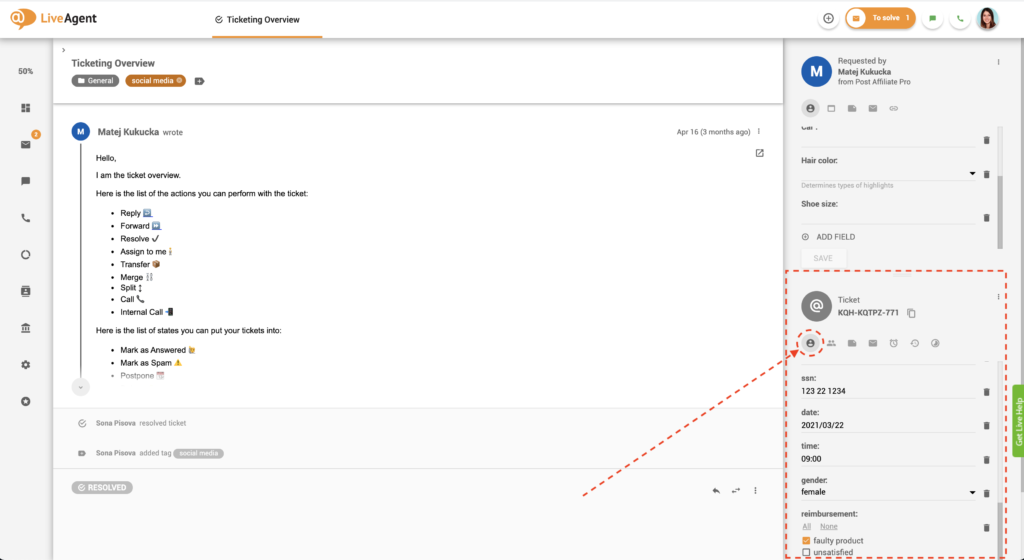
You can find ticket fields in the lower right-hand corner of your screen as you work on a ticket. The Fields icon will help you find them.
Adding or creating new ticket fields inside tickets
Log in to LiveAgent.
Click on Tickets.
Select a ticket by clicking on it.
Click on Fields in the lower right-hand corner of the screen.
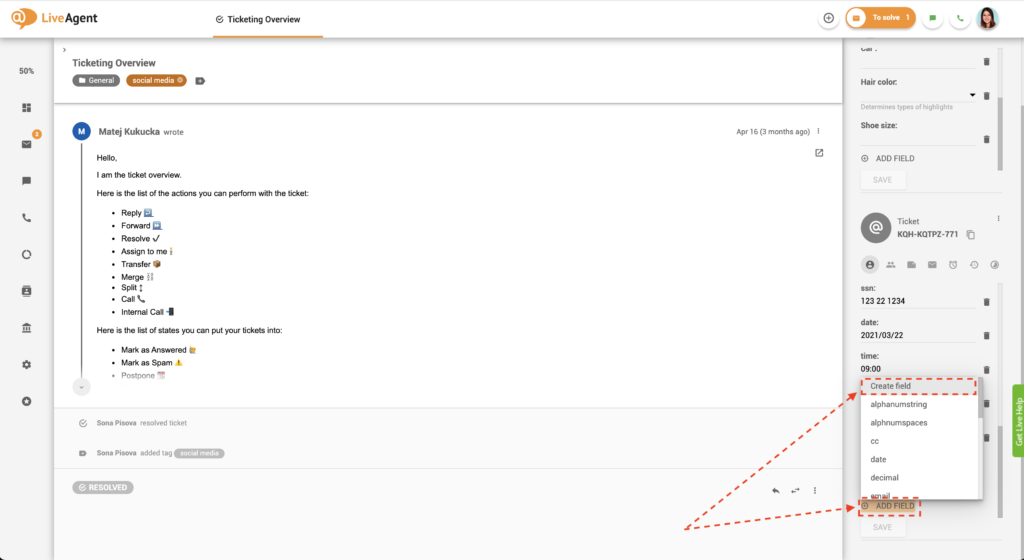
Click on Add Field.
Follow steps 6-10 from the instructions above.
Fill in the ticket field that you just created.
Click on Save.
Deleting custom ticket fields
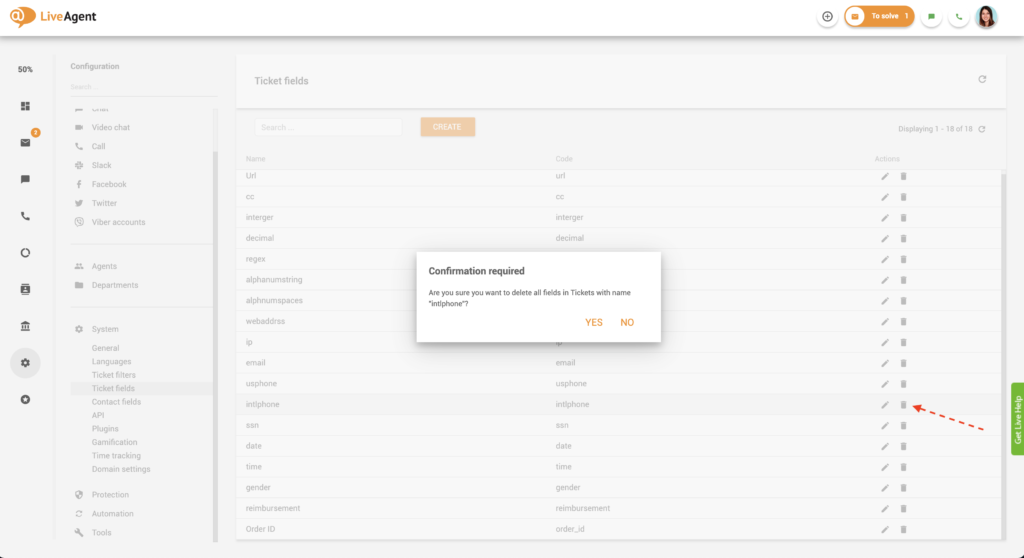
To delete a custom ticket field from a ticket, click on the trash icon next to it. Alternatively, if you want to delete a custom ticket field completely (and remove it from all tickets):
Log in to LiveAgent.
Click on Configuration.
Click on System.
Click on Ticket fields.
Find the ticket field you want to delete and click on the trash icon.
Click on Yes in the confirmation dialog.
How can you benefit from custom ticket fields?
Custom ticket fields are a help desk feature that can help you provide better service. By having all the essential ticket information at hand, you’ll be able to provide quick, knowledgeable, and personalized customer support. These custom ticket fields are accessible to all support agents within the help desk ticketing tool.
By using ticket fields, agents can easily locate important information within tickets, saving valuable time and enhancing the overall customer support experience. Moreover, the custom information will be available to all support agents, making it easier to hand off tickets seamlessly.
For example, suppose an agent is assigned an open ticket that contains a long communication thread. With custom ticket fields in place, they can easily spot the essential information instead of scrolling through the entire ticket thread to find it. Let’s say that the customer wants to be updated about the progress of their refund. As opposed to having to scroll through previous messages to find their order ID, or worse — having to ask the customer for it again, agents can have the information easily accessible with custom ticket fields.
Create unique ticket fields (such as order ID or GDPR consent) with our support ticket system to provide the best possible customer service experiences. Start a free 30-day trial
today. No credit card is required.
Frequently asked questions
Ticket fields contain data about tickets. Support agents typically use them to gather and store additional information about specific customers and their queries. For example, when a customer reaches out about a problem with their order, you can save their order ID in a custom ticket field for future reference.
With LiveAgent help desk software, the possibilities are endless. You can create unlimited custom ticket fields with multiple data input formatting options including textbox, listbox, checkbox, checkbox group, and postal address formats.
Custom ticket fields help you provide better service by having all essential ticket information at hand. This enables quick, knowledgeable, and personalized customer support. Agents can easily locate important information within tickets, saving valuable time and enhancing the overall customer support experience.
Create unlimited custom ticket fields
Create unique ticket fields (such as order ID, or GDPR consent) to provide the best possible customer service experiences.
Contact Fields - Help Desk Customer Information Management
LiveAgent's contact fields store detailed information about contacts, like name, email, and job position. Create unlimited custom fields to enhance sales, marke...
Help desk contacts in LiveAgent store essential customer information for personalized marketing and service. Create custom fields to manage data like language p...
Ticketing filters in LiveAgent help you quickly locate specific tickets by applying settings and rules to search queries. Enhance your ticket management and str...
6 min read
Filters
Ticket Management
+1
You will be in Good Hands!
Join our community of happy clients and provide excellent customer support with LiveAgent.